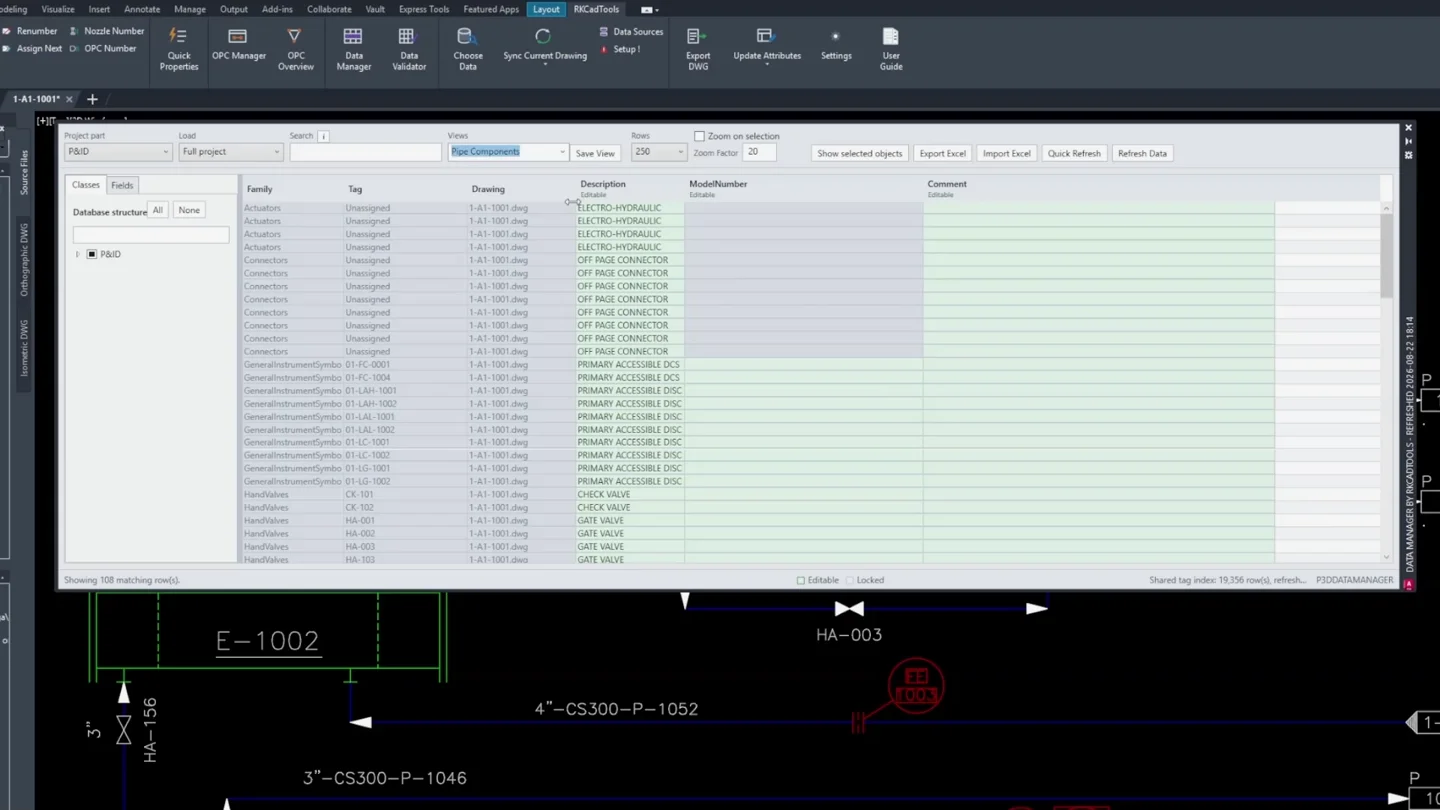
Data Manager
Review and edit project tables, save focused views, and exchange data with Excel. Review pending edits before accepting them.
Find RKCadTools features by task: edit properties and tags, compare P&ID and 3D data, manage OPC connections, prepare welds and isometrics, and deliver drawings, revisions and Excel reports. Each tool shows its drawing scope and setup requirements.
Review and edit project tables, save focused views, and exchange data with Excel. Review pending edits before accepting them.
Copy mapped external or area values into editable Plant properties. Configure matching and review proposed changes before enabling optional automation.
Compare two or three sources and report discrepancies, missing keys and duplicates. You decide which source values to correct.
Edit component properties, assign tags and review numbering.

P&ID · 3D Piping
Edit selected P&ID or 3D object properties in a focused palette. Include editable line-group fields and choose visible or read-only fields for each class or family.
Go deeper
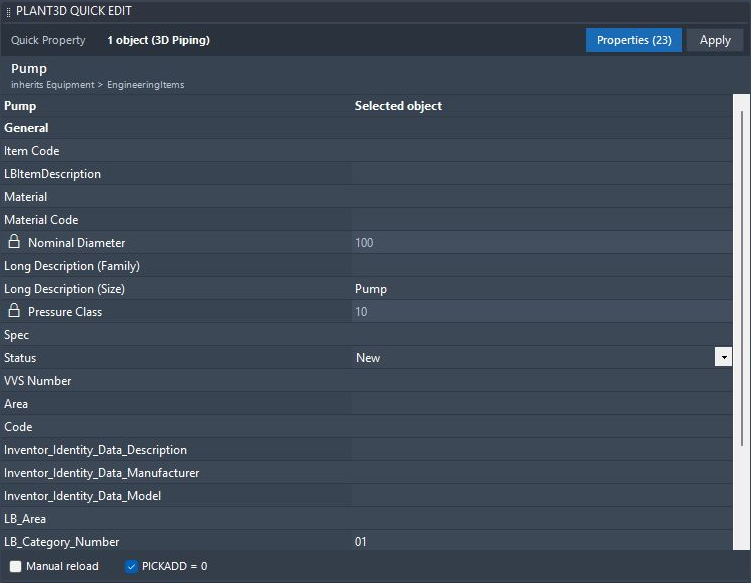

P&ID · 3D Piping
Assign Tag Extended · Beta
Edit tag fields and configured extra properties in one form. Use Assign Next to pick objects in sequence and assign the lowest available number for each tag prefix.
Go deeper
P&ID
Get an easy overview of invalid tags, missing values, and duplicate tag issues so re-tagging and control happen before review comments.
Go deeper
Review project tables, exchange external data and compare P&ID with 3D.

P&ID · 3D Piping
Load P&ID or 3D Piping project data by class, select the fields you need, and review or edit allowed values in one searchable table. Exchange data with Excel and reuse saved views.
Go deeper
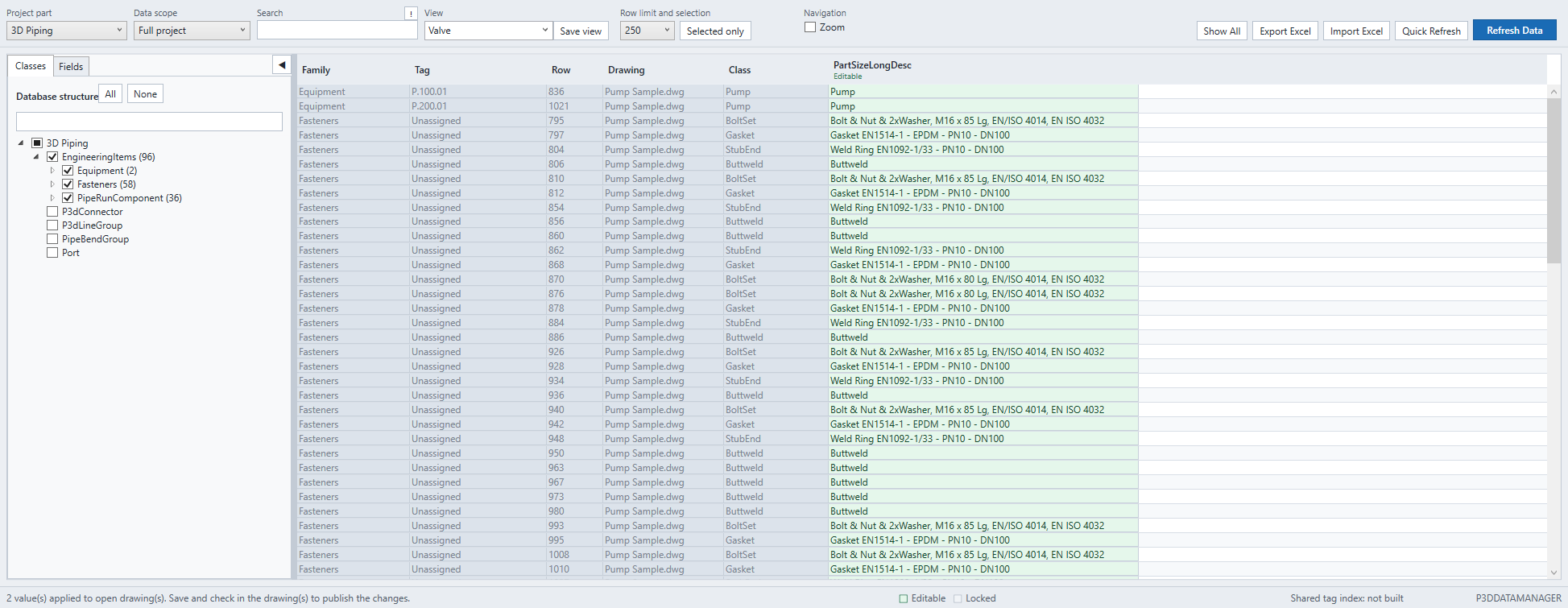

P&ID · 3D Piping · Configuration required
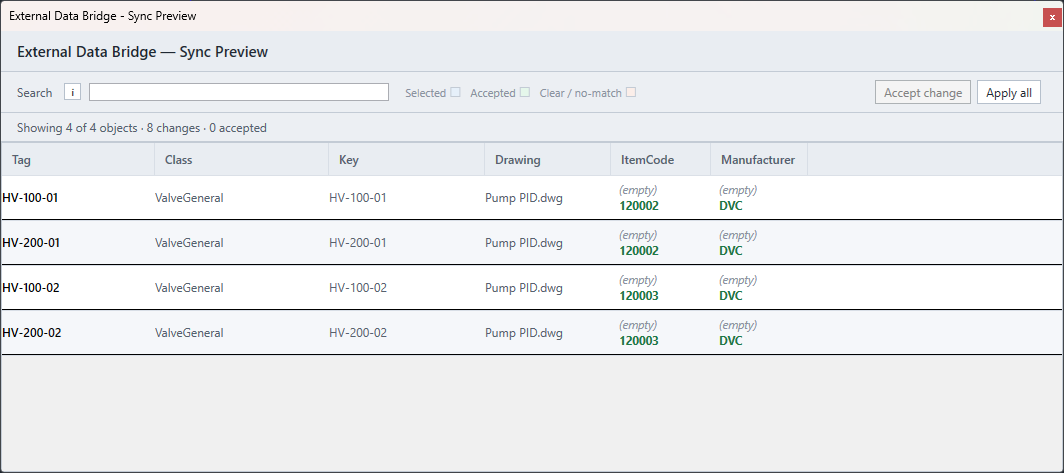
Map Excel, SQLite, SQL Server or OData fields to Plant 3D properties. Choose a source row for selected components, or synchronize configured mappings in the active drawing or all open drawings.
Explore Plant 3D Data Bridge: mapping and Area properties →

P&ID · 3D Piping · External data
Compare two or three data sources using matching keys and mapped properties. Cross-check P&ID data, 3D Piping data and external Excel, SQLite, SQL Server or OData sources to find discrepancies before issue.
Go deeper
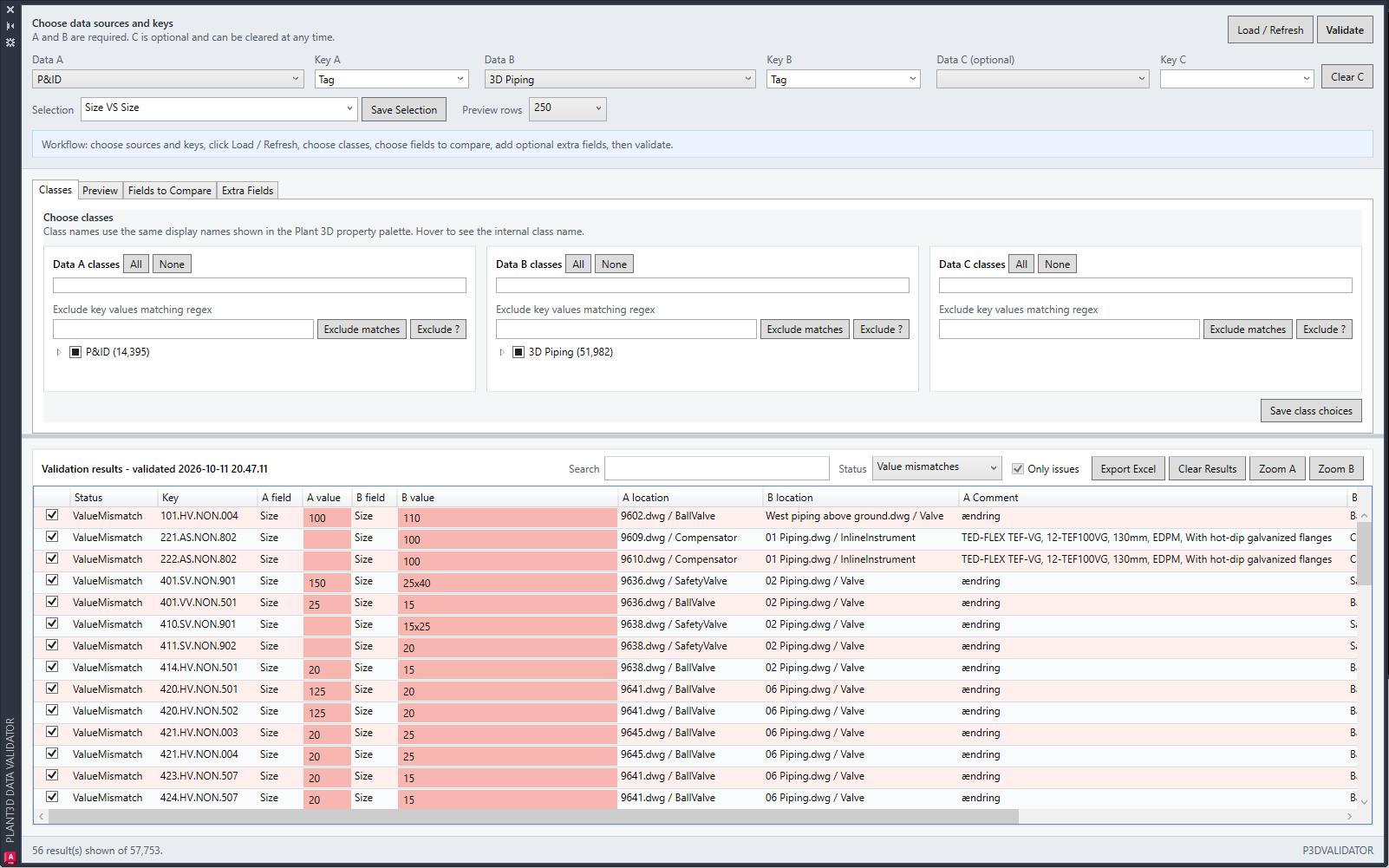

P&ID ↔ 3D Piping
Jump between related P&ID and 3D objects using existing project tags, so QA checks and coordination work stay focused on the component.
Go deeper
Connect off-page connectors, visualize drawing flow and publish linked PDFs.

P&ID
Review the P&ID drawing network in a visual overview. Locate unconnected off-page connectors, open related drawings and share the visual view as an interactive HTML file.
Go deeper
P&ID
Search project P&ID drawings and review off-page connector pairs in a docked palette. Find unconnected connectors and connect or disconnect pairs while working through the drawing set.
Go deeper
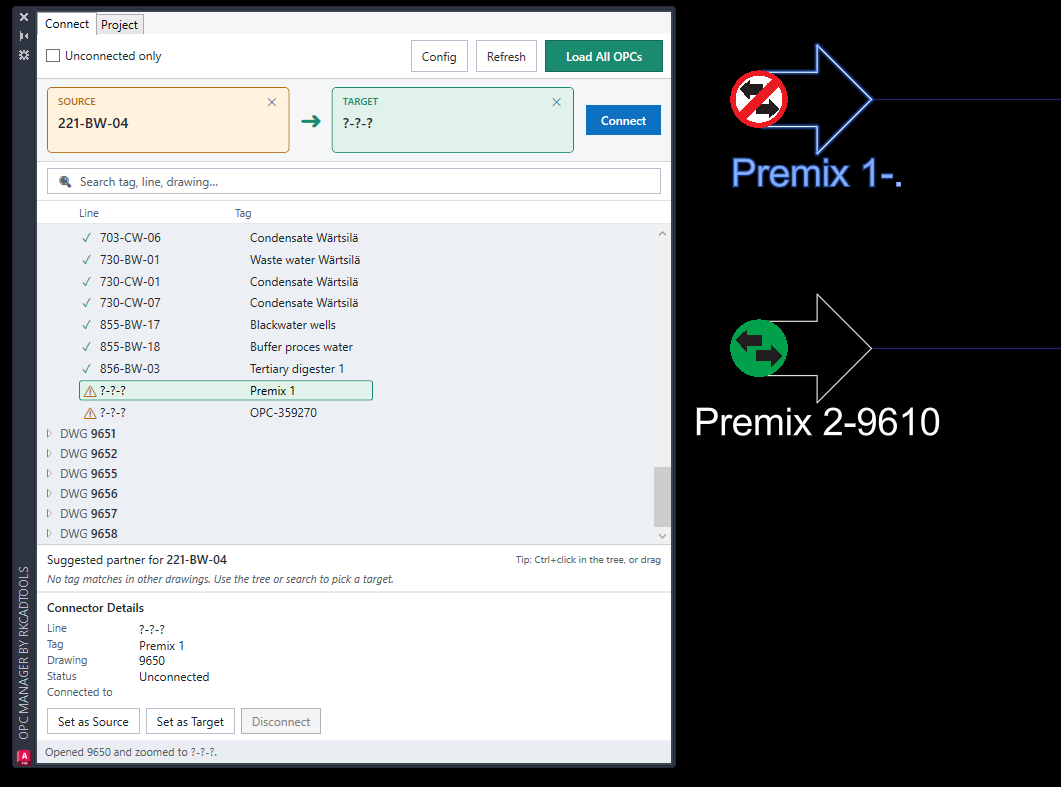

P&ID · Multi-sheet PDF
Publish project P&IDs to one PDF with clickable off-page connections using the RKCadTools plugin for AutoCAD Plant 3D. Start Linked P&ID Publish from the ribbon and prepare the output in the familiar AutoCAD Publish dialog.
Go deeper
Find spec components, review pipelines and prepare weld numbers for isometrics.
3D Piping
Apply property-based colors while reviewing a 3D Piping drawing. Use a legend to understand the active set and define colors for empty or unmatched values.
Go deeper
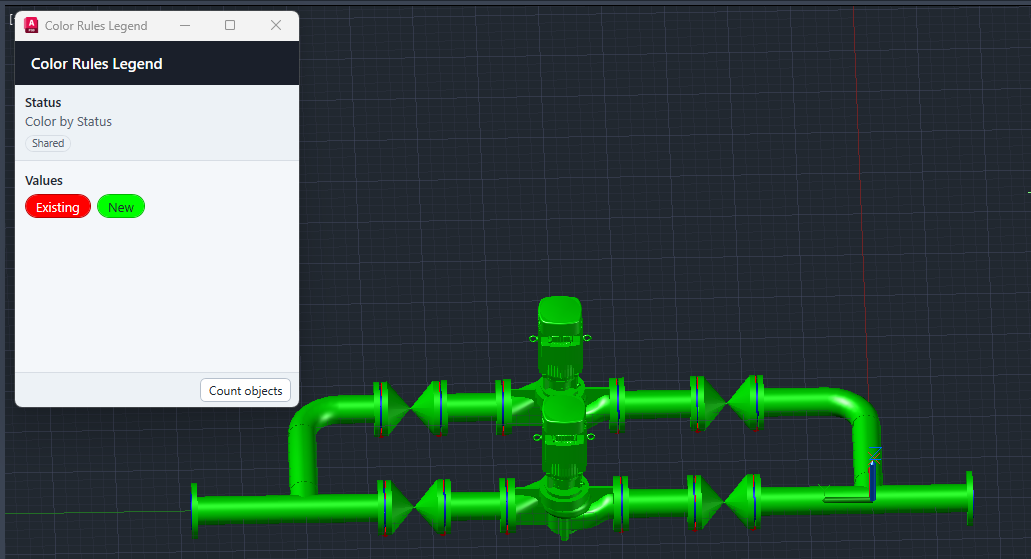

3D Piping
Review and edit 3D pipeline-group data, reuse saved views, and check weld status. Open Plant 3D Quick Iso or Production Iso with your selected pipelines already selected in the native dialog.
Watch Pipeline Manager on YouTube
Go deeper
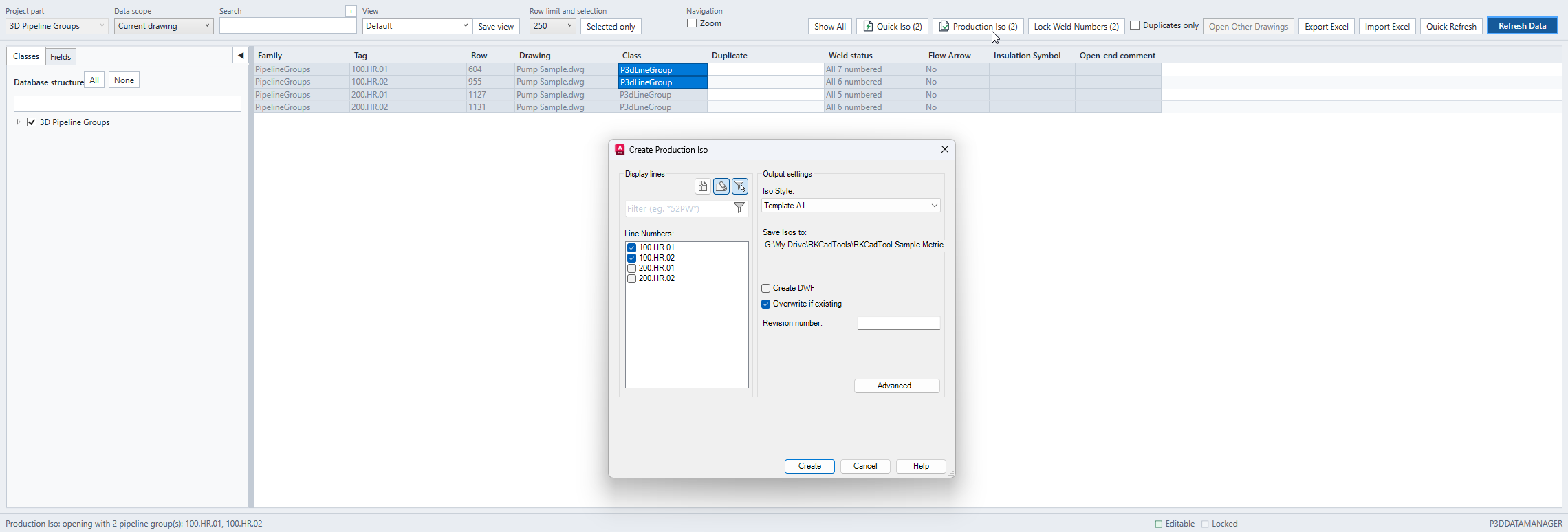

3D Piping
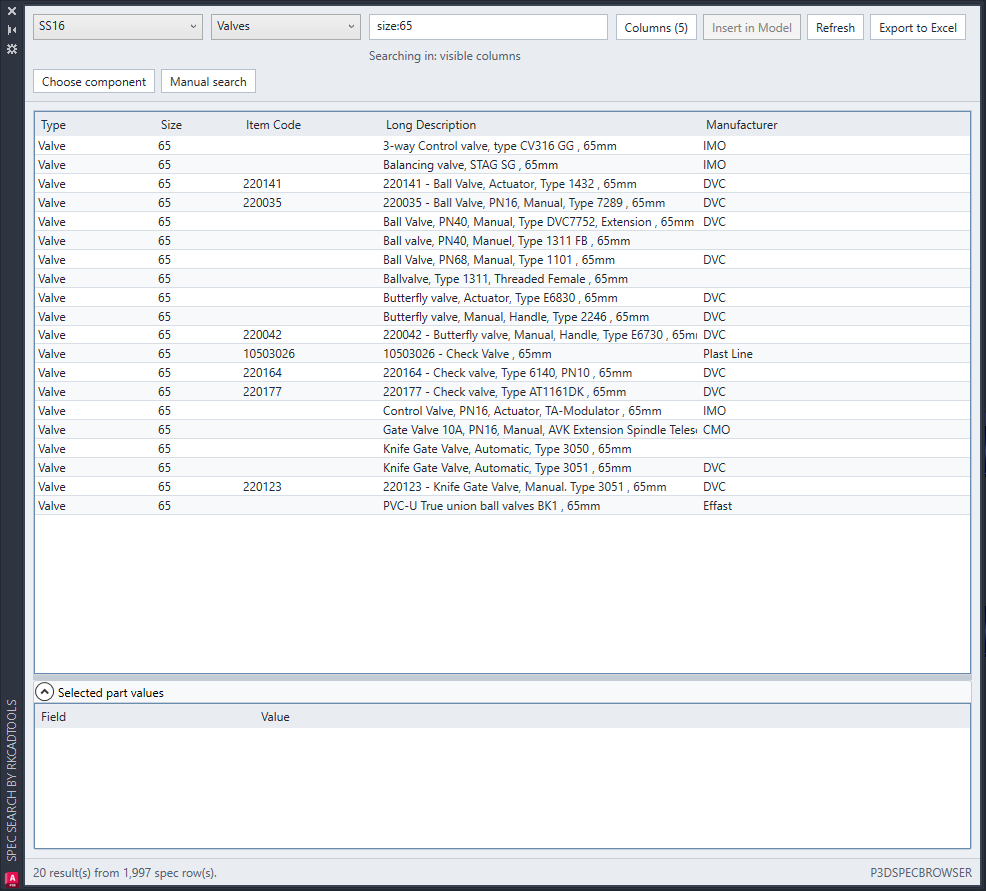
Search registered Plant 3D specs by item number or any visible property, choose the columns that matter, and drag supported components directly into the model.
Go deeper

3D Piping
Beta · Weld numbering
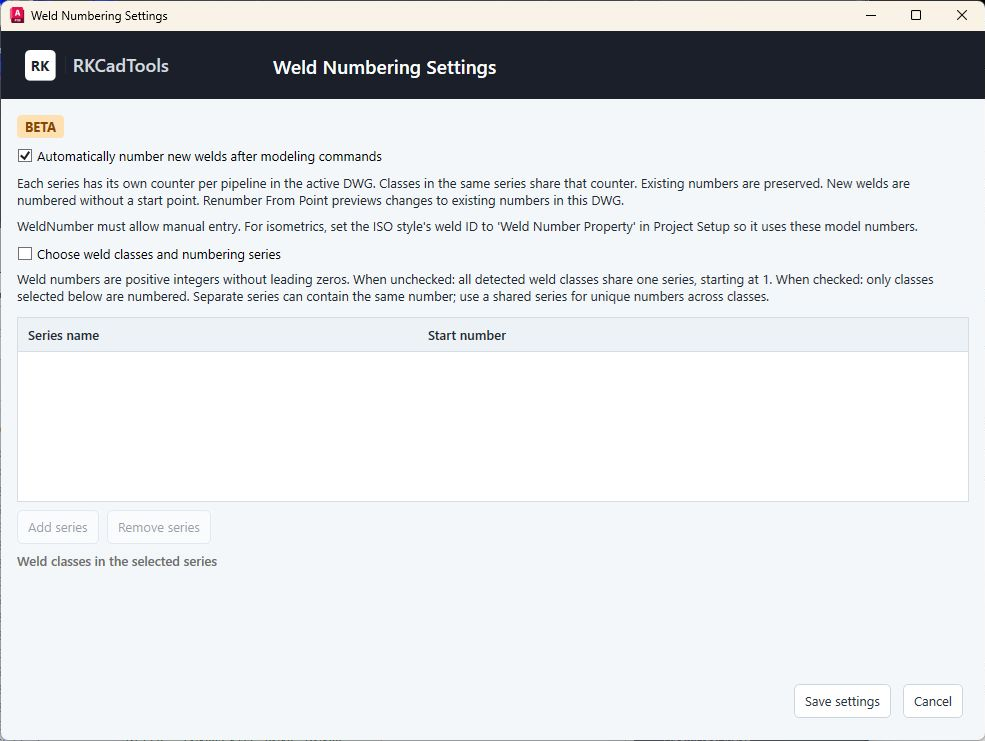
Choose weld classes and use shared or separate integer series per pipeline in the active DWG. Preview missing numbers before applying Lock Weld Numbers, preserve existing values, or review a new sequence from a picked point. Optionally number new welds after successful modeling commands.
Go deeper
Create drawings, manage revisions and prepare Excel and DWG deliverables.

3D Piping · Offline HTML snapshot
Export a selection, the current drawing or a Clipper region to one offline HTML file. Review the model in a browser with searchable properties, named views and annotations.
Explore Plant 3D to HTML export →
Go deeper
Drawings · Configuration required
Add drawing revision notes and synchronize revision fields to configured paper-space title blocks. Retain full drawing history when older revisions no longer fit in the visible title-block slots.
Go deeper

Project drawings · Profile required
Select registered project drawings, scan their saved DWGs, preview the drawing list and export it to Excel with mapped title-block data and the latest revision.
Go deeper
Drawings
Copy selected attribute values from a source block, batch-edit drawing-specific attributes with Excel, or replace block definitions from a source DWG.
P&ID · 3D Piping · Report Creator required
Run installed Autodesk Report Creator templates for the whole project, current drawing or selected drawings. Keep successful reports in project history and compare matching runs to identify changes.
Go deeper
P&ID · Ortho · 3D Piping · Configuration required
Create a P&ID, Ortho or 3D drawing using configured numbering patterns, templates and project folders. For P&IDs, review the suggested next filename or choose an available gap or manual name.
Go deeper
P&ID · 3D Piping
Export selected P&ID or Plant 3D drawings as plain AutoCAD graphics with Plant intelligence removed. Prepare several DWG deliverables from one workflow.
Go deeper
Build reusable project tools for designers.

P&ID · CAD administration
Organize project P&ID symbols visually with headers and separators. Preview and validate the palette, then export a portable package with standard XTP palettes.
Go deeper
Explore tools for properties and tags, data comparison and sync, P&ID connections, 3D piping and isometrics, drawing creation, revisions, reports and delivery. Some workflows require administrator configuration or installed Autodesk tools.
Yes. Data Bridge supports a preview of proposed changes before applying them. Preview can be disabled, and optional sync on opening or saving drawings can apply configured values automatically. Weld Manager can also automatically number new welds when enabled.
Data Manager reviews and edits project tables and exchanges data with Excel. Data Bridge applies mapped external or area values to Plant properties. Data Validator compares two or three sources and reports differences.
Download the build for your Plant 3D version and start the free 15-day trial directly in RKCadTools. No trial request or license key is needed. Try the workflows you need on a copy of your project.
Download RKCadTools and start your free 15-day trial directly in the program. Test it on a copy of your project with the workflows your team uses most.