
Tags Audit: Find and Review Tag Problems
Inspect missing, incomplete and duplicate tags, filter the active drawing and review a selected object before correcting its tag.
1. Audit the active drawing
- Open the Plant drawing you want to inspect.
- Run
ATX_TAGAUDIT, or choose the ribbon’s Tag Audit command where available. - Use the Active Drawing tab and choose Refresh to reread the drawing.
- Review the Problems column alongside Tag, Class and Source.
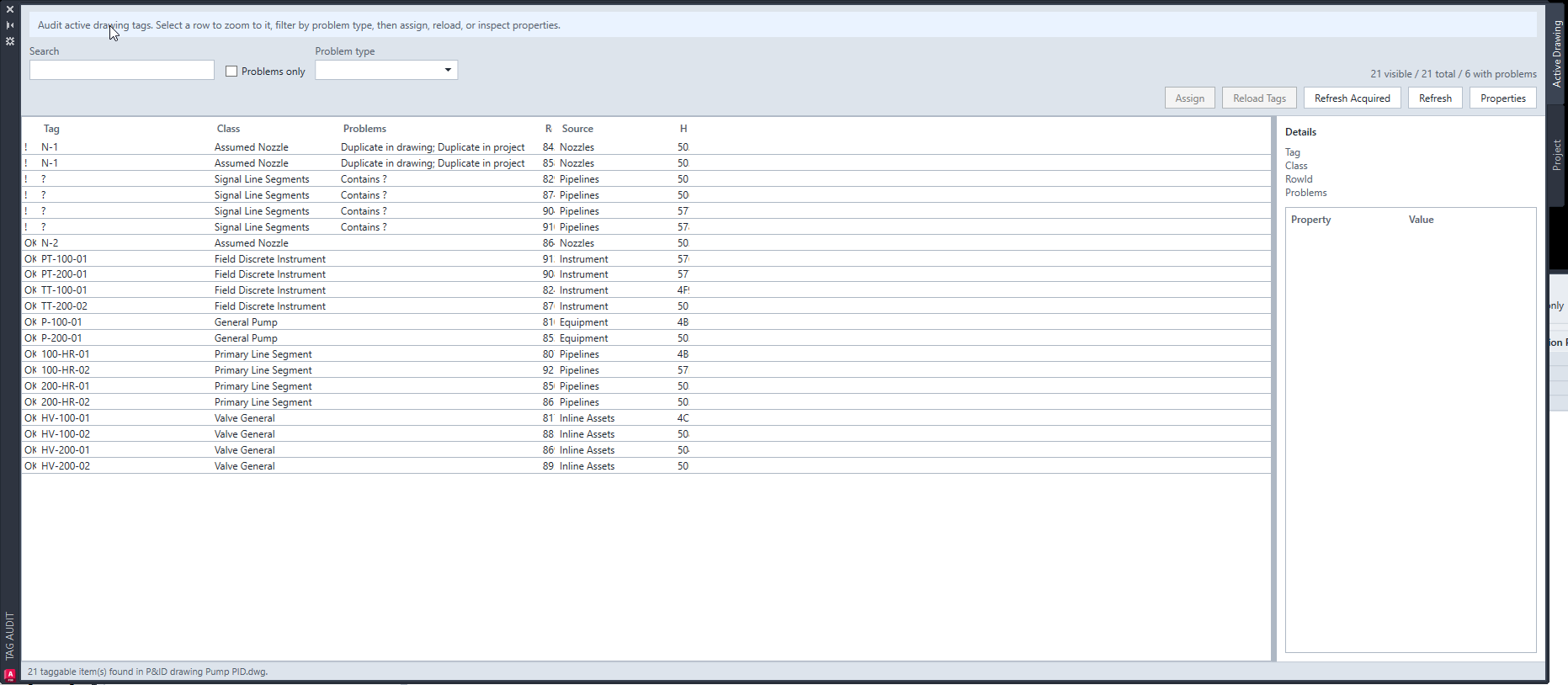
The guide is named Tags Audit. In the application, the palette and command are labelled Tag Audit.
2. Narrow the list and read Details
- Enter part of a tag in Search. Use Problems only or Problem type to narrow the issue list.
- Select a row and inspect its class, RowId, problem and configured tag fields in Details.
- Confirm the object and intended tag before choosing a correction action.
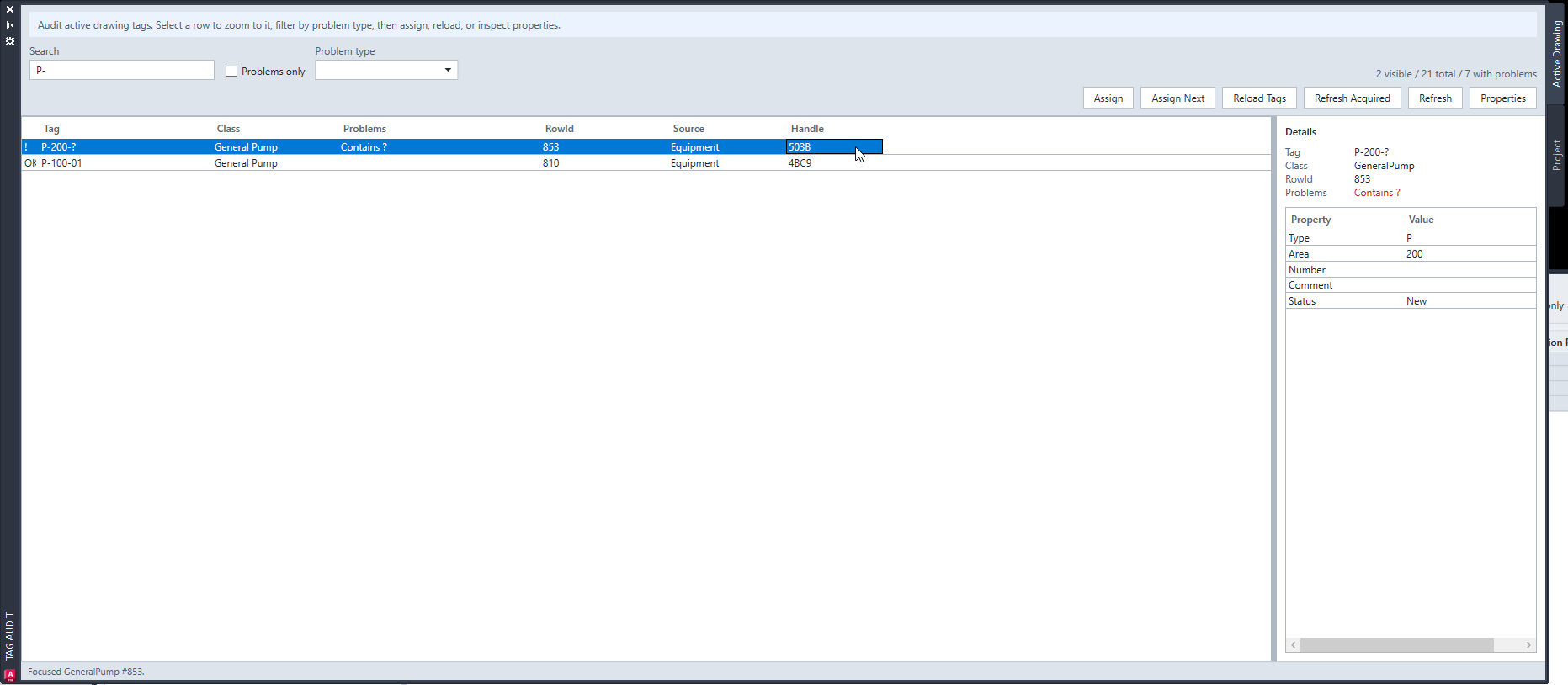
Compare the tag format with the component’s actual fields. A question mark indicates an incomplete tag, while duplicate warnings identify repeated values in the drawing or project.
3. Choose the appropriate correction
- Choose Assign for the selected object and review the tag fields. P&ID lines use Autodesk’s native Assign Tag dialog.
- Complete the normal assignment workflow, then refresh the audit to verify the result.
- Use Assign Next only for supported Equipment, Instrumentation or Inline Assets selections when you intend to allocate the next available number.
- Save and check in the drawing through the normal Plant workflow.
Reload Tags rereads tag information. Refresh Acquired runs Plant’s acquired-property refresh in the current drawing; it does not allocate new tag numbers or rebuild tags after a format change.
Renumber deliberately replaces existing numbers. Review its confirmation and processing order before applying it.
4. Review the project and repeat the audit
Use the Project tab, or ATX_PROJECTAUDIT, to review drawing-level and class-level tag status. Open a drawing in the Active Drawing tab for row-level inspection and fixes. The project audit can export its result.
Use Properties and audit filters to control the included source families and classes. Clear search filters when you need the complete result list.
See the Tags Audit command reference for Assign, Assign Next, Renumber and Tag Settings, or Quick Properties for other object fields.