Plant 3D HTML export and review guide.
Create an offline 3D HTML snapshot, choose what it contains and carry a model review through to a saved, shareable file. This guide follows the Pump Sample screenshots from export to annotated delivery.
In this guide
Export in Plant 3D, then review in the browser. You can jump straight to the step you need.
- Before you export
- 1. Choose Selection, Drawing or Clipper
- 2. Choose properties and export colors
- 3. Open and navigate the HTML
- 4. Search, select and filter components
- 5. Change colors and view styles
- 6. Measure and add review marks
- 7. Create named review views
- 8. Save annotations or an HTML copy
- 9. Review on a phone or tablet
- Troubleshooting and delivery checks
Before you export
- Install and load RKCadTools in a supported Windows installation of AutoCAD Plant 3D. See the installation guide if you are starting from a new setup.
- Open the 3D drawing you want to share. The exporter reads the current drawing and its supported loaded, resolved DWG Xrefs. It does not export every drawing in the project automatically.
- Decide which model region and Plant properties the recipient should receive. Included property values become part of the file.
- For your first export, choose a small selection or model region and test the result on the recipient’s browser or device.
The export reads the drawing and Plant API without changing the source drawing or project. The browser review is a separate snapshot. Source changes require a new export.
1. Choose Selection, Drawing or Clipper
On the RKCadTools ribbon, open Drawings & Delivery → 3D HTML. You can also run P3DWEBGLEXPORT. The command line asks for the export scope.
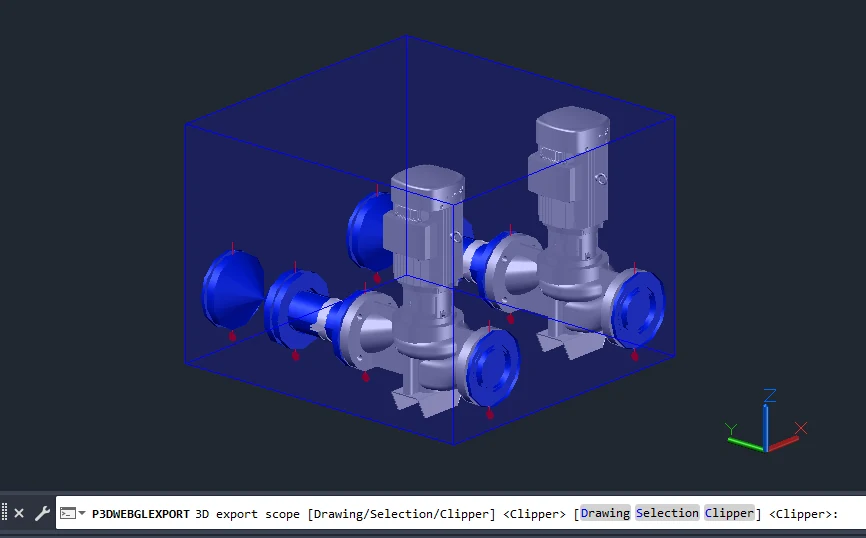
- Selection: export chosen objects. Preselected objects are used when available. This is the default when clipping is inactive.
- Drawing: export supported geometry in the current drawing’s model space, including supported loaded reference insertions. Enter D or choose Drawing.
- Clipper: export the current drawing’s defined clipping region. It is the default when clipping is active. A retained Clipper box can also be used.
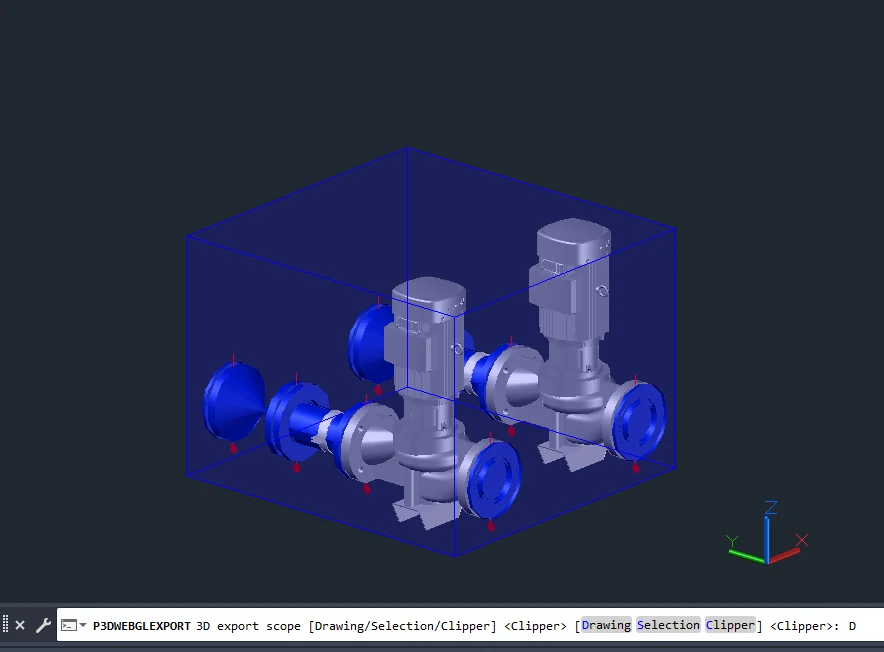
For Clipper exports, exact clipping trims triangles to the box and leaves open cut surfaces. When exact clipping is off, whole intersecting non-block objects can remain; blocks and Xrefs are still trimmed. Review the output before sharing. See the Clipper guide for defining and recalling model regions.
2. Choose properties and export colors
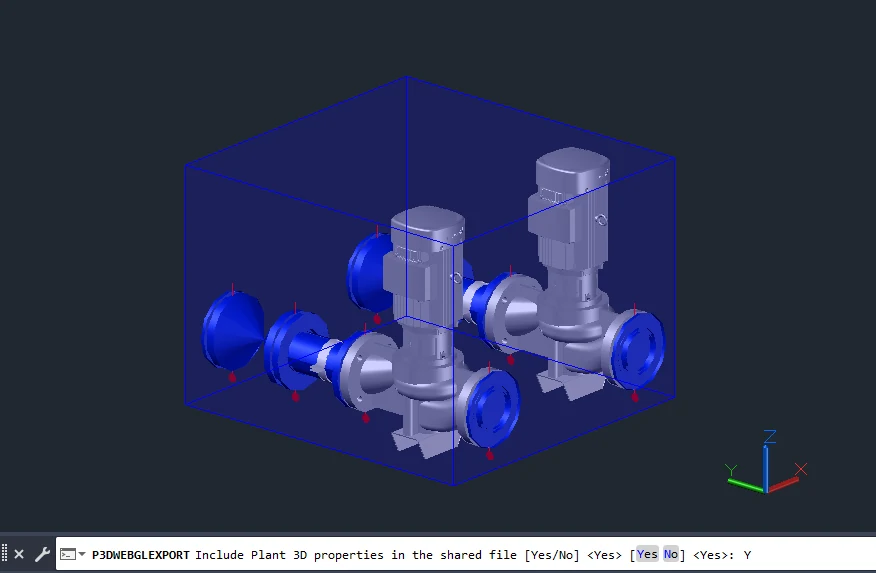
At Include Plant 3D properties in the shared file?, choose Yes to embed available Plant values or No to leave them out. The screenshot uses Y. Geometry, layers and object identities remain available when Plant properties are excluded.
In 3D HTML colors, choose Neutral, Original CAD colors, the active Color Rules set or an available saved local/shared set. An active rule set is selected by default. Click Continue, then choose the output HTML filename.
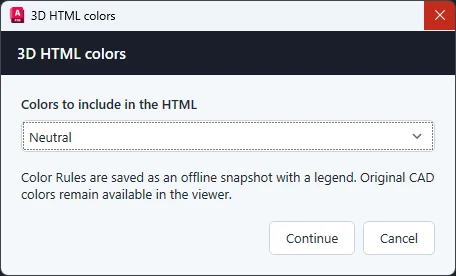
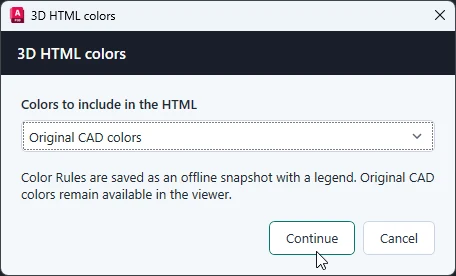
A Color Rules export embeds its colors and legend, including rule labels even if other Plant properties are excluded. Choosing a saved set for export does not activate it in AutoCAD. Recipients do not need the rule files. Read the Color Rules guide for set configuration.
Watch the export progress and review its notes when it finishes. You can cancel at a checkpoint; a native geometry operation or final write may finish first. A large-model warning does not stop the export automatically.
3. Open and navigate the HTML
Open the saved .html file in a browser with WebGL enabled. Geometry, included properties, styles and viewer code are embedded in the file, so a downloaded copy can be reviewed offline. Compressed exports also require a browser with native decompression support.
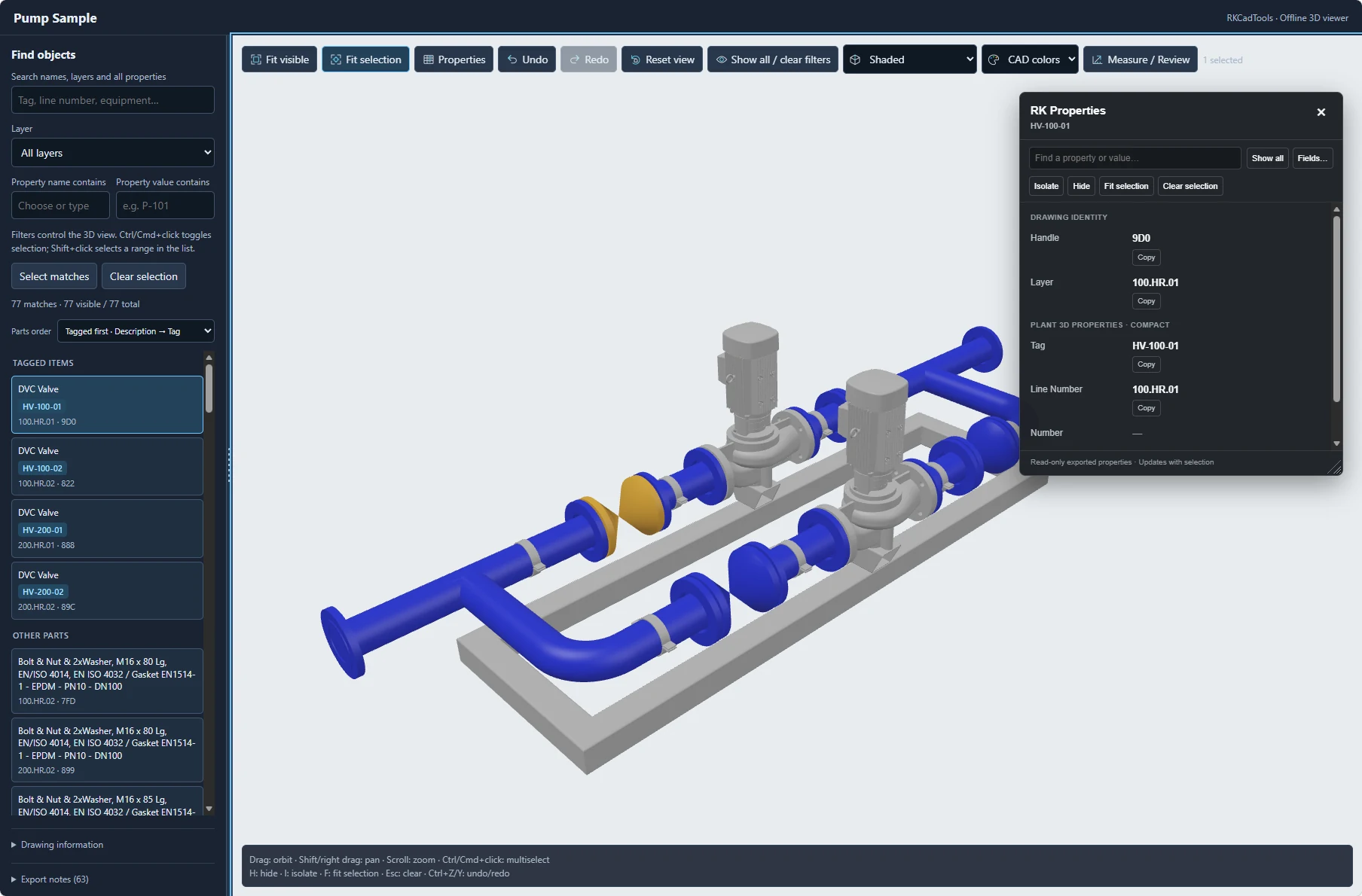
Orbit, pan and zoom to inspect the model. Select a component to inspect it. Orbit uses the selected objects’ combined center when there is a selection. Fit visible frames the visible model; Fit selection frames the selected objects.
Right-click a component and choose Properties to open the viewer’s RK Properties palette. Use Fields… for a compact field list or Show all to inspect all exported Plant fields. Values can be searched and copied, but remain read-only.
Opening the HTML does not require pairing with Plant 3D. Optional browser-extension navigation needs a compatible RKCadTools ACC Bridge installation and its own configuration; it is separate from offline model review.
4. Search, select and filter components
Use the sidebar search to match exported property names and values, including tags. Apply layer filters to narrow the object list. Drag the sidebar separator if you need more room for long values.
- Ctrl/Cmd+click: toggle objects in the list or model.
- Shift+click: select a range in the filtered list.
- Select matches: select the full result set, including matches beyond the current list page.
- Hide, Isolate and Fit selection: act on the full selection. Use H, I and F as shortcuts; Escape clears selection.
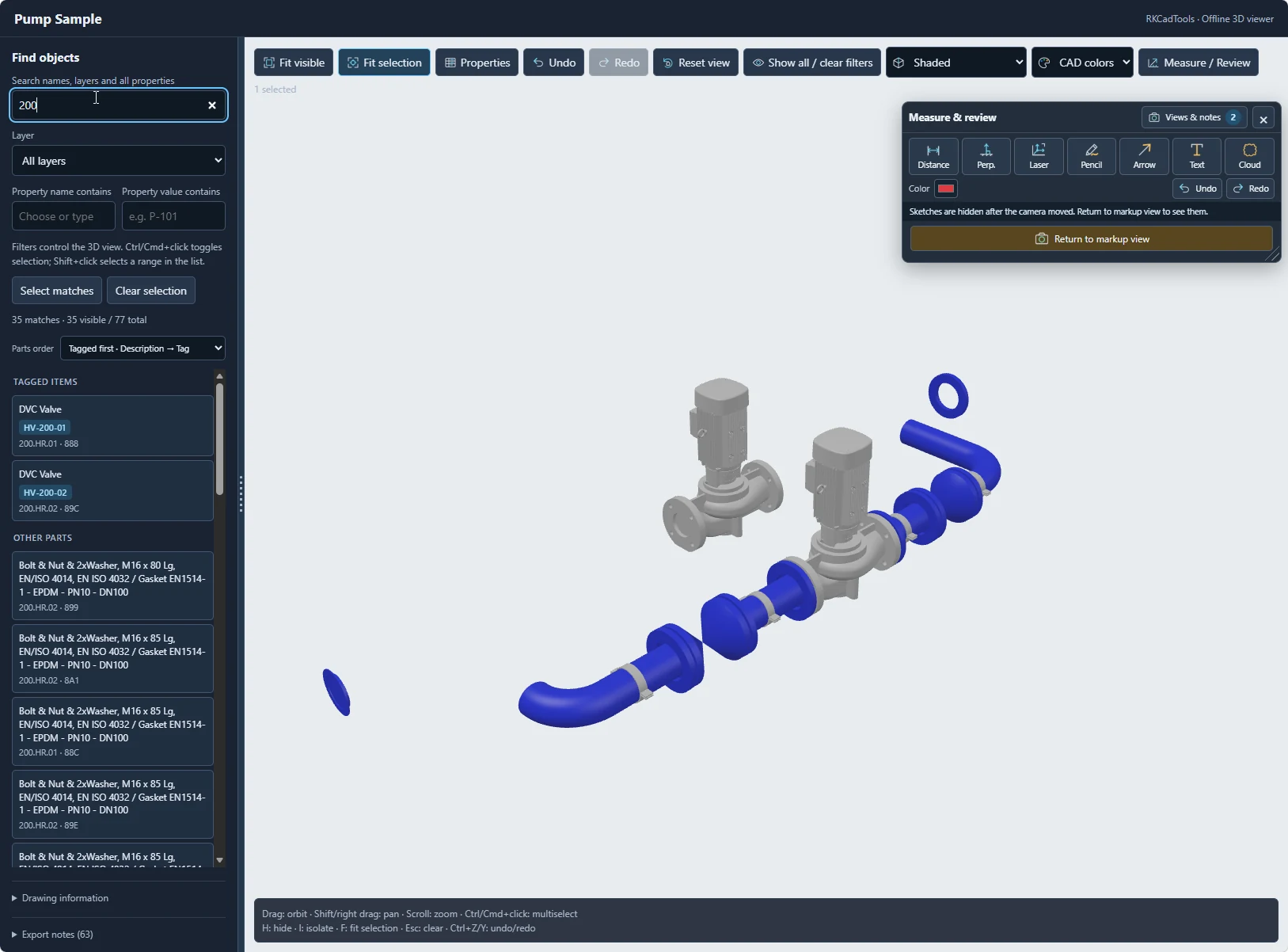
With several objects selected, the property palette shows shared values and <varies> for differences. Expand a varying field to inspect its individual values. Use Show all in the viewer’s visibility controls to bring hidden geometry back.
Undo and Redo restore review actions such as selection, visibility, filters, camera and display changes. Text fields keep their normal browser editing shortcuts.
5. Change colors and view styles
Color mode and view style are separate controls. Choose the colors that explain the discussion, then choose how surfaces and edges are drawn.
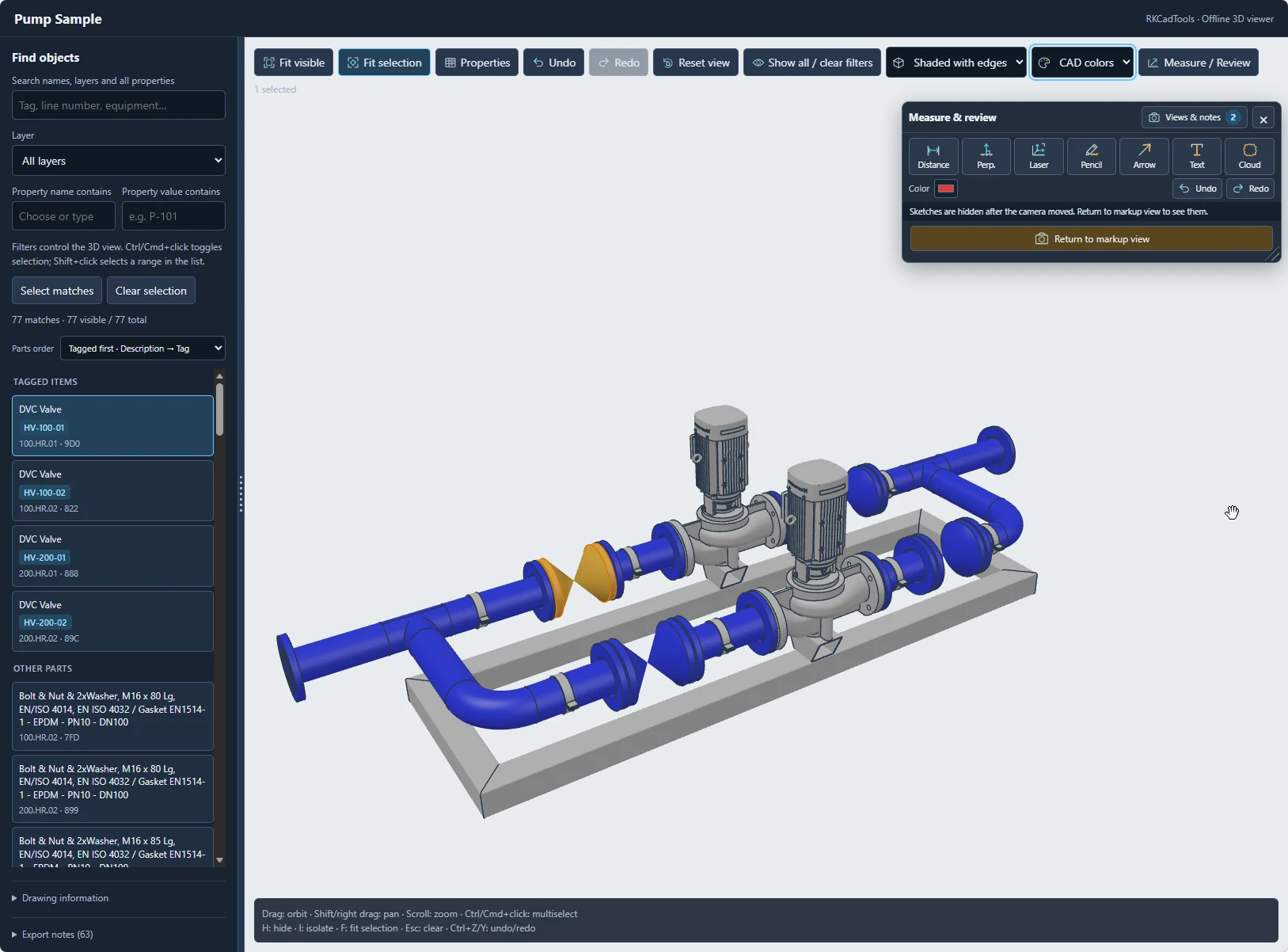
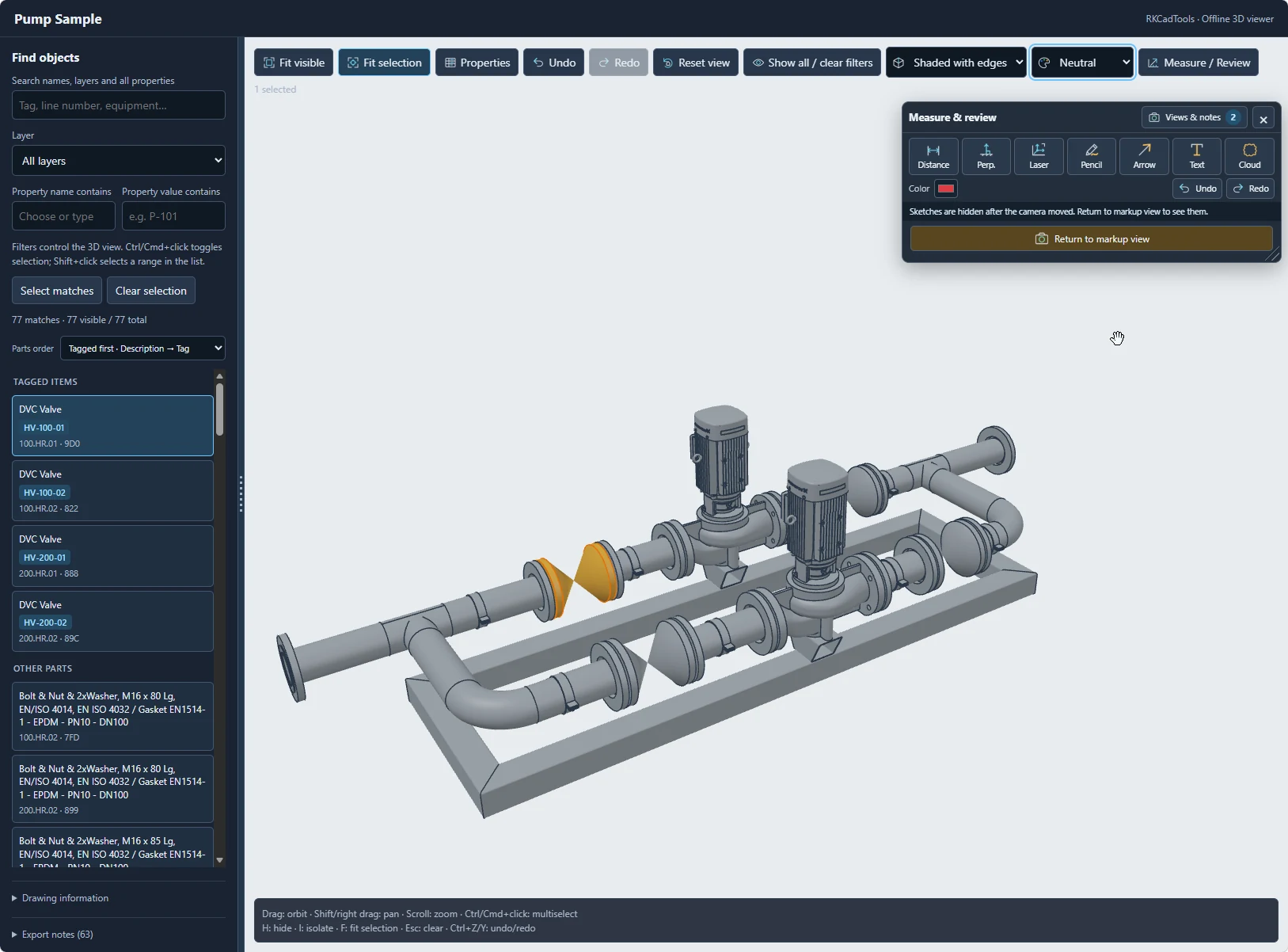
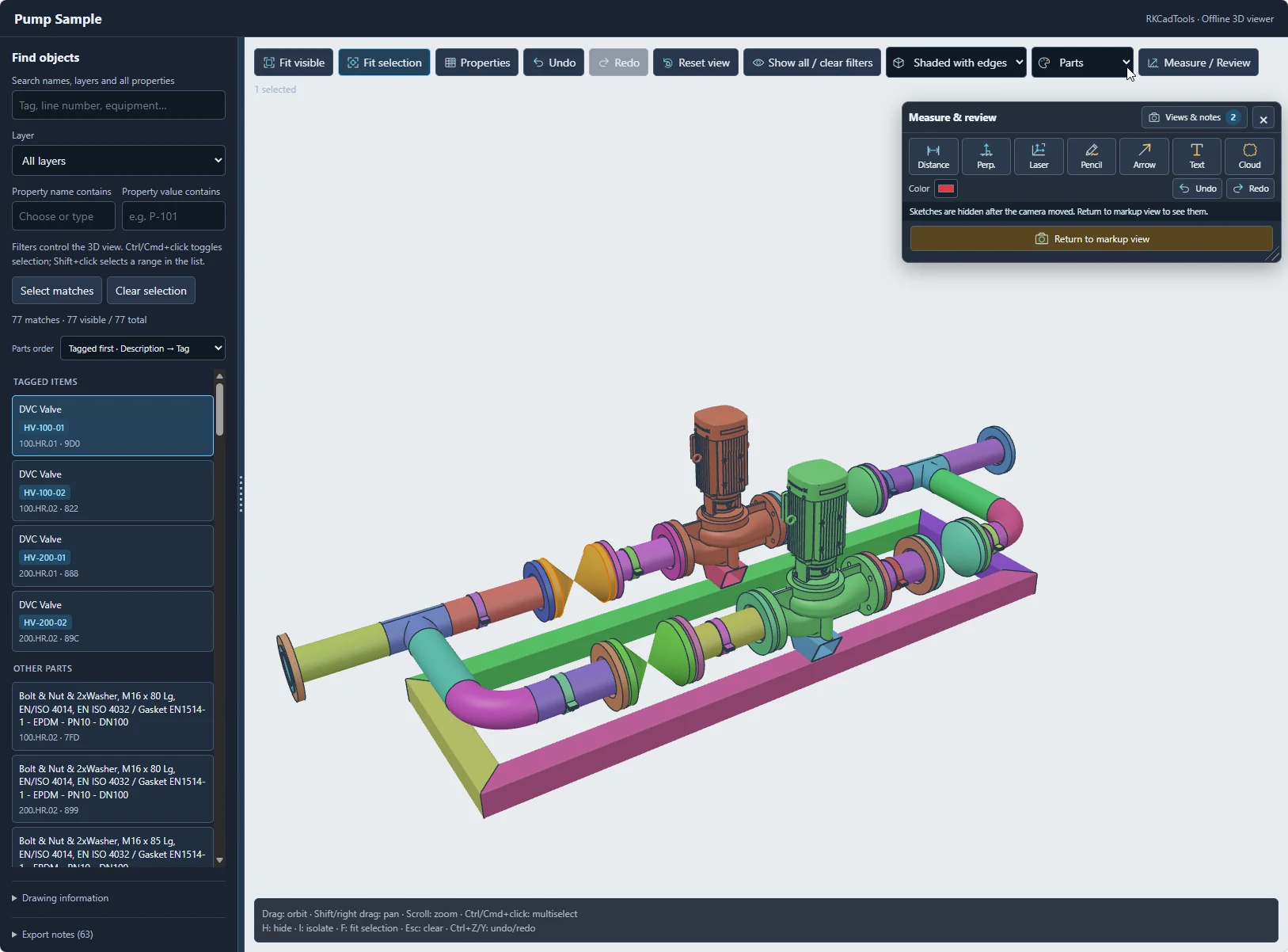
The view-style menu offers Shaded, Shaded with edges, Wireframe and X-ray. X-ray helps reveal occluded geometry. A Color Rules mode is available when a set was included in the export; expand its sidebar legend for the set name, values, colors and exported-object counts.
Color changes, hidden parts and display styles can be kept in a named review view. They do not change the source drawing.
6. Measure and add review marks
Open Measure / review. On a phone, find it under More. Choose a tool, then pick on the model.
- Distance: pick two surface points. Nearby vertices and edges can help with snapping.
- Perpendicular: pick a start point and a reference face. A result is accepted only when the perpendicular foot lies on the actual exported face triangles.
- Laser: preview distances to visible surfaces in World XYZ or a Surface frame. Click or tap to pin the orange group.
- Pencil, Arrow, Text and Cloud: add visual comments at the current camera position. Escape cancels the active tool or pending first point.
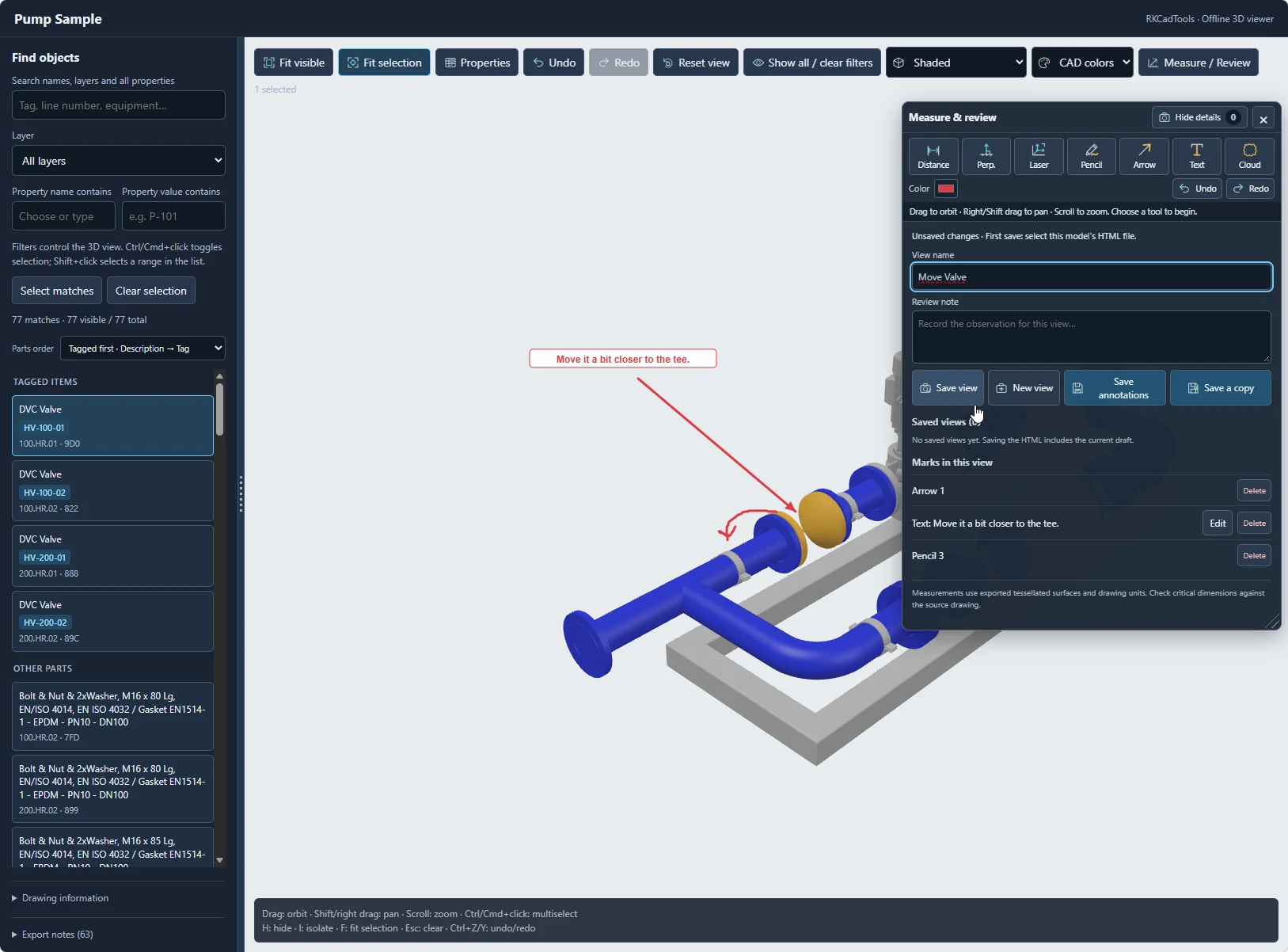
Measurements are approximate review dimensions of the exported mesh. Curved surfaces are faceted; procedural pipe envelopes omit bores and insulation. A surface-frame laser uses geometric review axes rather than recovered equipment design axes. Check critical dimensions in the source CAD drawing.
Dimensions stay attached to their 3D endpoints while orbiting. Sketches belong to their camera view and hide when you move away. Use Return to markup view or recall the named view to see those marks again.
7. Create named review views
Open Views & notes in the Measure & review panel to reveal the view name, note, saved views and file-saving controls. The screenshots show these details expanded. Enter a meaningful view name and a review note, then choose Save view. For example, name a view after the assembly or question being discussed. A saved view retains its camera, selection, hidden parts, filters, display style, colors, dimensions and sketches.
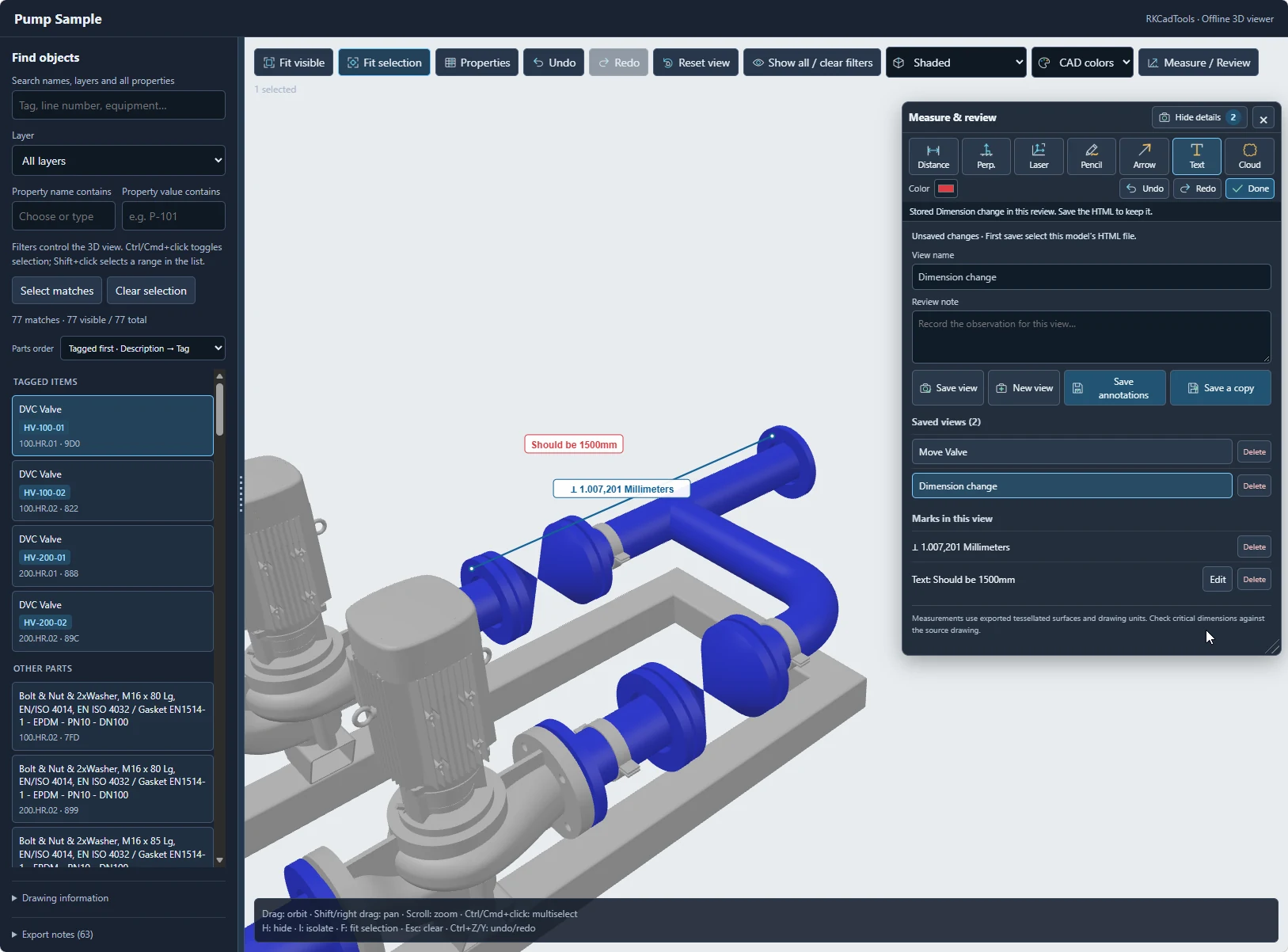
Move to another area, create the next view and recall earlier views from the list when needed. The review supports up to 40 saved views, subject to its aggregate data limit.
Save view stores a viewpoint within the current review. It does not write an HTML file. Continue with Save annotations or Save a copy to keep the work after closing the browser.
8. Save annotations or an HTML copy
Save annotations: update a matching file
Open Views & notes if the save controls are hidden. On a supported desktop browser, choose Save annotations. On the first save, select the HTML model you opened and grant write access. The viewer checks that the selected file’s embedded model matches before writing. Further saves reuse that file during the session; reopening the viewer requires selecting it again.
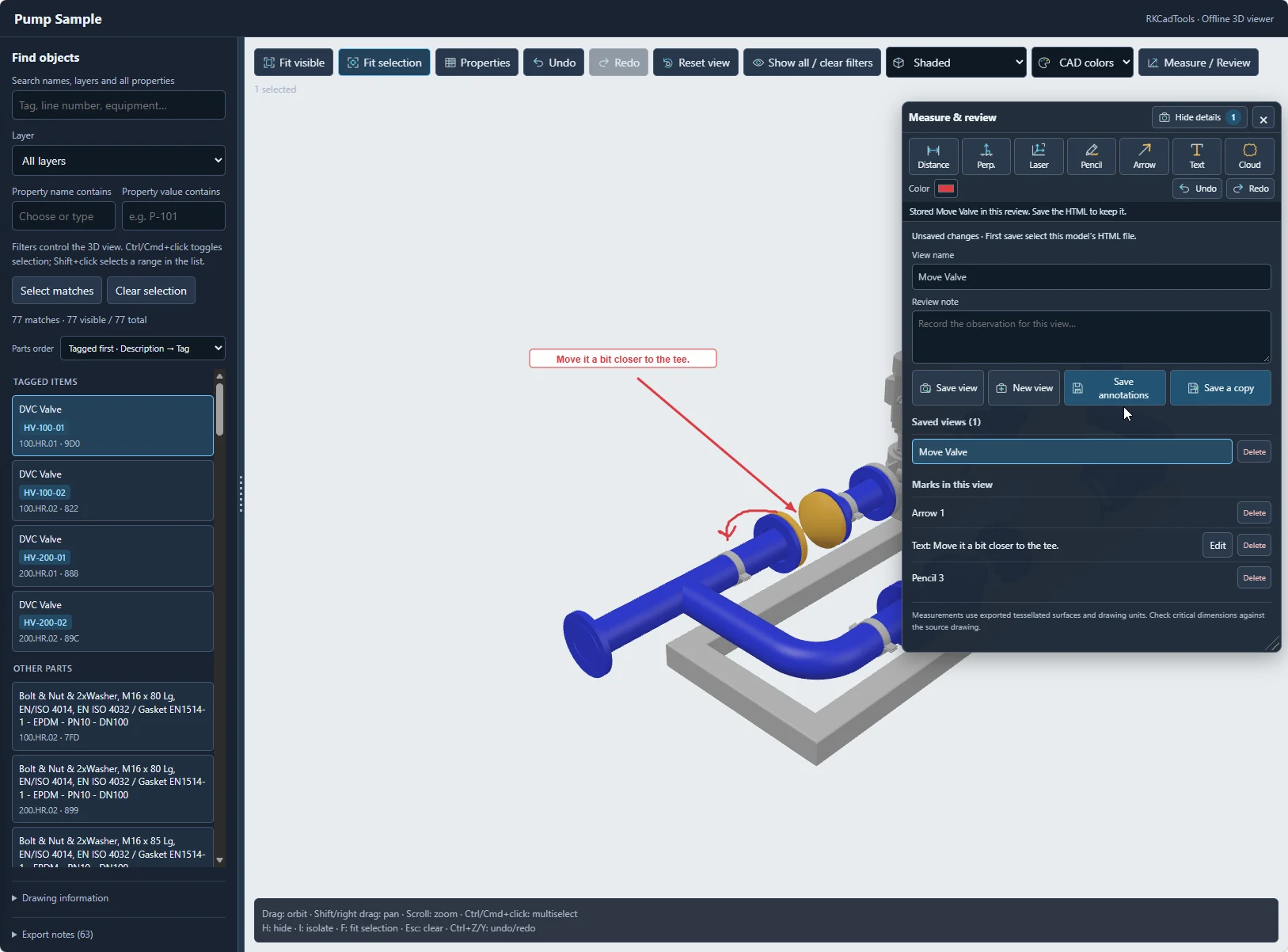
Wait for Saved after the file write closes. Cancelled or failed saves leave the review in memory. Edits made during a save remain unsaved. Opening an HTML file alone does not grant write permission.
Save a copy: download a new annotated model
Choose Save a copy to download a new self-contained HTML file containing the unchanged model plus the current review and saved views. Complete the download and reopen the copy to check it before sharing.
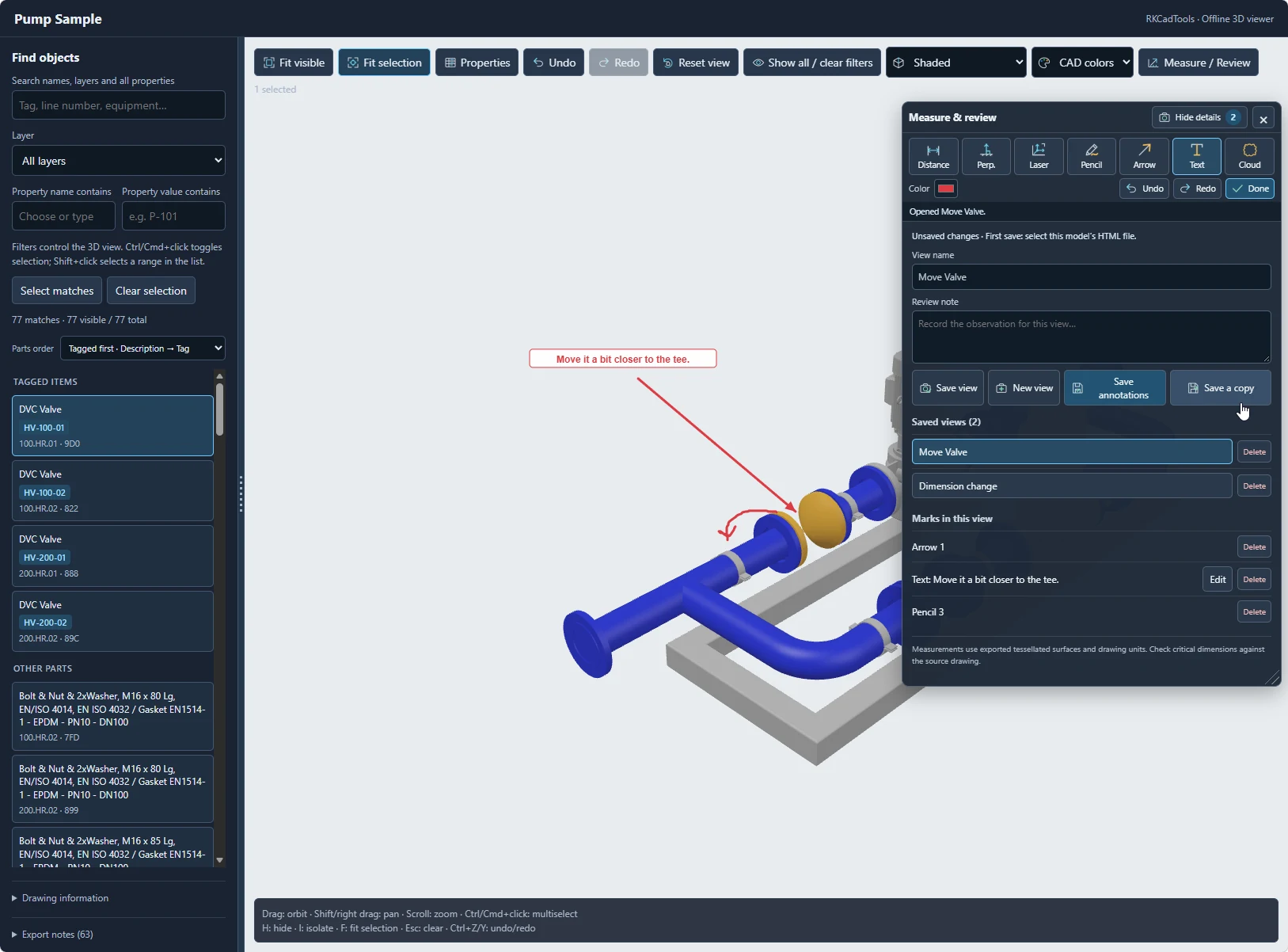
Downloading a copy does not overwrite the opened file or mark it Saved, because the viewer cannot confirm the download was retained. Recipients can open the downloaded copy offline, continue reviewing and save another copy. Notes and files are not uploaded or sent automatically.
If direct saving is unavailable
The Save annotations control stays visible but disabled with an explanation. Use Save a copy. Desktop Edge or Chrome may offer direct saving when browser policy permits. The supplied screenshots may show browser-specific availability; use the explanation in your viewer as the current guide.
Brave can restrict the File System Access API. If you choose to change its browser configuration, keep an annotated copy first and follow the browser’s current settings and your organization’s policy. Relaunching a browser can discard an unsaved review.
9. Review on a phone or tablet
Open the HTML in a browser that can render WebGL and, for compressed exports, decompress the payload. Device and file-opening policies vary, so test the delivery method on the intended phone or tablet.
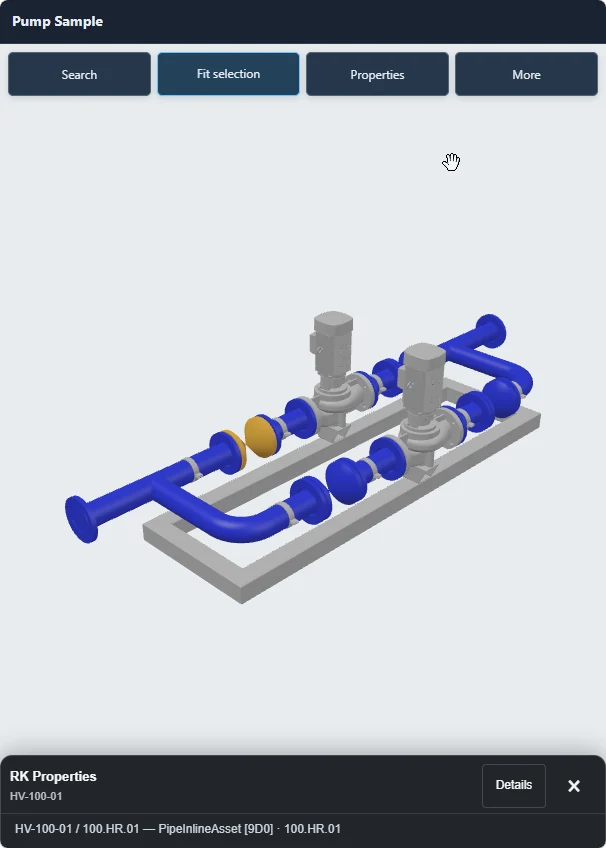
Search opens the component drawer. More provides view, color and history controls. A selection opens a compact properties sheet; expand it when you need full details.
Use touch orbit and pinch zoom. Enable More → Multiple select to add or remove parts with taps. When a selection exists, the main Fit action fits it; Fit visible remains under More.
Choose a focused Selection or Clipper export for limited-memory devices. Use Save a copy when direct saving is unavailable. A wide desktop markup view can be cropped on a narrow portrait screen.
Troubleshooting and delivery checks
Some components or references are missing.
Read the export notes below the object list. Load or resolve missing Xrefs in Plant 3D and export again. Unloaded/unresolved references and references with active XCLIP boundaries are omitted. Use an unclipped reference or a Clipper box for the intended region. Unsupported geometry and logical objects without solid geometry can also be absent.
The model is visible, but Plant property values are missing.
Confirm that Yes was chosen at the property prompt and that the source object has available Plant data. Xref object identities and layers are retained, but source Plant row properties are not available in their property panel. An aggregated block also remains one owner rather than separate invented component records.
The model opens slowly or the browser runs out of memory.
Allow the loading stages to finish, then try a smaller export. File size, geometry complexity, available memory and graphics hardware all matter. There is no fixed triangle-count cutoff; a large-model warning is a prompt to assess the delivery size, especially for mobile.
Save annotations is disabled, or a selected file is rejected.
Use Save a copy if direct saving is unavailable. Direct saving needs compatible browser support, permission and the matching source export. If you selected an unrelated or changed model file, reopen the correct export instead of forcing an overwrite.
My view or marks disappeared after closing.
Save view alone keeps changes in memory. Complete Save annotations or download and retain an annotated HTML copy before leaving. Browser warnings about unsaved work can be suppressed by device or browser policy.
Before sharing the delivery
- Open the finished file and confirm the expected geometry, reference content, colors and properties.
- Check export notes for omissions and confirm the drawing units before discussing measurements.
- Recall the saved views and verify that notes, dimensions and markups are present in the downloaded or directly saved file.
- Use an approved file-sharing channel. The HTML contains the included model and metadata; it is a snapshot rather than a live project connection.
- After changing the Plant 3D source model, create and check a new export. Older exports need re-exporting to gain newer viewer controls.
Explore the workflow on your own model.
Back to the 3D HTML feature overview · Read the Clipper guide · Read the Color Rules guide