Excel import and export for AutoCAD Plant 3D.
Export the project rows you need. Edit allowed values in Excel. Review the changes in RKCadTools Data Manager before applying them to your drawings.
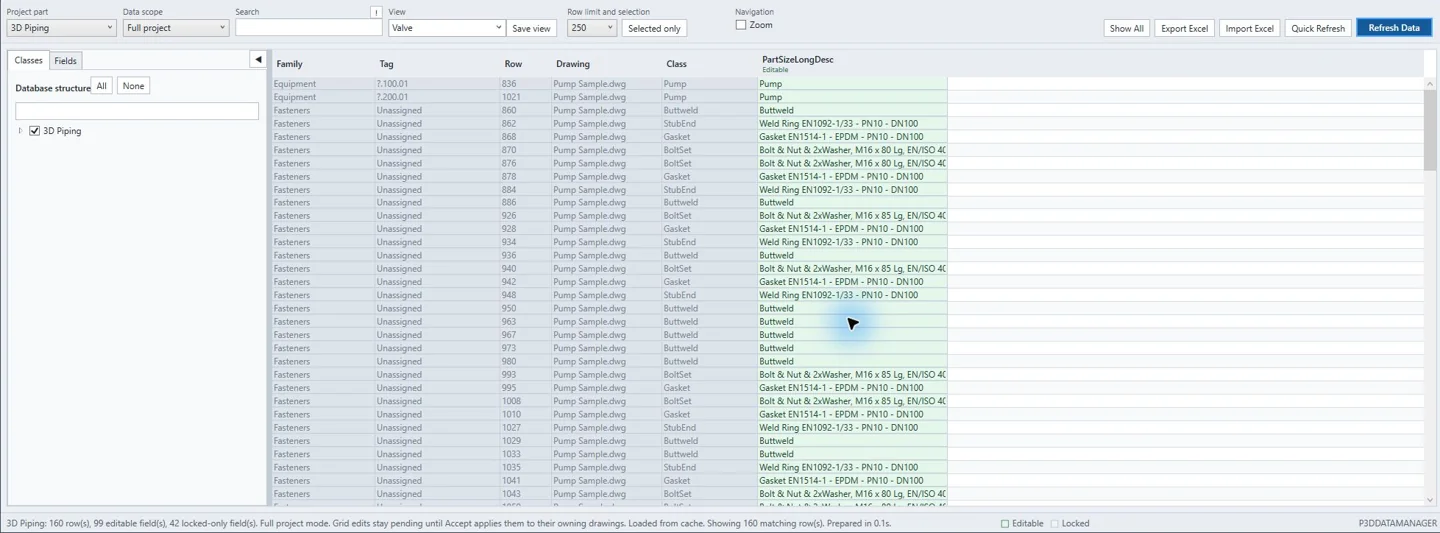
A spreadsheet review with a clear route back to the model.
Use Data Manager when existing P&ID or 3D Piping properties need a focused review: an equipment list, a set of valve descriptions or project-specific fields. Load a drawing or the full project, choose the relevant classes and save the view for the next review.
Choose the scope
Export the filtered rows and visible columns you need, across the selected classes.
Keep object identity
The exported workbook carries a hidden object key so imported values can be matched to the original project objects.
Decide what is applied
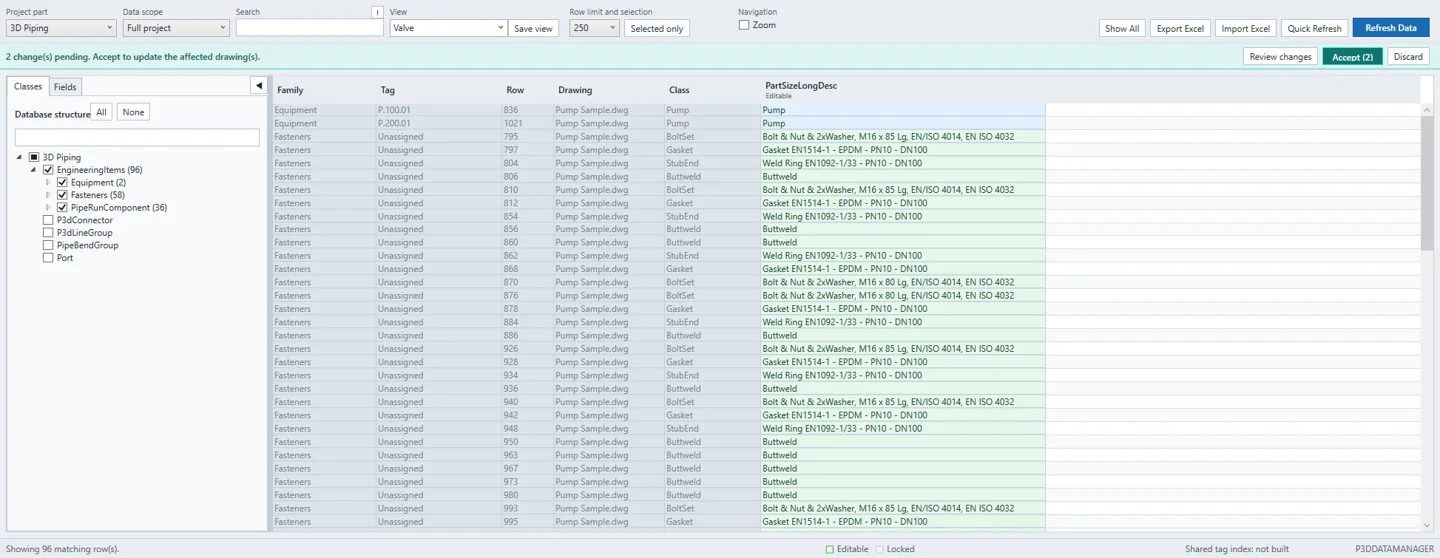
Import stages pending changes. Inspect old and new values, exclude individual changes and choose Accept when ready.
From project data to Excel, then back through review.
For a first run, use a project copy and a small selection with one editable property.
1. Load and export
Open Data Manager. Choose P&ID or 3D Piping, drawing or project scope, classes and fields. Filter the rows, then choose Export Excel to create an .xlsx workbook.
2. Edit allowed values
Change only the unlocked green cells in the exported workbook. Keep the headers, hidden object key and row identity intact. Use the workbook from the same project.
3. Import and review
Choose Import Excel, then Review changes. Compare the old and new values and exclude changes you do not want. Imported values remain pending until you accept them.
4. Accept and save
Choose Accept to apply the remaining changes. Check the result, then save and, where required, check in the affected drawings through your usual Plant 3D workflow.
Check the differences before they reach your drawings.
Excel import and direct table edits use the same pending-change workflow. Review changes lets you search the pending set, compare previous and proposed values and leave out individual changes. Use Discard to cancel pending changes.
Import also creates a marked .import-result.xlsx copy when there are comments to report. It explains skipped rows and records staged before/after changes on an RKCadTools Import Changes sheet. This import report is created before Accept; it is a review record, not confirmation that every proposed change has been applied.
Plant 3D stays in control of editable properties.
RKCadTools applies accepted object-property changes through Plant 3D’s property APIs. An Excel workbook does not bypass the project’s property rules.
- Edit existing properties. This workflow updates existing project objects; it does not create classes, properties or new model objects from spreadsheet rows.
- Respect locked values. Read-only, acquired, inherited, calculated and tag-controlled values cannot be overwritten through Excel import. Change tags with Plant 3D’s tag workflow.
- Check the import scope. Selected classes and current search or temporary filters determine which rows can be matched. Rows hidden by those filters are skipped.
- Keep the exported structure. Preserve the hidden object key and headers. Re-export if the workbook’s identity columns are missing or uncertain.
An exported workbook or an external data source?
Data Manager: review and return
Choose Data Manager when you want to export selected project data, edit the exported workbook and import allowed values back into those objects. The workbook retains the object identity.
Data Bridge: map and sync
Choose Data Bridge when your source is a separate equipment list, part master or database. Configure matching conditions and property mappings for Excel, SQLite, SQL Server or OData, then review the proposed sync.
Try one real Excel review on a project copy.
Download RKCadTools for AutoCAD Plant 3D 2024–2027 and start the free 15-day trial from inside the plugin. Begin with a small export, change one allowed field and follow it through review and Accept.