
Spec Browser: Find and Choose Plant 3D Spec Components
Search registered Plant 3D specs, choose visible properties, use pipe and P&ID context, then insert a part or export the result table.
1. Select a spec and search its rows
Open a 3D Piping drawing in your Plant project. Choose Spec Browser in the ribbon’s 3D panel, or run P3DSPECBROWSER. The palette is labelled Spec Search.
- Select a registered spec, or all registered specs, and optionally narrow the component type.
- Enter a search term. Use spaces for AND,
|for OR, quotes for a phrase, or a column-qualified term such assize:65. - Compare the matching rows by size, item code, description and manufacturer.
- Select a row to inspect its Selected part values before placement.
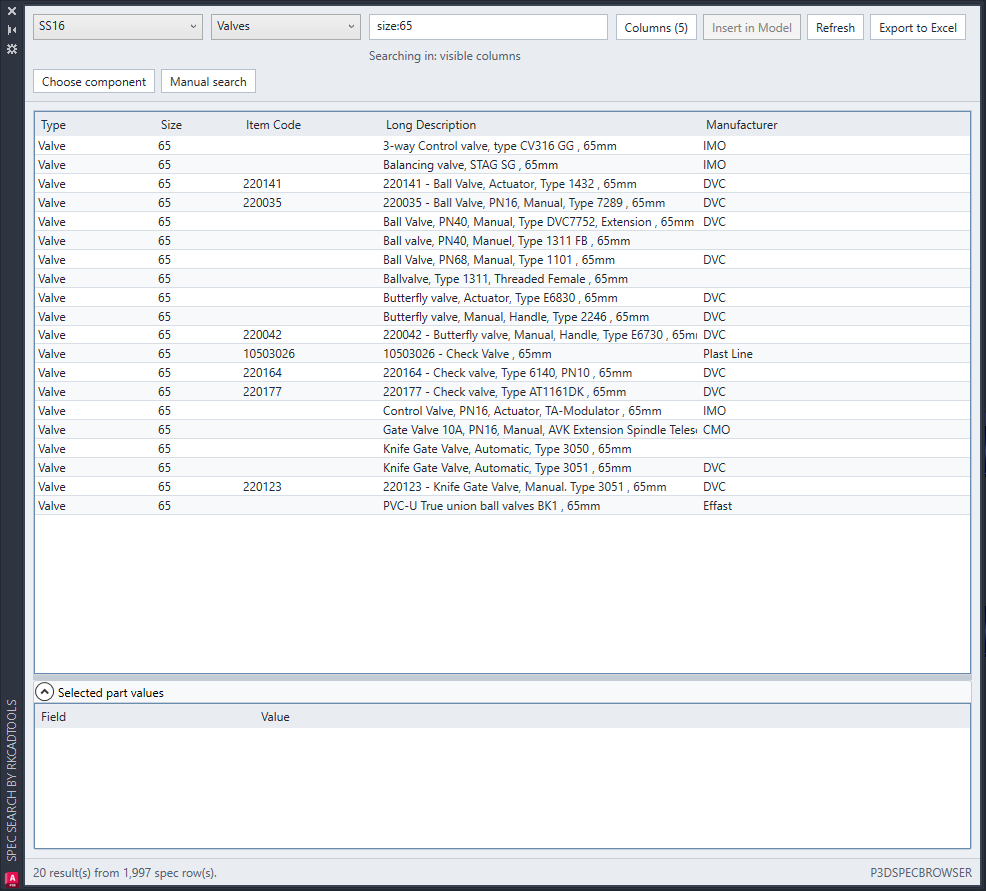
Searching in: visible columns identifies the search scope. Right-click a column header to target that column, or paste an Excel list to search for several values.
2. Show the properties needed for the task
- Choose Columns to open Choose columns.
- Search the field list and tick the properties you want to compare. Use Select visible or Clear visible for the filtered field list.
- Choose Apply to use the selected columns, or Cancel to leave the layout unchanged.
- Check the visible columns before searching or exporting: they define the current search and export layout.
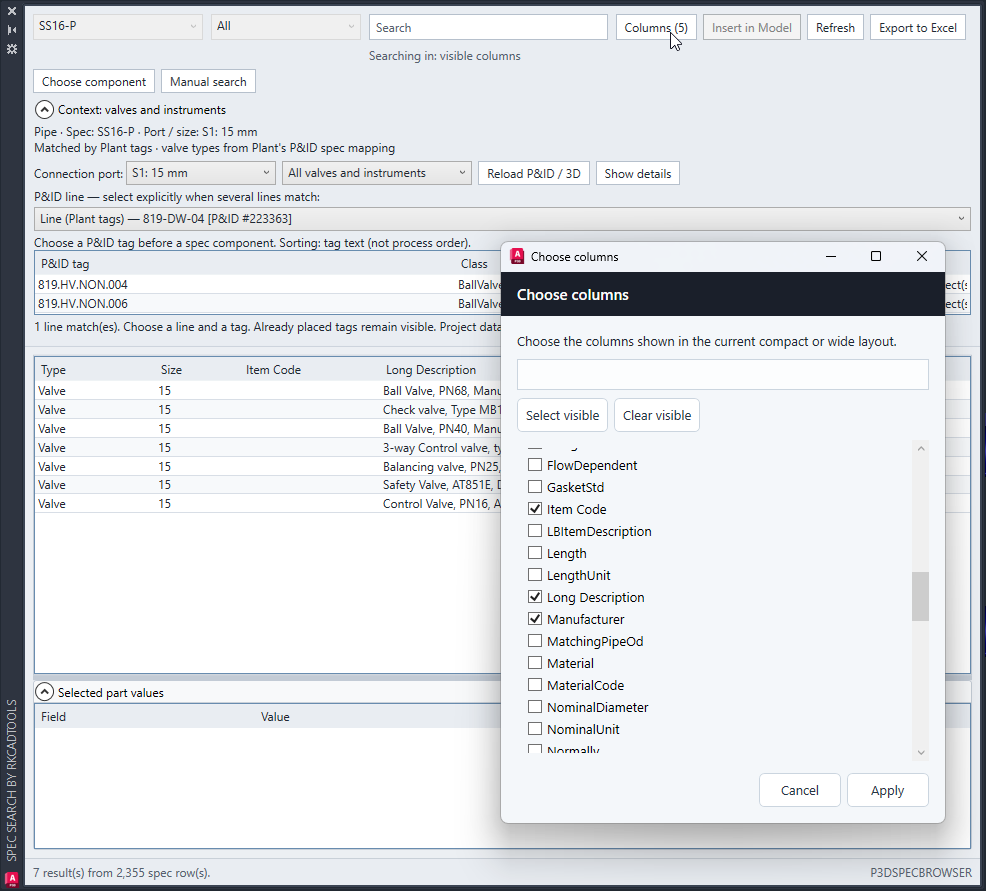
The compact and wide layouts remember their own column selections, order and widths. In a narrow palette, actions such as Insert, Refresh, Export and Columns move into the … menu.
3. Use a pipe and P&ID context to choose a component
Choose Choose component and follow the drawing prompts to pick the component/pipe context. The palette can use its spec and connection-port size together with Plant tags and the project’s P&ID spec mapping.
- Review the detected spec and choose the intended Connection port.
- Choose the P&ID line explicitly when several lines match.
- Review the listed P&ID tags and their 3D placement status. Select the intended tag before choosing the spec component.
- Use Reload P&ID / 3D to reread project data, or Show details to understand the matching context.
- Compare the remaining spec rows. Use Manual search when you want to browse without the context filter.
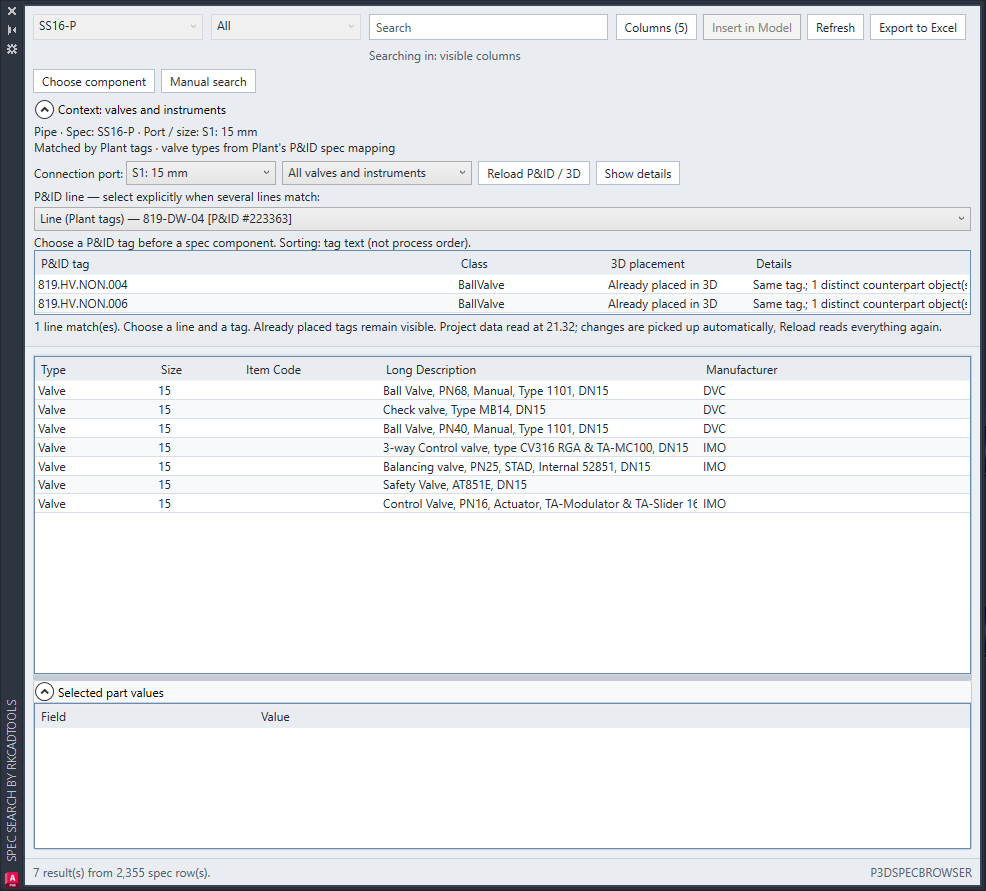
Tags are sorted by tag text, not process order. Confirm the intended line, tag, port and part; similar descriptions do not establish that two components are interchangeable.
4. Place the selected part or export the result table
- Select the required spec part and review its size, description and values.
- Choose Insert in Model, double-click the row, or drag it into the active Plant 3D model.
- Complete the normal Plant 3D insertion prompts and verify the resulting placement and connection.
- For comparison outside Plant, choose Export to Excel. The workbook follows the visible columns and their current order.
Search is separate from placement
The screenshots show browsing and selection controls. None demonstrates a completed model insertion. Use Plant’s normal placement workflow and inspect the inserted component before saving.
5. Check missing specs or unexpected results
Spec Browser follows the spec files registered in the active Piping project. If a registered spec or its companion .pspc database cannot be opened, choose Warnings for the path and reason.
If a search misses a value, check the selected spec/type and ensure the relevant property is visible. For context search, review the port size, selected P&ID line and tag, and use Show details before falling back to Manual search. Use Refresh to reload the spec results.
Continue with the Quick Guide command reference, or use Pipeline Manager to prepare selected lines for isometrics.