
Quick Properties: Inspect and Edit Selected Objects
Open the Quick Properties palette, choose visible fields and apply editable property changes to selected Plant 3D objects.
1. Select an object and inspect its properties
- Open a P&ID or 3D Piping drawing in the active Plant project.
- Choose Quick Properties on the ribbon, or run
QEDIT. - Select the object in the drawing. Check the class and selected-object count before editing.
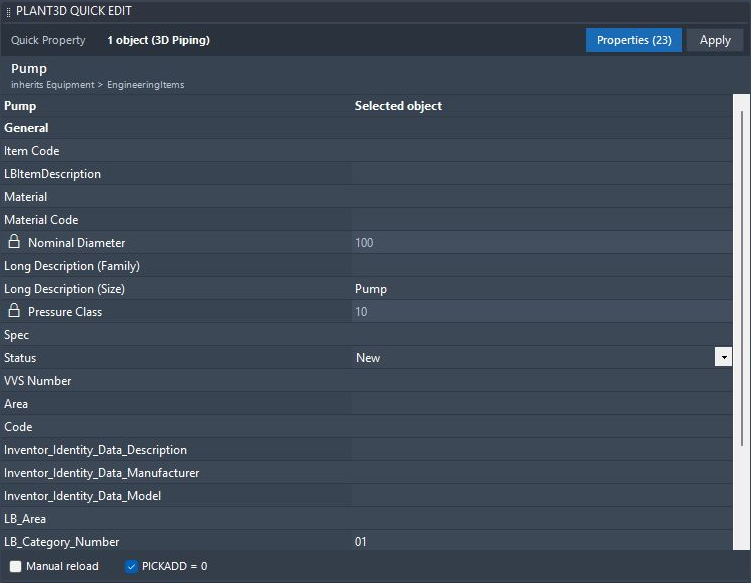
The palette title is Plant3D Quick Edit; the ribbon command is Quick Properties. Check the current selection whenever you change objects.
2. Choose the properties you need
- Select an object so the tool knows the Plant database and class.
- Choose Properties in the palette, or Quick Settings on the ribbon (
QEDITPROPS). - Choose the class or family and select the visible properties.
- Review the configured read-only fields, save the layout and return to the palette.
The screenshot’s Properties (23) button opens the field selection. Showing a property does not make a locked Plant field editable.
3. Apply changes to editable fields
- Check that the intended object or objects are selected.
- Edit an unlocked value, then choose Apply.
- Read the command-line result and reload or reselect the object to check the stored value.
- Save and check in the drawing through the normal Plant 3D workflow.
Tags, formulas, counters and Plant system fields can remain locked. For an acquired field that supports Plant’s native override, right-click and choose Override property before editing. The native Override state is retained in the project.
In P&ID, a primary line segment can also expose editable properties from its related Pipeline Group. Check the row and property you are editing.
4. Check locked fields and selection
If the expected fields are missing, confirm the object class and its Quick Settings selection. If a field is locked, check its Plant definition and acquisition state before attempting an override.
QEDITSET selects one object and writes a chosen editable property from the command line immediately. Use the palette when you want to review fields before choosing Apply.
Continue with the Quick Properties command reference, Tags Audit, or Data Manager for table-based editing.