
Prepare Pipeline Groups for Welds and Isometrics
Use the 3D Pipeline Groups view to select the lines you need, lock missing weld numbers in the current drawing, and open Plant 3D Quick Iso or Production Iso with those pipeline groups already selected.
One selected pipeline list for several production tasks
Pipeline Manager is the 3D Pipeline Groups mode in Data Manager. It lists pipeline groups and their production status, so you can work from a deliberate selection instead of finding each line individually in the model.
or full project
rows only
in current drawing
preselected
What Pipeline Manager passes to Plant 3D
It reads the line number/tag from each selected pipeline-group row and passes the distinct line numbers to Plant 3D. Plant 3D’s own Quick Iso or Production Iso dialog remains in control of the ISO job.
Have this ready

The 3D pipeline groups you want to work with must already be tagged with a line number in the project.

Lock Weld Numbers writes weld-number properties into the current drawing. Test it on a copy of the project before using it on a live one.

Quick Iso, Production Iso, and Lock Weld Numbers are unavailable while other edits are still staged.

Lock Weld Numbers only processes pipeline groups that are present in the drawing you currently have open.
Load and select the pipeline groups
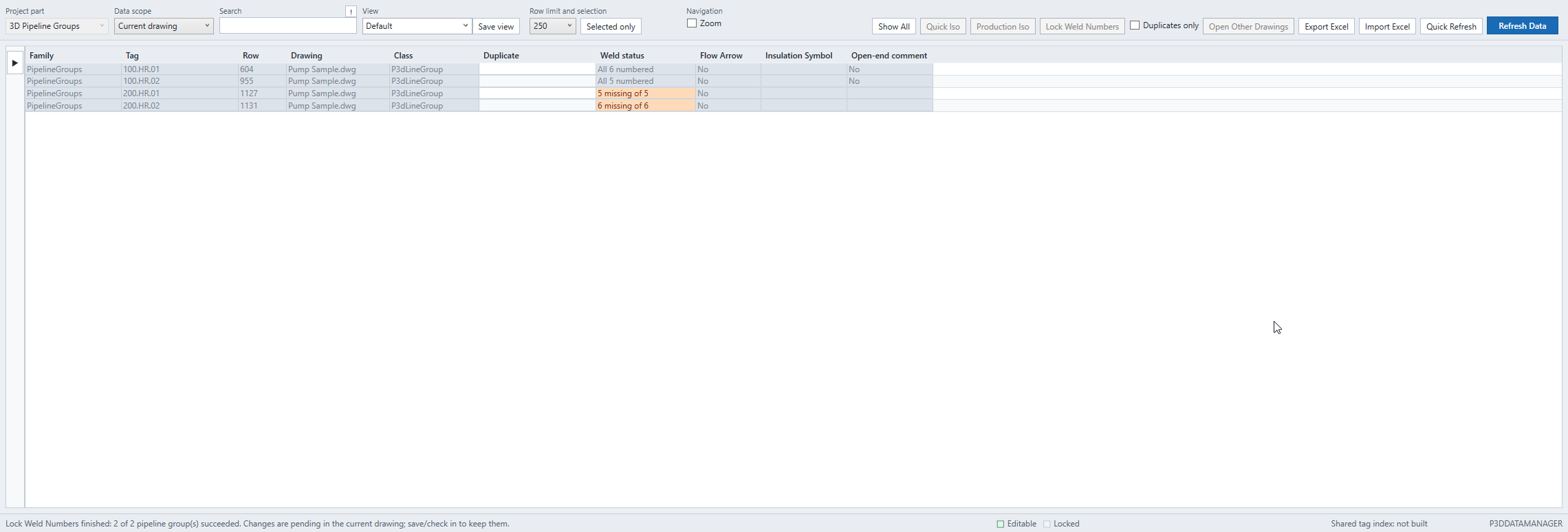
- Open Data Manager with
P3DDATAMANAGERorP3DDM. - Set Project part to 3D Pipeline Groups.
- Choose Current drawing or Full project, then click Refresh Data.
- Select one or more rows using the row selector at the far left of the grid.
Only use tagged 3D pipeline groups
The ISO actions require selected P3dLineGroup rows with a line number/tag. They are unavailable while pending Data Manager changes still need to be accepted or discarded.
Lock weld numbers before production
This Pipeline Manager action works on the selected pipeline groups in the current drawing. Existing weld numbers are retained; blank weld-number properties are filled using the classes and series configured in Weld Manager’s Numbering Settings. Without custom rules, all detected weld classes share one series per pipeline in the active DWG. Blank numbers continue above the highest number in that series in this DWG; numbers in other DWGs are not looked up or reserved.
Test on a project copy first
Lock Weld Numbers changes the drawing. Run it on a copy of the project before using it on a live one, and check the resulting weld status before you save and check in.
- Select the required 3D pipeline-group rows.
- Confirm there are no pending Data Manager changes.
- Set class selections, shared/separate numeric series and start numbers in Weld Manager → Numbering Settings if needed.
- Click Lock Weld Numbers.
- Review the preview for each selected pipeline with planned changes. Check old/new values and the DWG, then apply or cancel that pipeline without writing.
- Inspect the Weld status column after it refreshes.
- Save and check in the active drawing through the normal Plant 3D workflow to retain the changes.
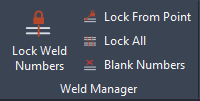
Need a different numbering method? The Weld Manager ribbon provides Renumber From Point, Lock All, and Blank Numbers for direct, drawing-based workflows.
Manual model numbers and ISO output
WeldNumber must allow manual entry. Set the ISO style’s Weld ID (Shop) and/or Weld ID (Field) to ID: Weld Number Property under Project Setup → Isometric DWG Settings → Annotations → Table ID’s. This makes the ISO use the model numbers; automatic ISO IDs can show another sequence. See the Weld Manager deep dive for the complete setup.
Only welds in the active drawing are changed through Plant’s API. Numbers in other drawings are not looked up or reserved; Plant handles its linked project data.
Open Isometric extraction with the selected lines preselected
Select every pipeline group you want ISO drawings for in the grid, then send the complete selection to Plant 3D in one action. The toolbar and compact actions menu use the same two symbols shown below.

The single sheet and lightning bolt identify the fast Quick Iso action. It opens Plant 3D Quick Iso in Line number mode with the selected line numbers preselected.

The stacked sheets and approval check identify the Production Iso action. It opens Plant 3D Production Iso with the selected pipeline groups preselected.
- Select every 3D pipeline group that should be included.
- Confirm every row has a line number/tag and no pending Data Manager changes remain.
- Click Quick Iso or Production Iso.
- Review the already selected lines in Plant 3D’s native ISO dialog, then finish the job with its normal options.
Why this is faster
Filter, search, and select a batch of pipeline groups in one table before opening the ISO dialog. You do not have to manually reselect the same lines for every ISO run.
Recommended production checks
Check items off as you go; the checkmarks are only saved in this browser on this computer.
Quick troubleshooting
Quick Iso, Production Iso, or Lock Weld Numbers is disabled
Select one or more tagged 3D P3dLineGroup rows. ISO actions also require a line number/tag on every selected row. Accept or discard any pending Data Manager changes first.
Lock Weld Numbers does not process a selected row
The selected pipeline group must be present in the active drawing, its weld class must be included in your numbering rules, and WeldNumber must allow manual editing. This action fills only blank weld numbers in that drawing; it does not modify unopened drawings.
The weld status does not update after locking
Use Quick Refresh to retry the status update, or Refresh Data to reload all selected data.
The ISO dialog does not contain the expected pipelines
Confirm the intended rows were selected and had a valid line number/tag. The buttons pass distinct line numbers, so repeated rows for the same tag become one ISO selection.