Plant 3D to HTML. Share an interactive 3D model.
Turn your AutoCAD Plant 3D drawing into one offline HTML file. Let reviewers explore the model, find components, read exported properties and return annotated views from a browser.
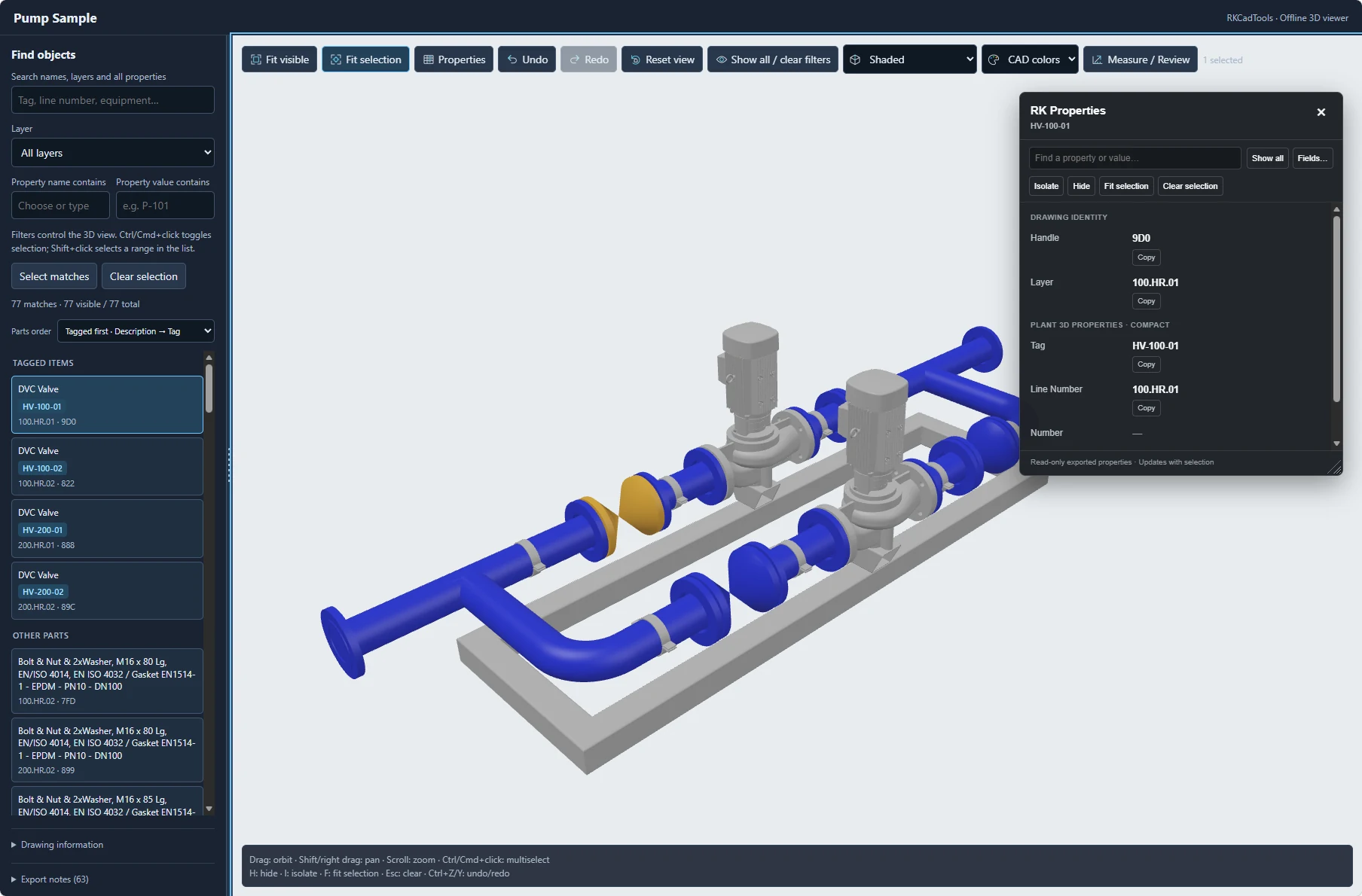
A model review your recipients can open themselves.
Use 3D HTML for design reviews, site discussions and model handovers when the recipient needs an interactive snapshot of your Plant 3D work. The exported file embeds the supported model geometry and its viewer, so recipients do not need AutoCAD, RKCadTools or a viewer installation.
Share one file
Send the exported HTML through your approved delivery channel. Open a downloaded copy offline; no model server or internet connection is needed.
Find the right component
Search tags and included property values, filter layers, select matching objects and inspect read-only data beside the model.
Keep the review in context
Add review measurements, arrows, sketches and notes. Save named views and download an annotated HTML copy to share back.
From a Plant 3D drawing to a browser review.
1. Choose the scope
Open Drawings & Delivery → 3D HTML, or run P3DWEBGLEXPORT. Export a selection, the current drawing or the region defined by Clipper.
2. Choose what to share
Include or omit Plant properties. Select Neutral, original CAD colors or a Color Rules set, then save the HTML file.
3. Explore the snapshot
Open it in a WebGL browser. Orbit, pan and zoom, search components, read properties and hide or isolate selected parts.
4. Save the discussion
Create named views with measurements and markups. Use Save a copy to download the model with the review included.
Try the Pump Sample in your browser.
Explore the demonstration assembly used in these screenshots. Open the live sample to inspect the piping and pumps, then try the review tools yourself. No installation or sign-in is needed to explore it.
- Find a component. Search for
HV-100-01, select the valve and inspect its exported properties. - Compare the colors. Switch between CAD colors, Neutral and Parts to see how each mode explains the same assembly.
- Keep a review. Open Measure / Review, add a mark, then open Views & notes to name a view. Save an HTML copy to keep your changes.
Make the model easier to read.
Filter, isolate and inspect
Move from a complete assembly to the components that matter in the discussion. Hide or isolate a selection and use Fit selection to bring it into view. A selected component opens its exported properties; multi-selection shows shared values and differences.
Use CAD colors to retain familiar source colors, Neutral for a consistent review material, or Parts to distinguish exported owners. A chosen Color Rules set travels with its offline legend.
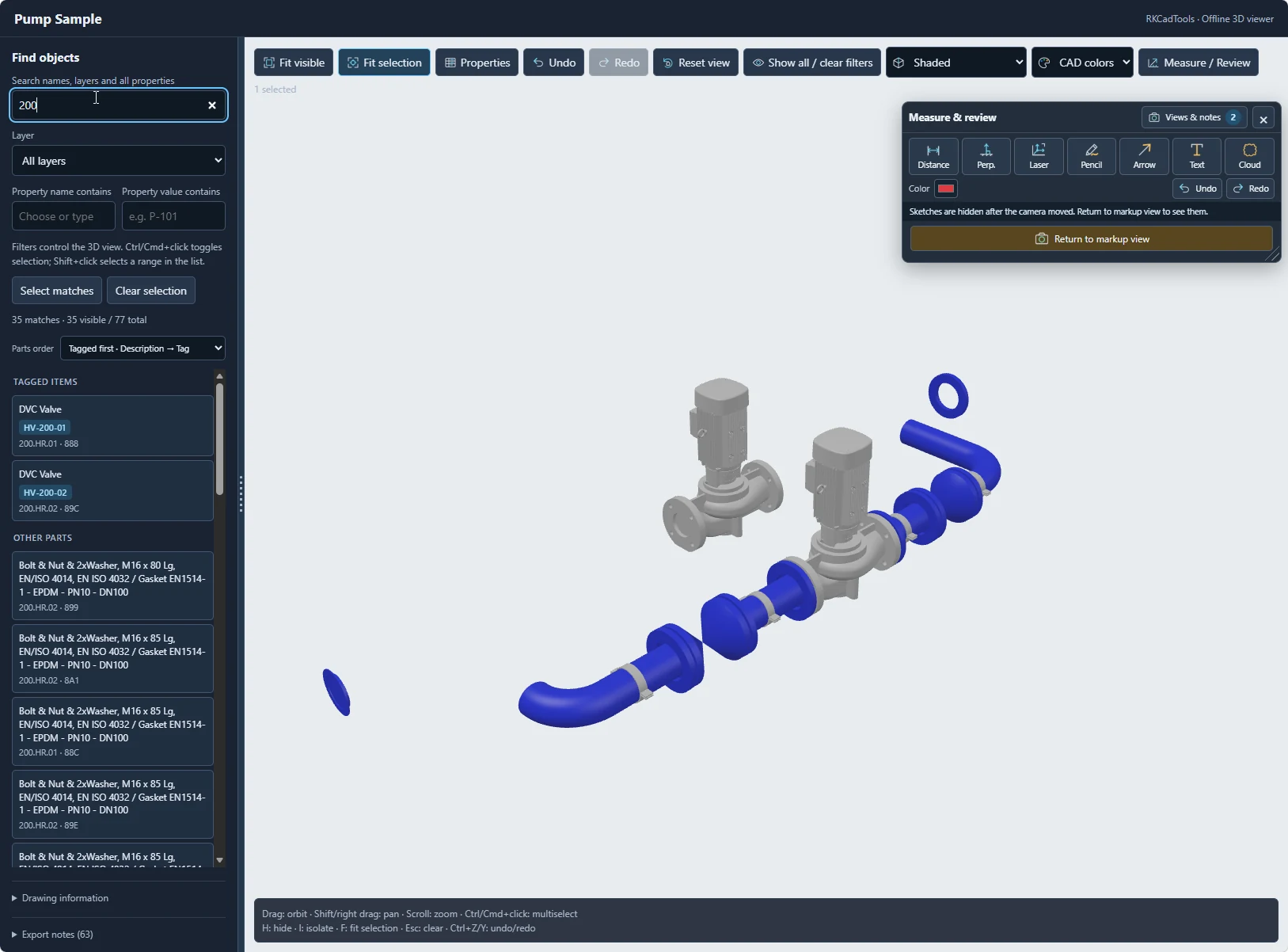
Return views, notes and visual comments.
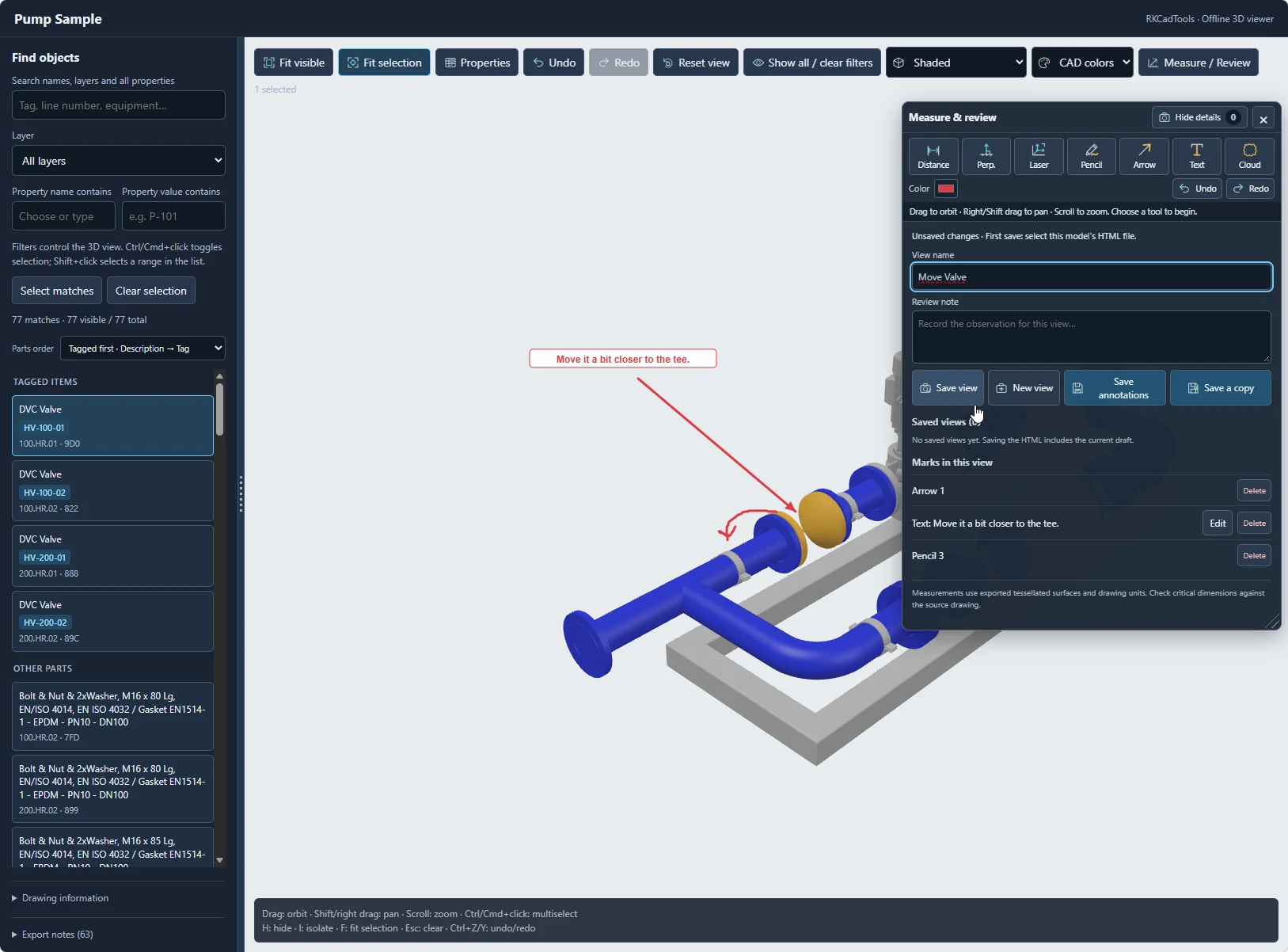
Use Distance, Perpendicular or Laser for approximate mesh-based review measurements. Add arrows, pencil marks and text, name the view and capture the camera, visibility, colors and notes together.
Save view keeps that viewpoint in the current review. Save a copy downloads a self-contained HTML file with the model and review. Supported desktop browsers can also save annotations back to a matching file after you grant file access.
The recipient can reopen the annotated copy offline and continue the review. CAD geometry and Plant properties stay read-only.
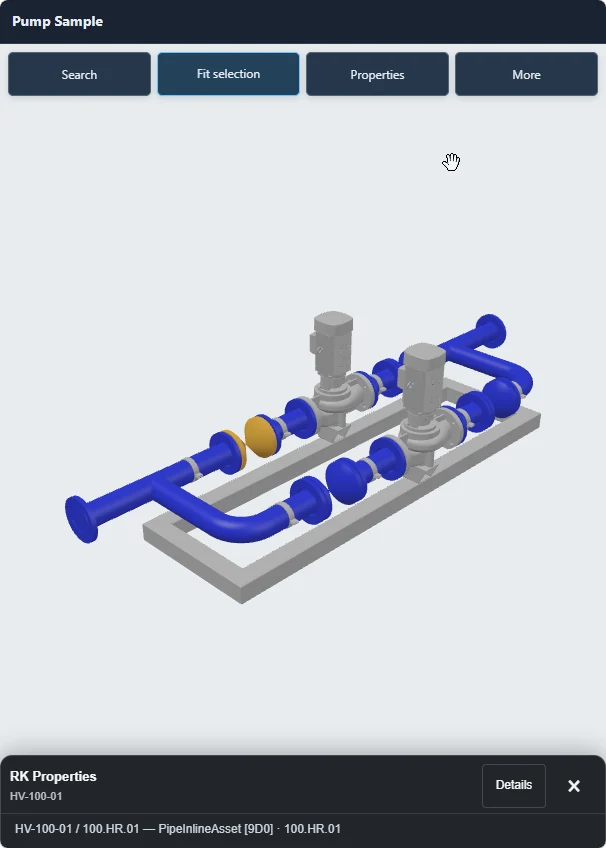
Open the same snapshot on a phone.
The viewer adapts to smaller screens with a Search drawer, a More menu and a compact properties sheet. Use it to carry a focused model review into a site conversation or meeting.
Start with a selected area or Clipper export for mobile reviews. A phone’s practical model capacity depends on its available memory, graphics hardware and browser.
Choose the delivery scope with care.
3D HTML is a snapshot of the current drawing and supported loaded references. Re-export after source-model changes to issue an updated delivery.
- Properties are a sharing choice. Included Plant values are embedded in the file. Omitting them still retains geometry, layers and object identities; a Color Rules export also contains its rule labels and legend.
- Check export notes. Unloaded or unresolved references and unsupported geometry can be absent. Drawing export is not a batch export of every drawing in the project.
- Use dimensions for review. Measurements follow the exported mesh. Check critical dimensions in the source drawing; pipe envelopes omit bores and insulation.
- Keep files after reviewing. Save view alone does not save a file. Complete the annotated-copy download, or use supported direct saving and check the Saved status.
Questions about Plant 3D HTML export.
Does the recipient need AutoCAD Plant 3D?
No. The exported HTML includes its viewer and can be opened in a compatible WebGL browser. AutoCAD Plant 3D and RKCadTools are needed to create the export.
Can the exported model be opened offline?
Yes. The geometry, included properties and viewer code are embedded in the HTML. The viewer does not require a CDN, model server or internet connection.
Can reviewers change the Plant 3D project?
The viewer allows review notes, dimensions, sketches and saved views. It does not edit CAD geometry or write Plant properties back to the project.
Can I include just one area or assembly?
Yes. Use Selection for chosen objects, Drawing for the current model space, or Clipper for a defined region. Check the illustrated guide for clipping and reference limitations.
How do I try 3D HTML?
Download RKCadTools for your Plant 3D version and start the free 15-day trial in the program. Test a focused export and open the HTML on the device your reviewers will use.
Related Plant 3D workflows.
Clipper: define the model region to export · Color Rules: review property-based colors · Excel import and export: exchange editable project data
Share your first interactive Plant 3D model.
Try the Pump Sample in your browser, then create a focused export from your own project with the free 15-day RKCadTools trial.