
3-Way Data Validation in AutoCAD Plant 3D
Data Validator compares up to three data sources on a shared key and flags where they disagree. This guide goes deep on the part that isn’t obvious: how Data A/B/(C), key fields, and field mapping together decide whether a row turns green, pink, amber, or purple — and why a third source gives you something two sources never can.
What does Data Validator do?
You choose two or three data sources — P&ID data, 3D Piping data, or an external source from Data Bridge (Excel, SQLite, SQL Server, or OData) — and a key field on each. Validator finds rows with the same key across the sources and compares the fields you’ve mapped under Fields to Compare. Data C is optional: without it, you get a plain A-versus-B comparison.
Key A
e.g. TagNo
Trimmed, case-insensitive
Key B
Key C
Why a third source is more than an extra check
With only A and B, Validator can only tell you that two values disagree — both sides show red, because there’s nothing to decide between them. As soon as you add Data C on the same field mapping, Validator can see whether two of the three agree. If they do, the outlier is colored red and the two that agree are colored green — giving you a concrete hint about which source most likely has the error, without Validator deciding who’s right.
Start with the question you need answered
Use two sources to find missing or conflicting keys. Add a third source when you need evidence of which value is the outlier: two matching values turn green and the differing value turns red. Validator reports differences; it never changes Plant 3D data or chooses the correct value for you.
Have this ready
Data Validator doesn’t create classes or properties. It only reads what already exists in the project or in the external sources you point it at.

P&ID, 3D Piping, or a Data Bridge source. The third (Data C) is optional and can be added or removed at any time.

E.g. TagNo, LineNumber, or PositionNumber — the same identifier type on every source you select.

Under the Fields to Compare tab, at least one comparison needs to be added, otherwise Validate only finds key problems, never value mismatches.

Run the first validation on a copy until class filters and regex exclusions are confirmed correct.
Key matching isn’t fuzzy
Validator trims whitespace and ignores upper/lower case when comparing keys — but it doesn’t fix formatting. V-101 and V101 are treated as two different keys, and both will show up as “missing in” the other source. Make sure the key field is formatted the same way in every source you select before validating.
Setup, step by step
Quick first check
For a first test, compare one class with one shared key such as TagNo and map one familiar property such as Description. Check the preview row counts before clicking Validate. Add classes, fields, and Data C only after the simple comparison returns the expected result.
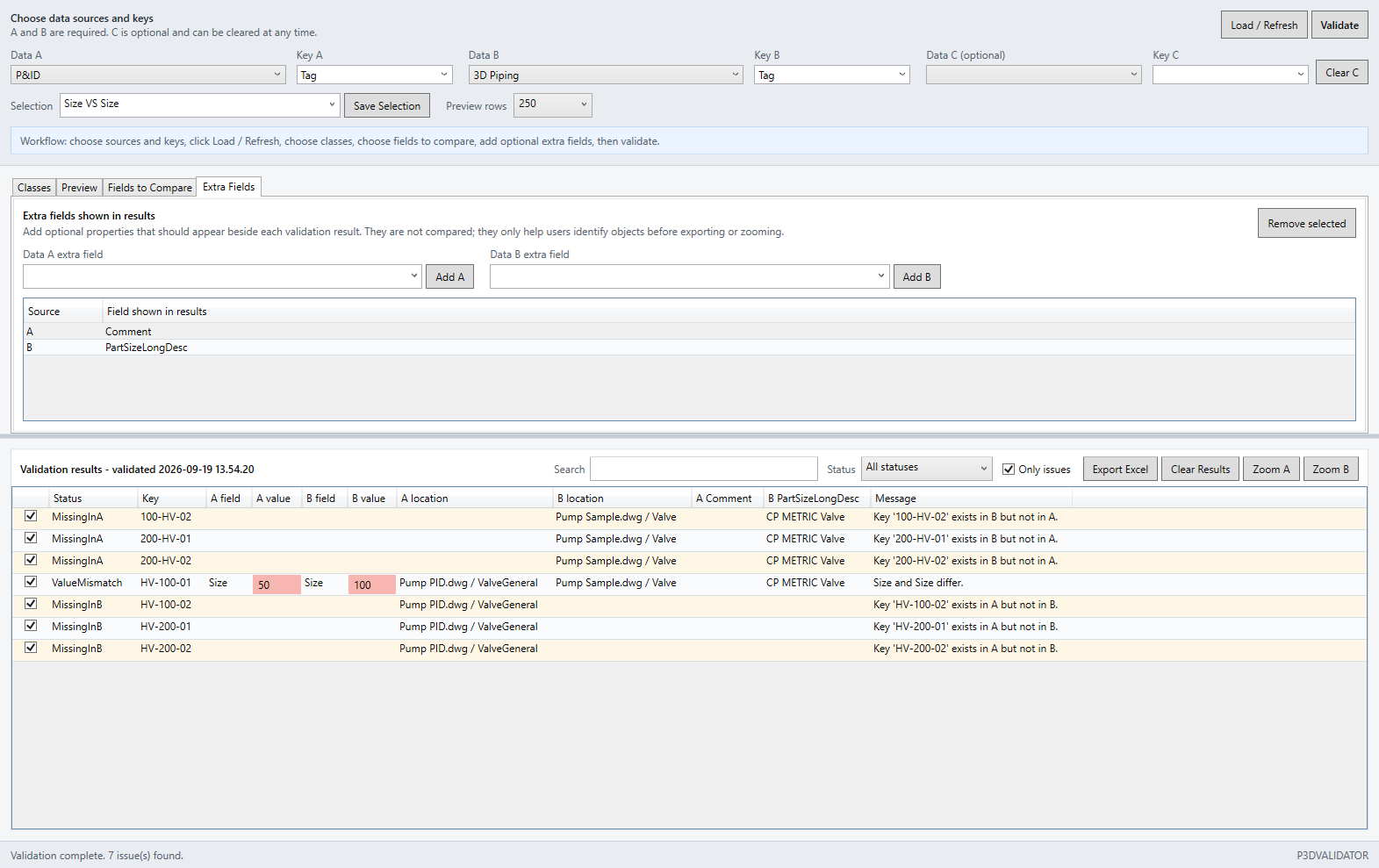
Choose sources and keys
Open Data Validator in the Data Manager panel, or type P3DVALIDATOR (short form P3DVAL).
- Select a source under Data A and the matching key field in Key A.
- Select Data B and Key B the same way.
- Optional: select Data C and Key C for a 3-way comparison.
- Click Load / Refresh to pull field names from the sources. This doesn’t clear existing keys, mappings, or result columns.
Map the fields to compare
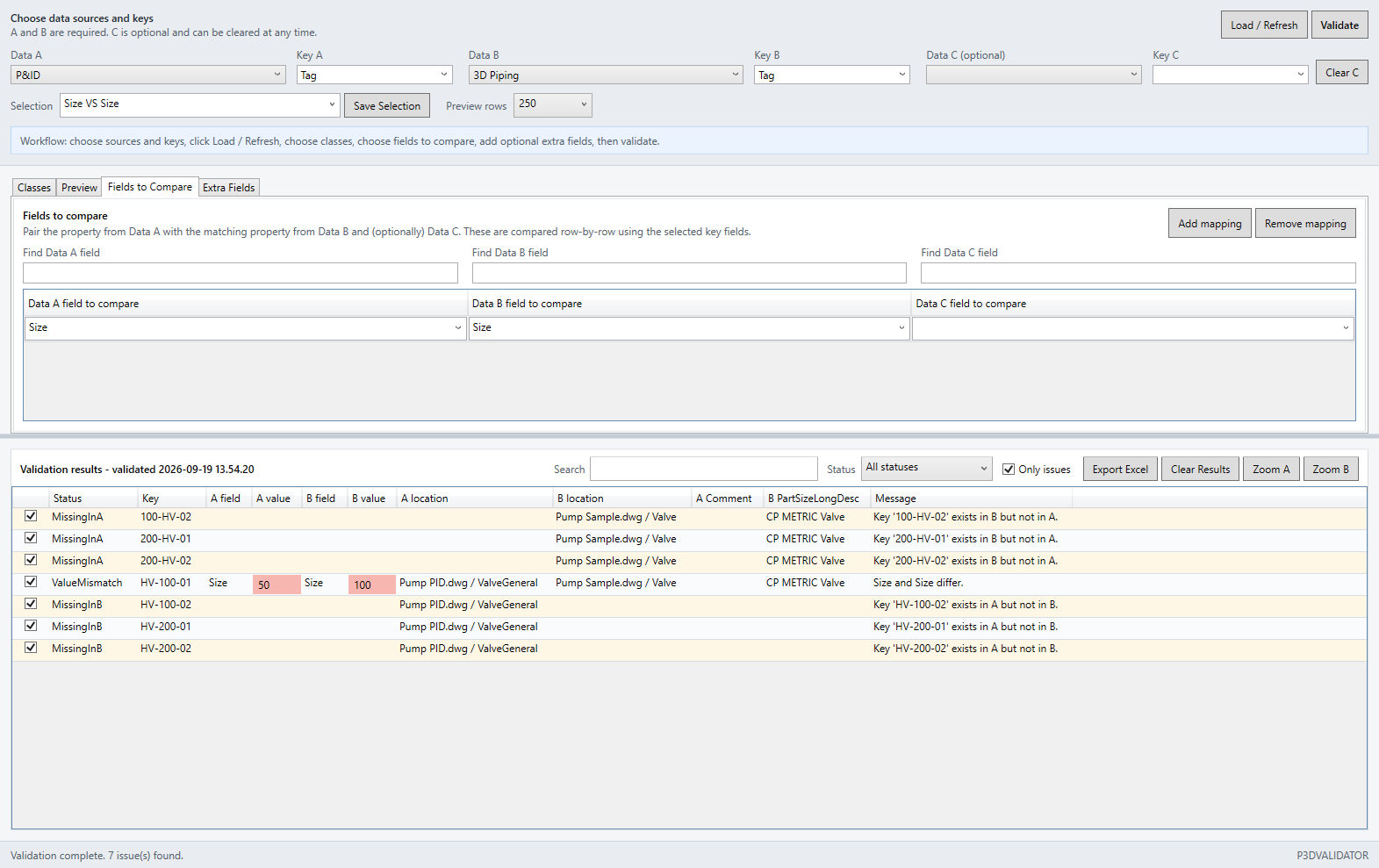
Open the Fields to Compare tab. Each row here is one comparison across the sources.
| Data A property | Data B property | Data C property |
|---|---|---|
| Size | NominalDiameter | Size |
| Material | Material | leave empty |
- Click Add mapping for each property that should match.
- Select the Data A field, the Data B field, and — if relevant — the Data C field. The names can differ; it’s the row’s position that ties them together.
- Use the search boxes above the grid to filter long field lists.
A mapping row needs a field filled in on at least two of the three sides to be evaluated. If you’ve only filled in Data A, the row is silently skipped — no error, no warning.
Narrow down with classes and regex
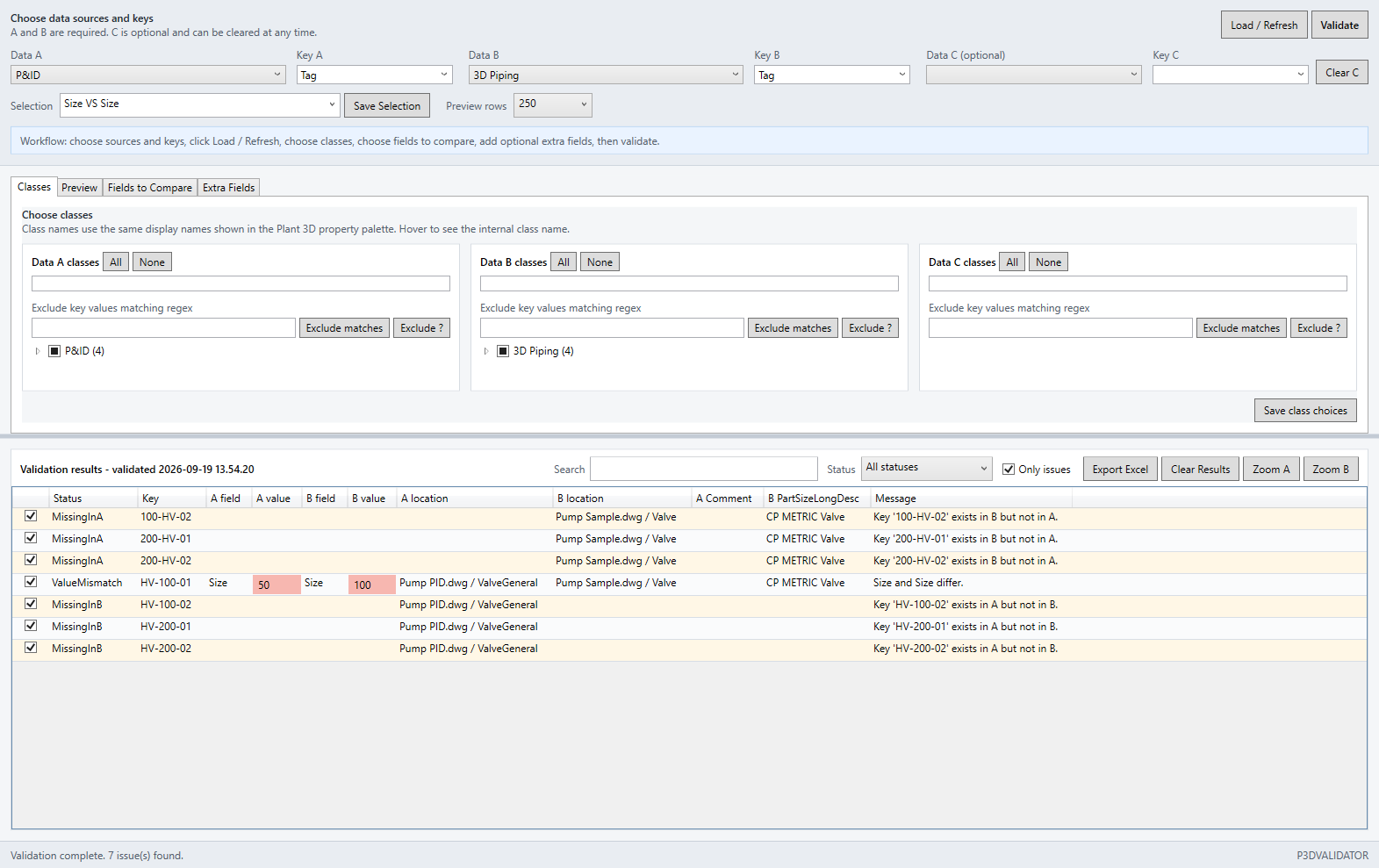
Open the Classes tab. It has a sub-panel per side (A, B, C) with a class tree and a regex field.
- Check the classes that should be included in the class tree for each side. Use All / None to quickly check or clear every visible class.
- Type an expression into Exclude key values matching regex to exclude specific keys, e.g.
\?to skip placeholder rows with question marks. - Click Exclude matches to apply the regex. Until then, matching rows are only flagged in the preview.
The regex is case-sensitive and matches against the key’s raw text (before trimming) — ^V- doesn’t match V-101 with a leading space. Excluded rows are removed entirely from that side before Validate runs; they’re not counted as a match, mismatch, or “missing in”.
Check the preview per source
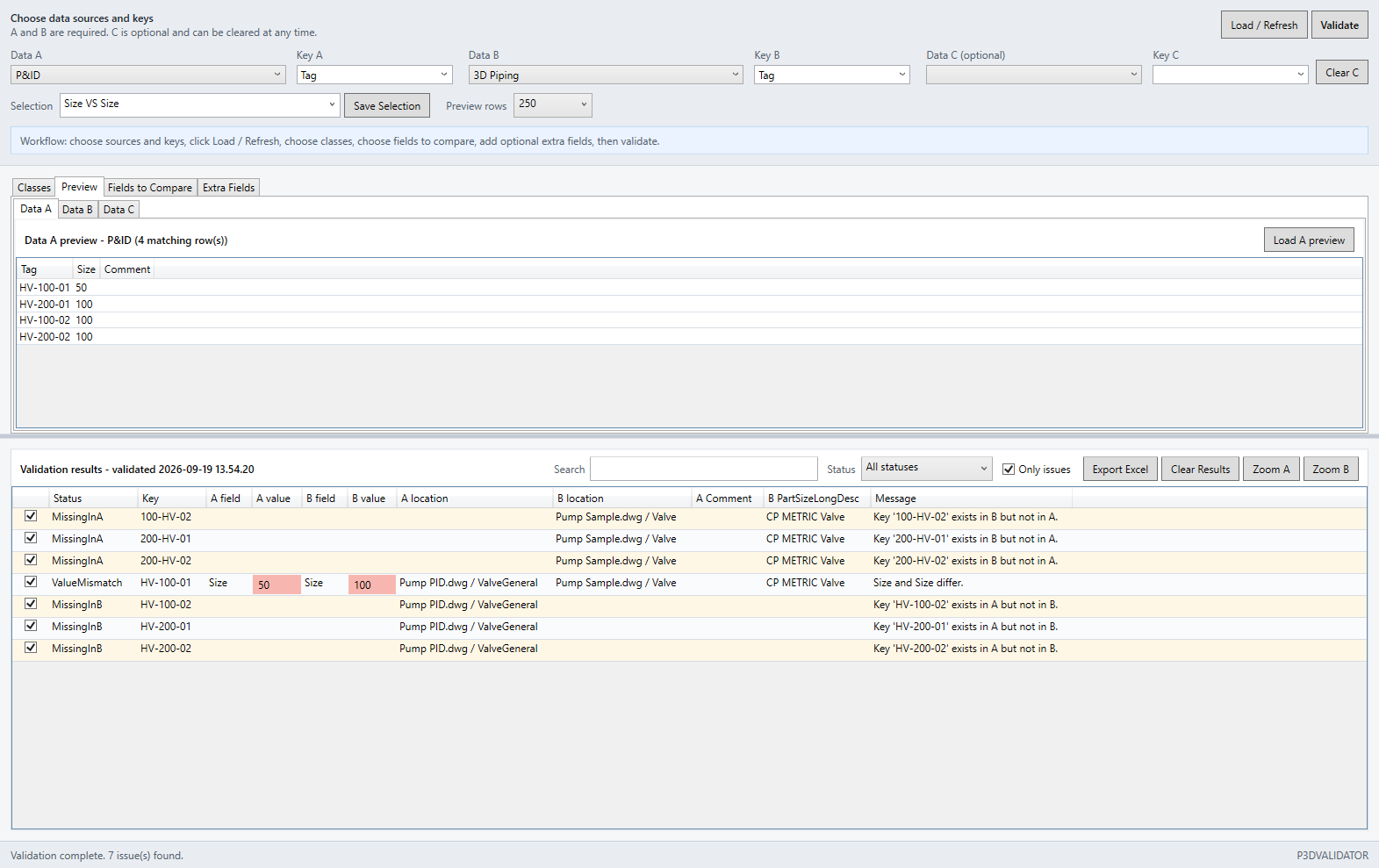
The Data A, Data B, and Data C tabs show a raw preview of each source’s rows after the class filter.
- Click Load A preview (and the same for B/C) to pull the rows.
- Rows matching your regex exclusion are flagged in the preview until you click Exclude matches on that side.
- Check the row count — if it’s noticeably higher or lower than expected, the class filter or key field is set up wrong.
Run Validate
- Click Validate.
- The status bar shows the number of problems found (keys that match perfectly aren’t counted here).
- Continue to How to read the result to understand the colors before acting on them.
How to read the result
The results grid uses two layers of color: a row color that shows what kind of problem the key has, and a cell color that only appears on mismatch rows and shows which side disagrees.
” V-101 ” and “v-101” count as the same key. Validator doesn’t fix formatting beyond that — “V-101” and “V101” are still two different keys.
A row with an empty key field isn’t included in the comparison. It’s reported once per side as a standalone “empty key” event, not as “missing in”.
If the same key appears more than once on one side, the value comparison for that key is skipped entirely. You only get the duplicate warning — not whether the mapped fields actually agree.
A key where every mapped field fully agrees across sources gets no row at all. The results grid only shows keys with at least one problem.
With only Data A and B on a mapping, a mismatch is always red on both sides — there’s no third value to check against. The green/red split needs the field mapped on at least two sides that actually agree, which in practice requires Data C.
Row and cell colors, side by side
| Row color | Means | Does the row have cell colors? |
|---|---|---|
| Green | Every mapped field agrees. In practice this never appears as a row — see the rule above. | No row to color |
| Pink | At least one mapped field disagrees. This is the only row type that shows green/red cells. | Yes — per mapped field |
| Amber | The key is missing in at least one selected source, or the key field is empty on a row. | No — row background only |
| Purple | The same key appears more than once on one side. | No — row background only |
“Only issues” doesn’t turn on green rows. The checkbox is on by default and technically filters out matches — but since a fully-matching key never becomes a row in the first place, there’s nothing extra to see even if you uncheck it.
Test, search, and export
Use a copy of the project for the first run. Check items off as you go; the checkmarks are only saved in this browser on this computer.
Filter the result
- Use the Status dropdown to show only one type of problem, e.g. “Duplicate keys in A”.
- Use the search box: a space means AND,
|means OR, quotes give an exact phrase, andField:valuesearches one column, e.g.status:missinginborkey:V-1. - Uncheck Only issues if you want to see raw status names with no filtering (see the box above on why this rarely changes anything in practice).
Zoom to the object
- Select a result row.
- Click Zoom A, Zoom B, or Zoom C to zoom to the linked Plant object in the drawing.
- Use the checkbox in the first column to mark which rows should be included in an export.
Export and save the setup
- Click Export Excel. The sheet keeps both the row’s status color and the green/red cell colors per field.
- Click Clear Results to clear the result without losing your choice of sources, keys, or mappings.
- Type a name in the Selection field and click Save Selection to save sources, keys, class filters, regex, mappings, and result columns for later.
- Use Clear C next to Key C to drop Data C and fall back to a plain A-versus-B comparison.
P3DVALIDATORP3DVAL%APPDATA%\RKCadTools\SavedViews\Validator%APPDATA%\RKCadTools\Plant3DDataValidatorResults.jsonThe latest result is cached automatically and reopens the next time you start Validator. Clear Results deletes both the grid and this cache.
Quick troubleshooting
No results after Validate
Check that Data A and Data B are both selected, that Key A/Key B point to fields that are actually filled in, and that you’ve clicked Load / Refresh since the last source change. If only one source has data (e.g. Data B is empty), Validator stops with a message asking you to select both sources.
Everything shows as “missing”, even though the data exists on both sides
This is almost always a key format problem: Key A and Key B don’t represent the same identifier type, or one side has a prefix/suffix the other doesn’t. Remember Validator only trims and ignores case — it doesn’t normalize formatting beyond that.
A known mismatch doesn’t show up at all
Check whether the key has duplicates on one of the sides — that skips the field comparison for that key entirely, and you’ll only see the duplicate warning. Also check that the mapping row actually has the field filled in on that side, and that the class filter or regex exclusion isn’t removing the row before Validate runs.
I expected a green “everything agrees” row, but don’t see one
That’s expected: a key where everything agrees never gets a row in the results grid. Use the row count in the status bar together with the total number of keys in your sources to judge how much of the data is actually problem-free.
The regex exclusion doesn’t hit what I expect
The regex is case-sensitive and matches against the key’s raw text, before it’s trimmed. A leading space or the wrong case in the pattern can cause rows to be skipped. Check the preview highlighting on the relevant Data A/B/C tab before clicking Exclude matches.
Clear C removed my C mappings
Clear C only drops the active Data C source and Key C, so Validator falls back to a 2-way A-versus-B comparison. Mapping rows that had a Data C field filled in stay in the grid, but that field isn’t evaluated until you select a new Data C again.
Too many results to work through
Narrow it down with class filters per side under the Classes tab, and use Exclude key values matching regex to remove known placeholder rows (e.g. keys with “?” or “TBD”). Then use the Status filter or the search box to work through one problem type at a time.