Compare P&ID and 3D data in Plant 3D.
Find where your P&ID, 3D model and external data disagree. Data Validator compares selected properties by matching keys, then gives you a focused list to investigate.
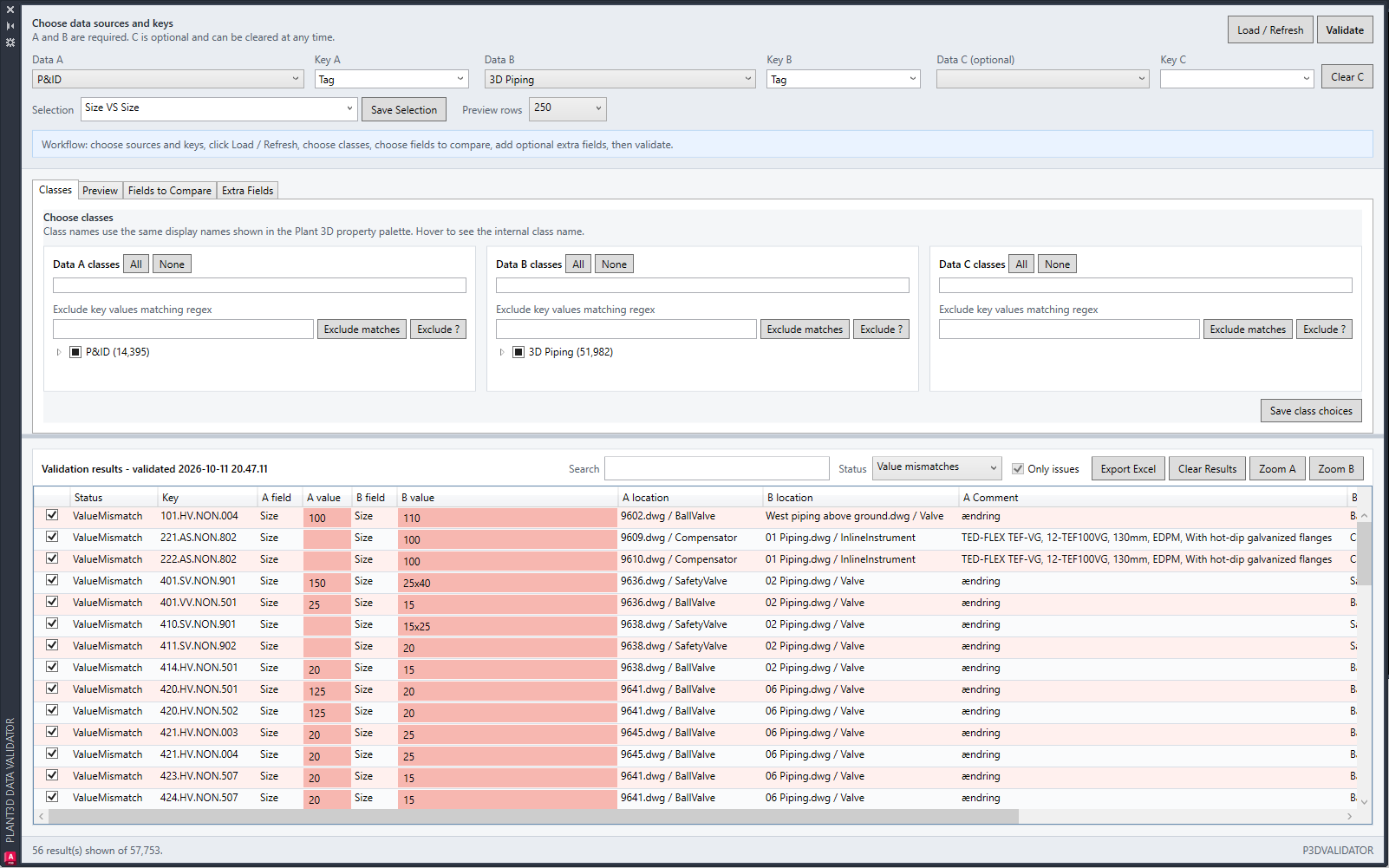
From two lists to a reviewable issue list
Use Data Validator when the question is whether sources agree. Select two sources for a P&ID-to-3D comparison, or include a third source when external data is part of the review. Configure the matching key and map the fields you want to compare.
Matching keys link related records; they do not prove that the records describe the same physical item. Check key quality and class scope before interpreting the result.
A practical comparison workflow
Start with a small, known set of components. Keep the selected key and property names visible in your review notes.
- Choose the source scopes and relevant classes. Set the key used to match records across sources.
- Map the properties to compare, such as Size, and run the comparison.
- Review differences, missing or empty keys and duplicate keys. Use the selected result to locate the relevant Plant objects.
- Decide which source is authoritative for each issue. Correct it through the appropriate Plant workflow and compare again.
Understand what a result means
The two-source demo lists discrepancies; fully matching keys are not listed as issues. In three-source comparisons, agreement colours show relationships between values, not which source is technically correct.
A missing key, an empty key and a duplicate key each need investigation. Avoid treating an incomplete comparison as proof that the remaining records are correct. Follow the worked Size-comparison demo.
Choose the tool for the task
Data Validator identifies differences. Data Manager reviews and edits allowed Plant properties and exchanges data with Excel. Data Bridge applies configured external mappings. Choose the correction workflow after deciding what the right value should be.
Try a familiar task on a project copy
Install RKCadTools, start the 15-day trial in Plant 3D and follow the guide for this workflow. No payment details are required. Review the results before introducing changes into production.
Read the Data Validator guide · Compare all toolkit features · Pricing and licences