
Color Rules: Review Plant 3D Models by Property Value
Choose or create a color set, map Plant property values to colors, review the legend, and control whether the colors appear in plots.
1. Apply an existing color set
Open a 3D Piping drawing. Expand Color Rules on the RKCadTools ribbon and select a named set. Sets are labelled by origin, such as Local or Shared.
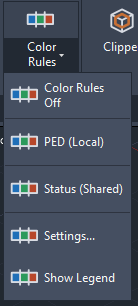
Color Rules reads a Plant property and applies its value colors during display. It does not overwrite entity colors or Plant properties. P&IDs, orthos and isometrics are outside the coloring scope.
2. Create a local set or copy a shared set
- Choose Color Rules → Settings, or run
RKCOLORRULES_SETTINGS. - Click New to create a local set. To adapt a shared set, select it and choose Duplicate to Local.
- Give the set a clear Name. Choose Source: component property, or pipeline group property to color members from their related P3dLineGroup.
- Choose Color by. The class count indicates where the selected property is available.
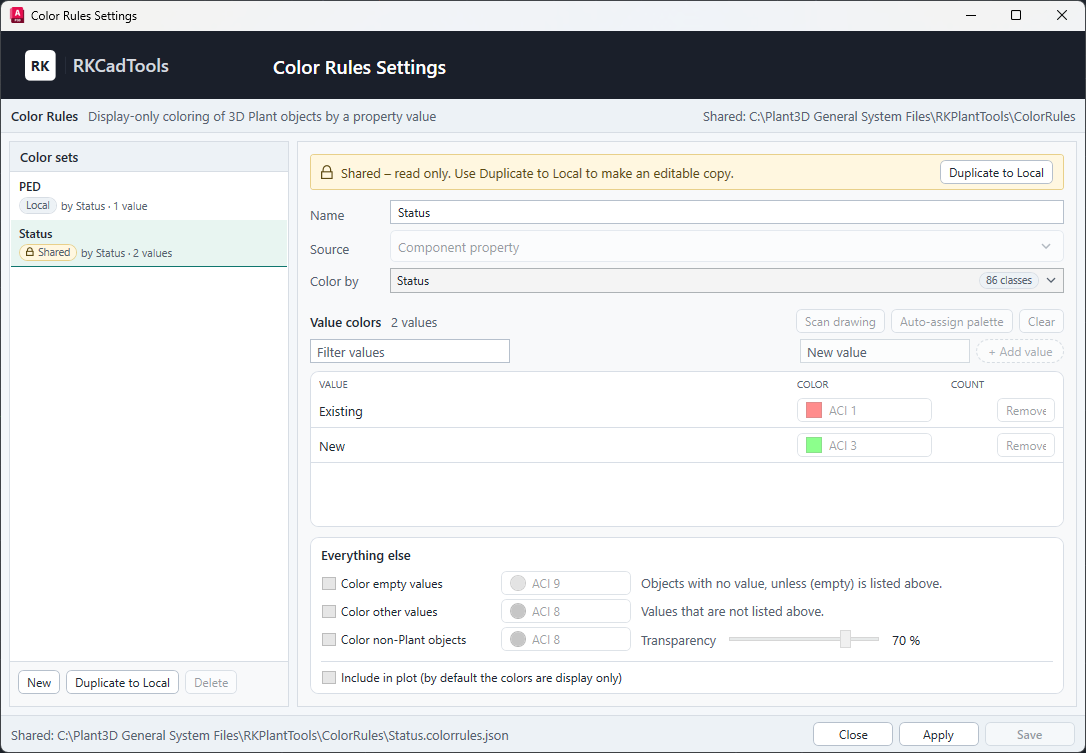
Objects without a pipeline group or its selected group property keep their normal color. Selecting a property does not edit that property’s value.
3. Assign colors to property values
- In an editable local set, use Scan drawing to collect distinct values, or enter a value and choose Add value.
- Choose a color for each value, or use Auto-assign palette as a starting point. Use Filter values to find a row in a longer list.
- Under Everything else, enable Color empty values or Color other values if blank or unlisted values should stand out. Otherwise they retain their normal colors.
- Optionally enable Color non-Plant objects and set its color and transparency. The transparency slider affects this fallback, not the individual Plant value colors.
- Click Save to retain the local set, then Apply to review it in the model.
Read the example settings carefully
The screenshot shows all three fallback options unchecked. Its 70% transparency value is inactive because Color non-Plant objects is off. Choose explicit fallback options when you need them in your own review.
4. Check the meaning of each color
Choose Show Legend, or run RKCOLORRULES_LEGEND. The legend identifies the active set, its property and origin, and the value-to-color mapping.
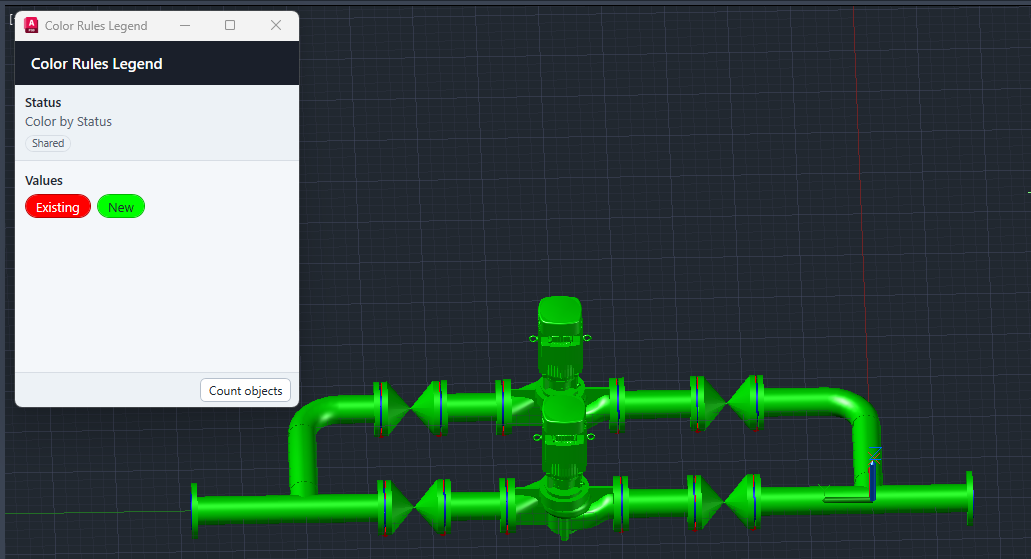
Use Count objects when you need counts for the displayed rule values. Read the legend with the model instead of assuming that a color has the same meaning in every set.
5. Decide how plots should look, then restore normal colors
Include in plot is off by default: the set is used for on-screen review. Enable it in an editable local set only when the plot should carry those rule colors. Save the set, apply it, and check the plot preview.
Choose Color Rules Off or run RKCOLORRULES_OFF to remove the display coloring. Original model colors and Plant data remain intact.
If colors are missing
Check that the active drawing is a 3D Piping drawing, the intended set is active, and its Source and Color by match the data. Unlisted or empty values retain normal colors unless their fallback options are enabled. A shared set must be duplicated locally before editing.
Use the Clipper guide to focus the model on a saved region while reviewing colors.