
Clipper: Isolate a Model Region and Save Views
Create a box around selected objects, adjust its faces, save named regions, and switch views while reviewing a Plant 3D model.
1. Open Clipper and create a box
Open a model drawing and choose Clipper on the RKCadTools ribbon, or run RKCLIPPER. The full palette contains the box controls and saved views; Quick Views opens the compact view switcher.
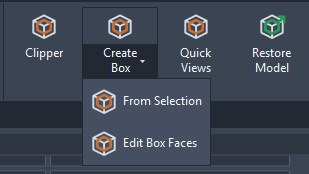
- Choose From selection in the palette, or Create Box → From Selection on the ribbon.
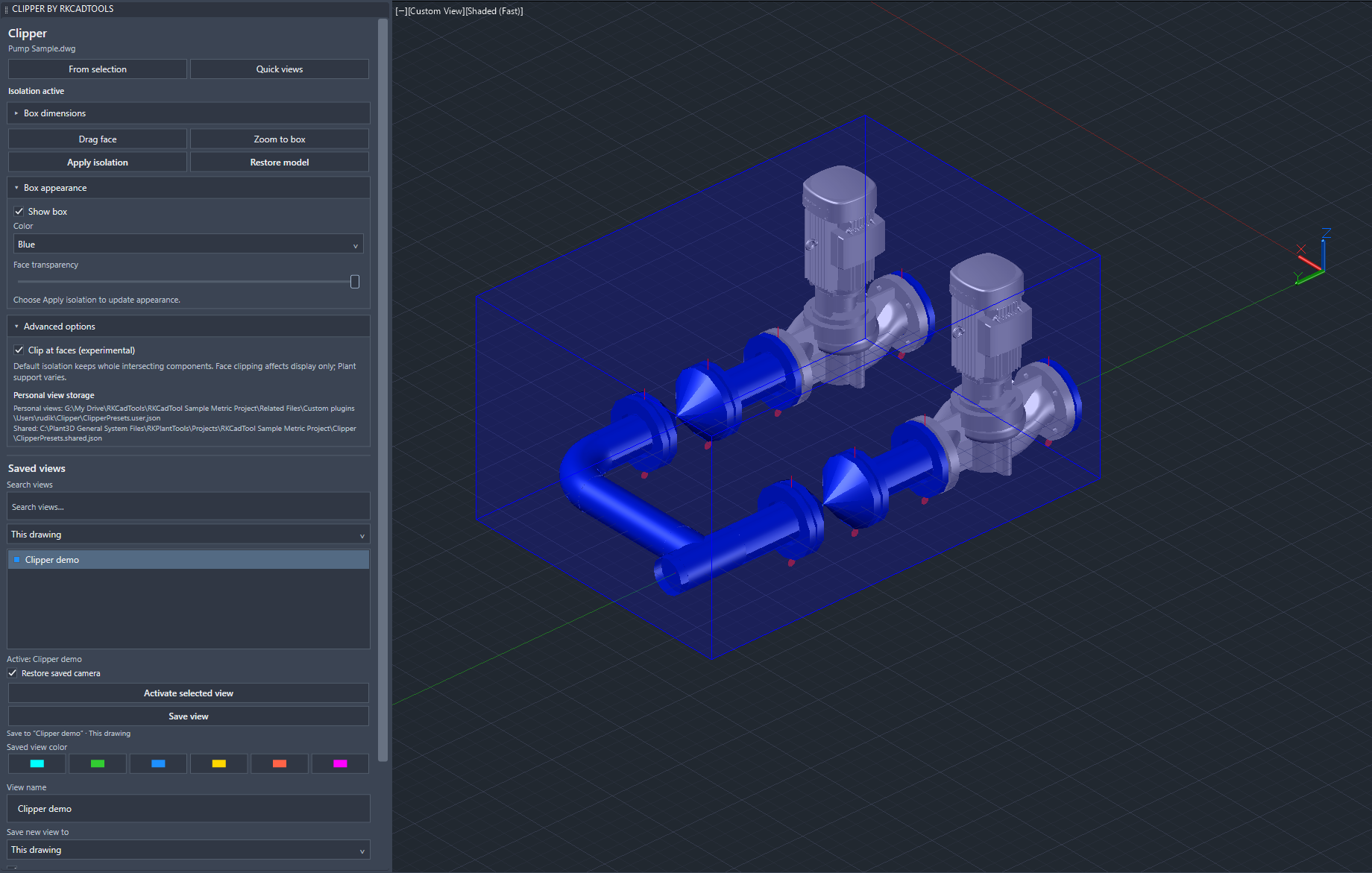
- Select the objects you want to work around and finish the selection. Clipper adds clearance around their combined bounds and activates isolation.
- Check for Isolation active. Use Zoom to box to fit the region while keeping the viewing direction.
2. Adjust the region and box appearance
- Choose Drag face, pick a face marker or name the face, then drag along the displayed axis and click to accept. Press Esc to keep the previous box.
- For precise values, expand Box dimensions. Set minimum X/Y, width, depth, bottom and top in drawing units. Add clearance expands all faces.
- With Apply after editing enabled, press Enter or leave the fields to apply valid edits. Otherwise finish your edits and choose Apply isolation.
- Expand Box appearance to change Show box, color and face transparency. Choose Apply isolation to update the appearance.
World-aligned boundaries
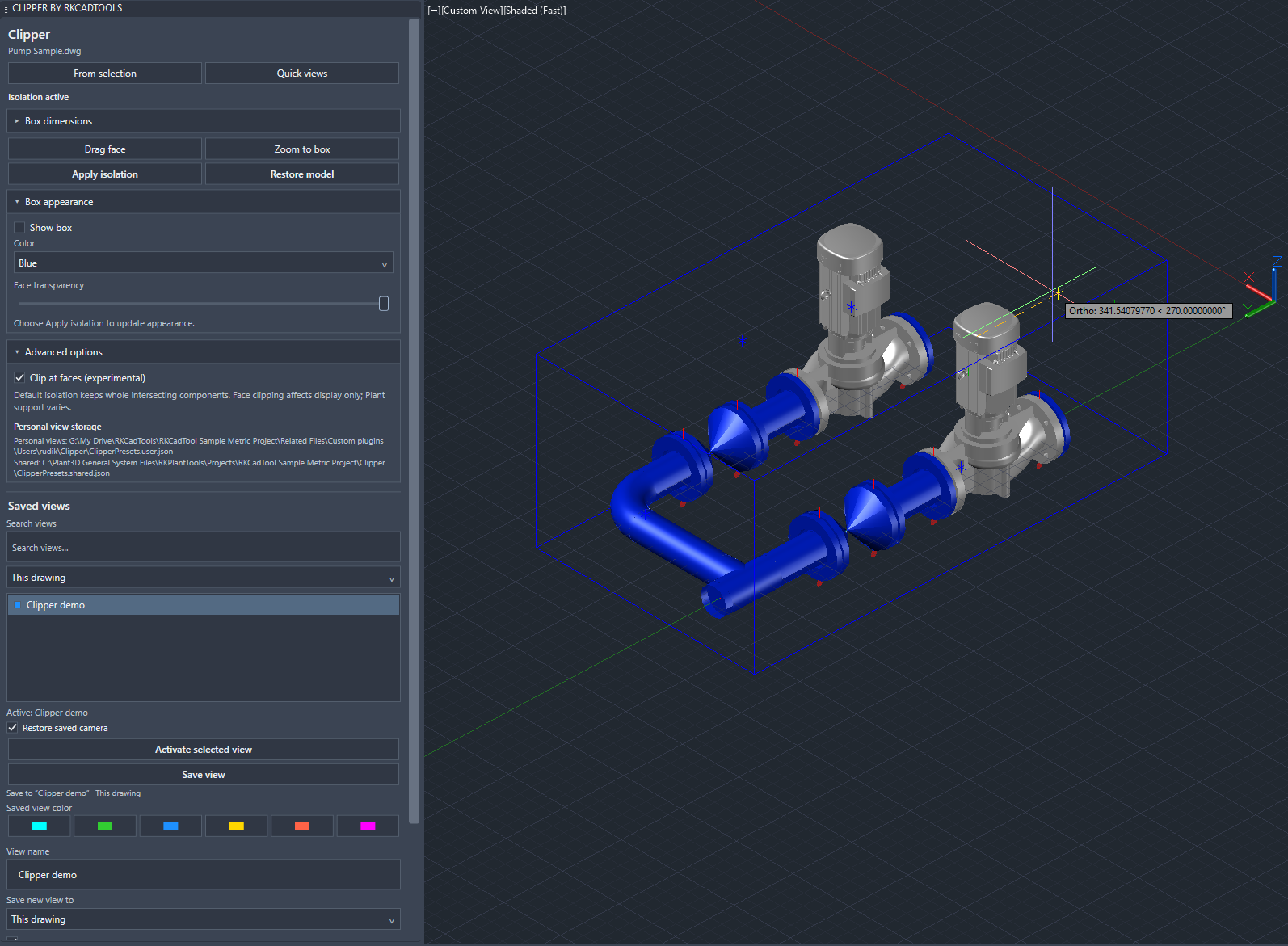
The box follows the world axes. A rotated UCS does not rotate the box. If a drag axis points into the screen, orbit first or enter the dimension numerically.
3. Choose whole-component isolation or face clipping
Default isolation retains entire native components whose extents overlap the box. A long pipe can remain whole when it crosses the region. Blocks and references use graphics clipping at the faces.
Under Advanced options, Clip at faces (experimental) also requests face clipping for native objects. Custom Plant graphics and some visual styles can keep components whole. The palette reports fallback behavior; cuts have no generated caps.
FAQ: Why are xrefs not clipped in height?
Set FASTSHADEDMODE to 0 to turn Fast mode off, then choose Apply isolation in Clipper.
A display region
Clipper changes the displayed model. It does not cut solids or change pipe connections or Plant properties. Use default isolation if experimental face clipping behaves poorly. Check selection and snapping before relying on the isolated display for editing.
4. Save a named region and its camera
- Enter a View name and choose Save new view to.
- Choose This drawing for a personal drawing view, My project views for a personal view reusable across the project, or Shared project views for team access through the configured shared location.
- Enable Include camera when saving if the new view should retain its angle, target and zoom. Choose Save as new.
- After adjusting an active view, use Save view to update its region. Check the name and source below the button. Enable Update camera with Save view to replace its stored camera too.
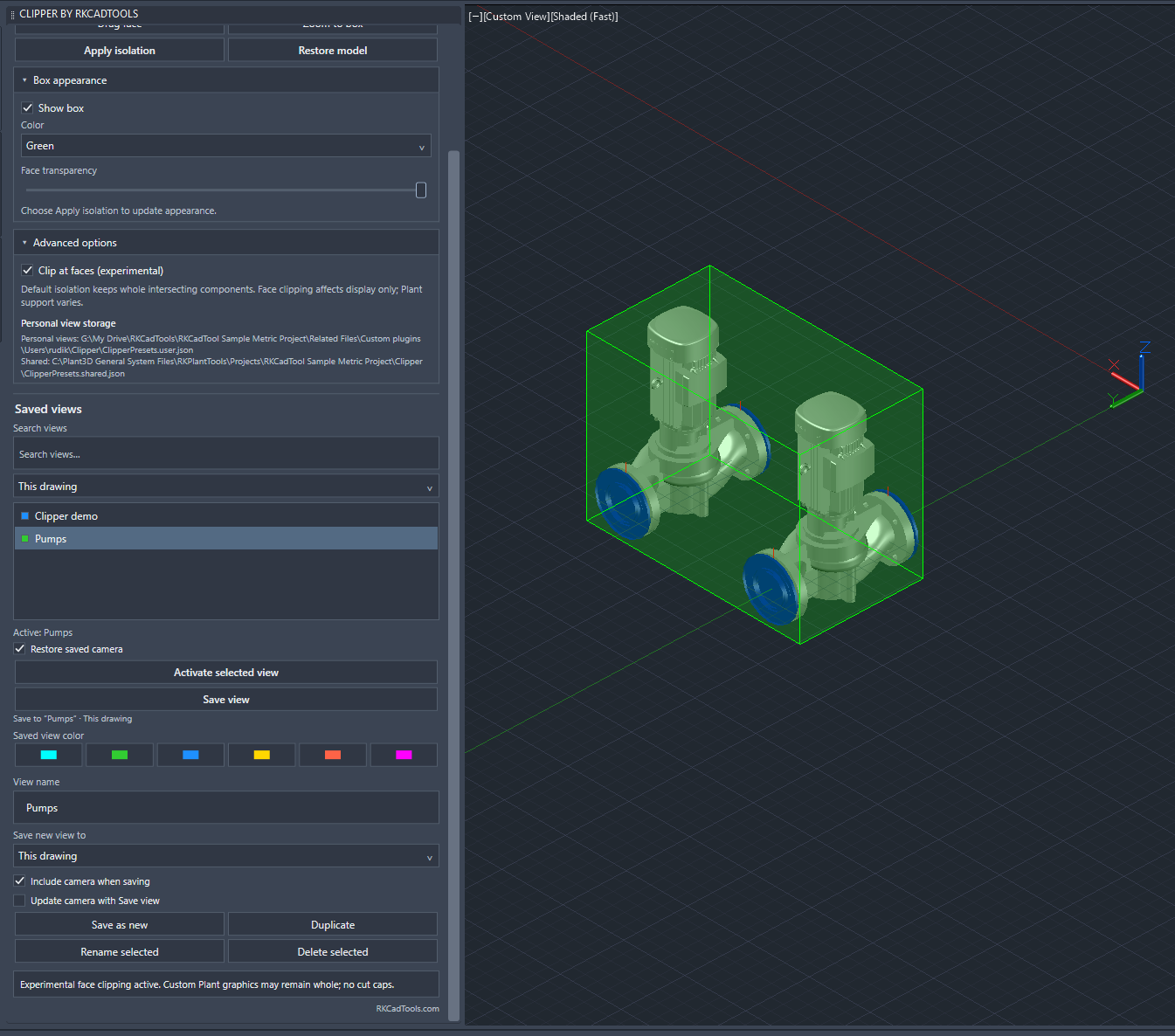
Use Duplicate, Rename selected and Delete selected to manage the selected saved row. A color swatch changes that row’s saved box color. Restore saved camera controls whether activation restores the stored angle. Project views need compatible coordinates and matching drawing units; save the drawing before persisting views.
5. Switch regions with Quick Views
Choose Quick Views or run RKCLIPPER_VIEWS. Search the list or filter by drawing/project scope, then click a view or select it and press Enter. Choose the same view again to reapply it after restoring the model.
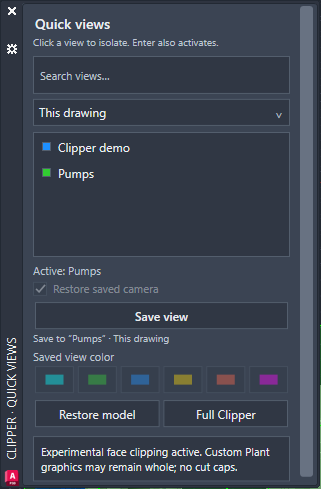
Save view updates the active region even if a filter hides its row. Turn off Restore saved camera when you want to retain your current angle; views without a saved camera remain usable.
6. Restore the full model
Choose Restore model in either palette or on the ribbon, or run RKCLIPPER_RESTORE. The full model returns and the box overlay is hidden. The last box and saved views remain available.
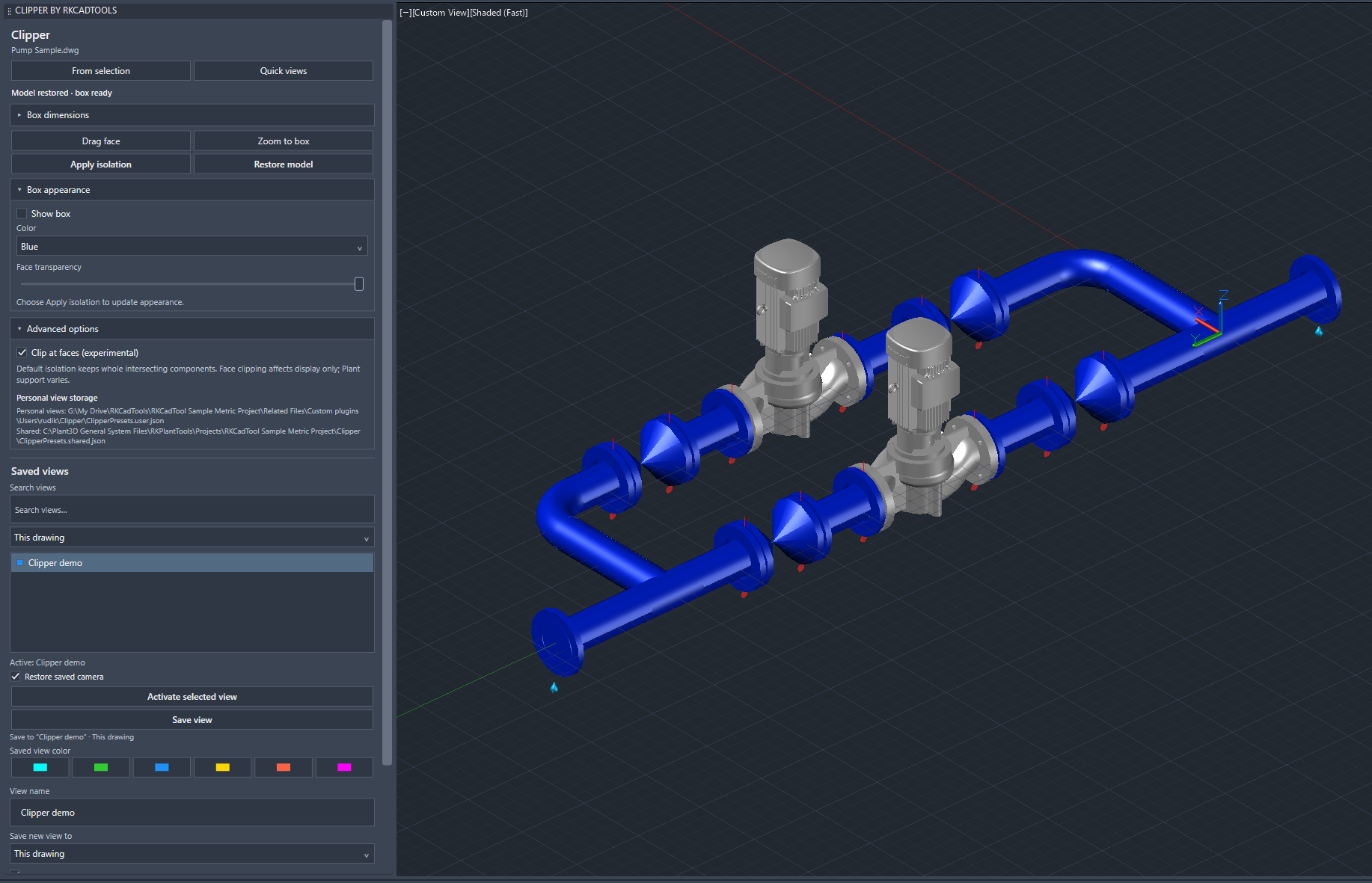
Isolation is session display state. Reopen the drawing and activate a saved view to isolate it again. Clipper is intended to restore the full model for plotting; check the plot preview before issuing output.
If a view does not behave as expected
Check the palette status, current scope and drawing units. Advanced options shows personal/shared storage and any loading error. If the box changes but cached exterior graphics remain, run REGEN3. Return to default isolation if custom Plant graphics do not clip cleanly.
For property-based model colors, see the Color Rules guide.