Plant 3D Data Bridge.
Map data. Apply Area properties.
Bring Excel and database values into AutoCAD Plant 3D, or let a drawn P&ID Area supply the right component properties. Configure the mapping once, then review the proposed updates when you sync.
01 · External mapping
Match a row. Copy the fields.
Excel / SQLite / SQL Server / OData
Match by Tag or another configured key ↓
Mapped Plant 3D properties
02 · Area method
Find the Area. Copy its values.
A drawn P&ID Area with properties
Match by the object’s location ↓
Mapped component properties
Two ways to get the right data onto your objects.
Data Bridge is the external data synchronization feature in RKCadTools. Both methods use property mappings. What changes is how Data Bridge finds the source: a matching external record, or an Area containing the object.
Use external mapping
Your equipment list, valve schedule or item register holds the values. Match a Plant property to an external column, then choose which fields to copy.
Use Area (geometric)
The object’s position in a P&ID decides its area number, plant section or other zone properties. Read those values from the matching Area object.
Sync external data to Plant 3D properties.
Keep the source data in Excel, SQLite, SQL Server or OData. Data Bridge reads it and updates the ordinary, editable Plant 3D or AutoCAD properties you map. Use class filters to target the components that should receive each configuration.
Match first. Map second.
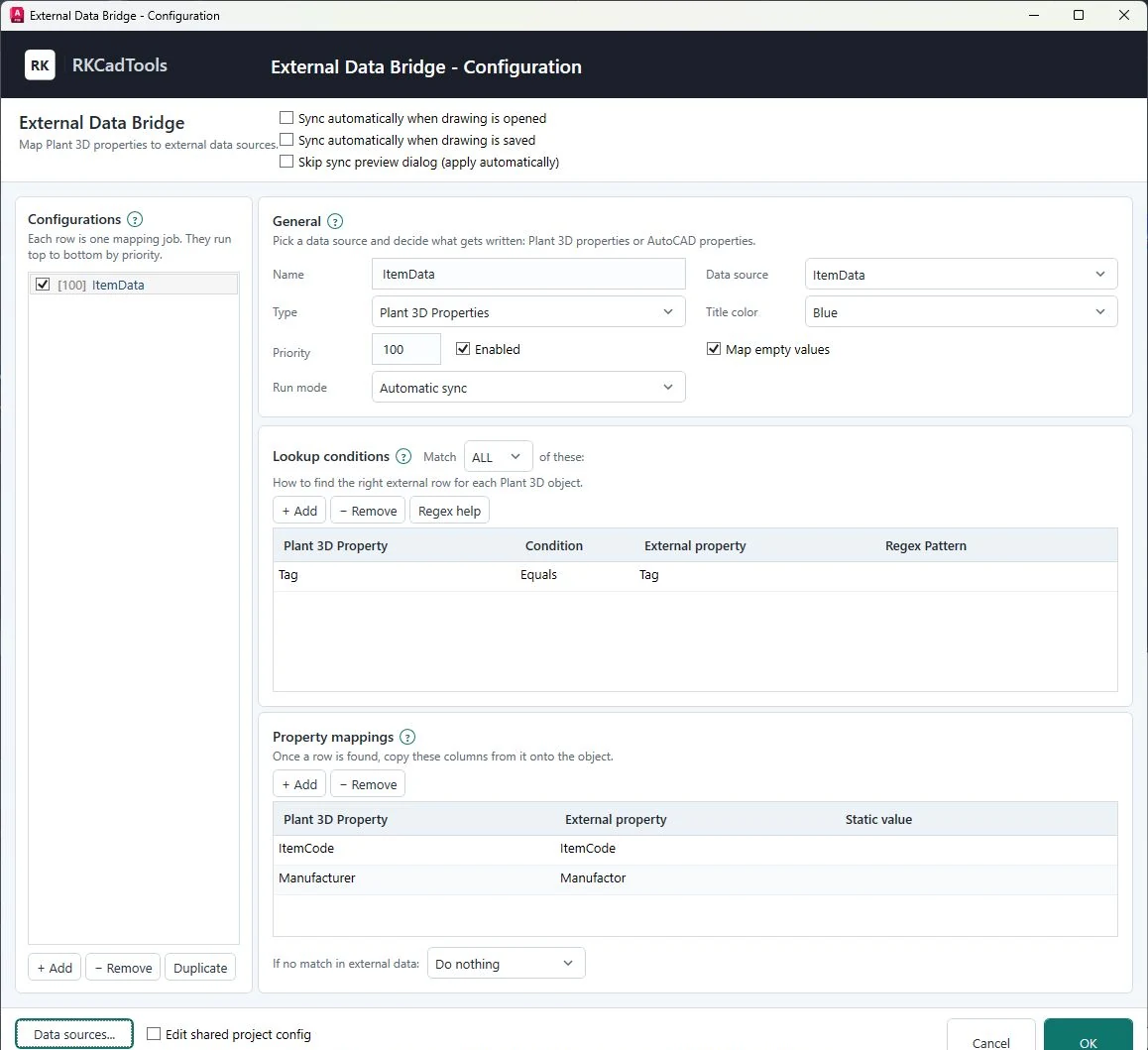
A lookup condition identifies the source row, for example Plant Tag = Excel Tag. Property mappings then connect source columns to target fields. The column names can differ: the sample maps Manufactor in Excel to Manufacturer in Plant 3D.
A concrete valve-list example
The source row for HV-100-01 contains item code 120002 and manufacturer DVC. Matching the tag lets Data Bridge propose those two values for the valve’s mapped properties. You can inspect the result before applying it.
Let the P&ID Area provide the values.
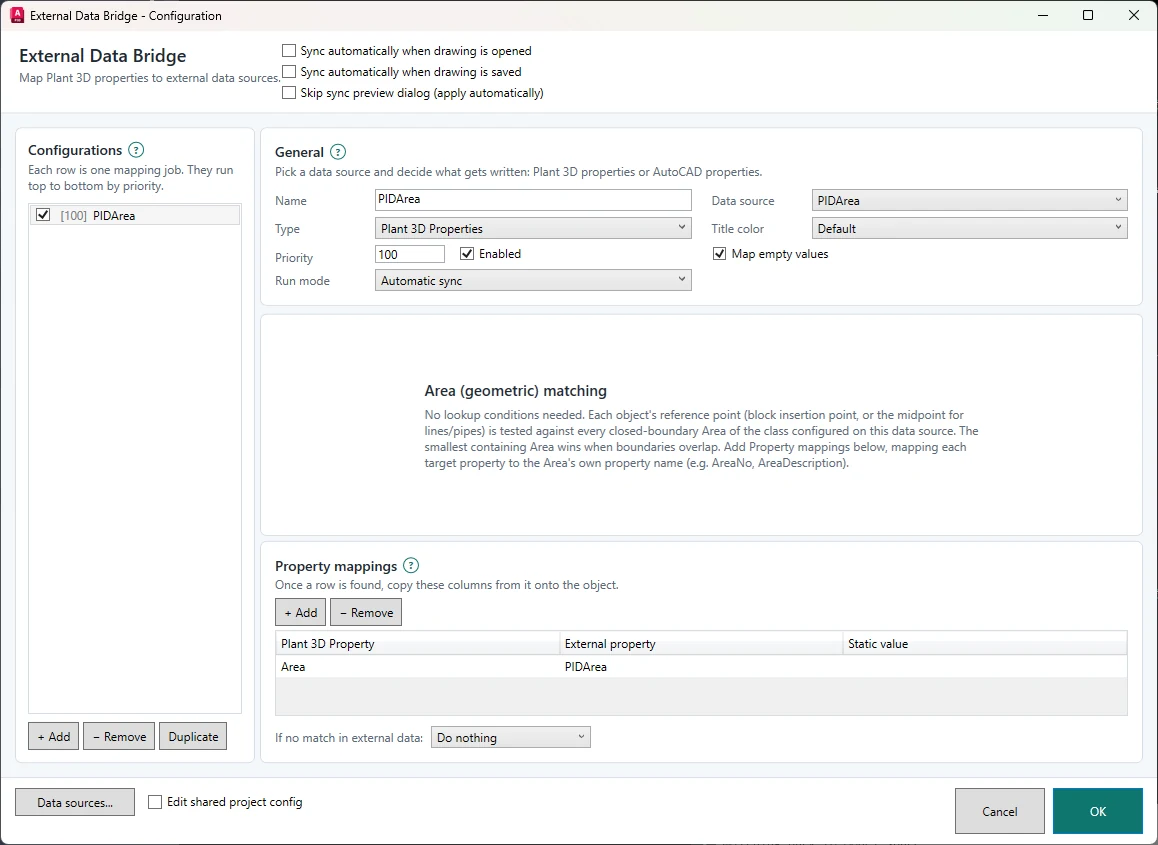
An Area object becomes the data source. Data Bridge checks which closed Area boundary contains each target object’s reference point, then copies the mapped Area properties to that object. No external spreadsheet or tag-based lookup is needed for this method.
One zone. Consistent component data.
For example, an Area can hold AreaNo = 120 and AreaDescription = Utility. Map those fields to editable properties on valves, instruments or equipment inside it. Your project administrator prepares the Area class, properties and usable closed boundary in Plant 3D.
What happens at the boundary?
Symbols use their insertion point; lines and pipes use their geometric midpoint. The smallest containing Area wins for nested zones. Equal-size overlapping matches are skipped with a warning.
Values are copied when sync runs. After moving an object, changing a boundary or editing Area values, run sync again. For an object outside every Area, your no-match setting decides whether mapped values stay unchanged or are cleared.
See the changes before you apply them.
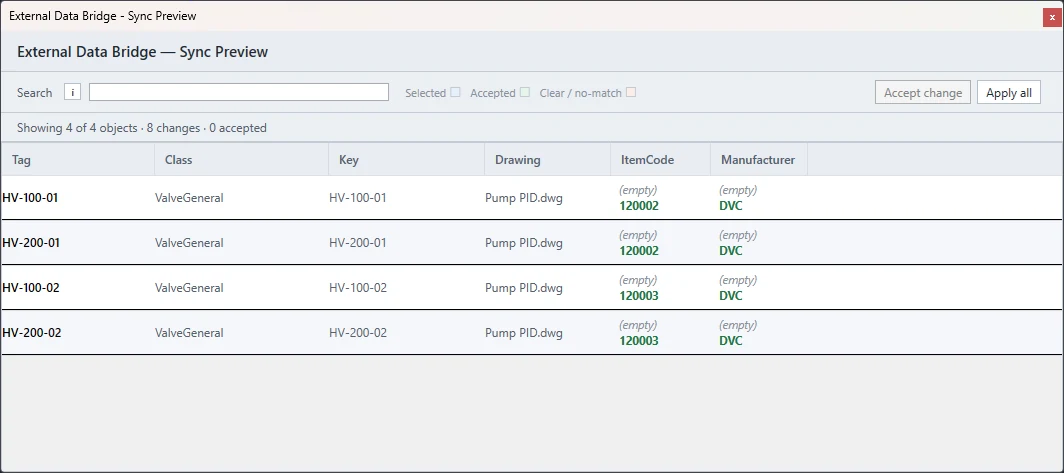
Sync Preview shows the affected objects and old and proposed values. Search the results, accept selected changes, then apply that selection — or use Apply all after reviewing the full result. Closing the preview without applying leaves the proposed updates unapplied.
The sample preview shows four valve objects with pending ItemCode and Manufacturer changes. It is a review of proposed values, not evidence that those changes have already been written.
Preview is enabled by default. Keep it enabled while testing your configuration. You can disable it for direct application and optionally enable sync when a drawing opens or is saved. These settings can change properties automatically, so validate them on a project copy first.
From source to repeatable workflow.
1. Choose the source
Select Excel, SQLite, SQL Server, OData or Area (geometric), and the P&ID or 3D classes the configuration applies to.
2. Define the mapping
For external data, set lookup conditions and field mappings. For Areas, select the Area class and map its properties.
3. Preview a project copy
Check changed values, missing matches and empty-source handling. Confirm that only intended properties are affected.
4. Reuse the configuration
Sync the active drawing or all open drawings. Enable optional open/save synchronization after validating the setup.
Need to choose the source row yourself? Choose Data / Interactive lookup filters external records for compatible selected components and lets the user choose a row. Use this when a selection requires a deliberate choice rather than a repeatable automatic match.
Control which properties can change.
Data Bridge reads external sources and copies mapped values into Plant 3D through the plugin’s supported property-write workflow. It does not provide two-way writeback to Excel or the external database.
Set the behavior explicitly
Use ordinary, editable target fields. Acquired, inherited, calculated, read-only and tag-format-controlled properties are not suitable targets.
Map empty values controls whether blank source values can overwrite existing fields. No match controls whether unmatched objects keep their values or have mapped fields cleared. Review both settings before applying a configuration.
Sync operates on the active drawing or open drawings. The Area method reads the Area objects in the drawing being synchronized.
Plant 3D Data Bridge — practical questions.
What is Plant 3D Data Bridge?
Data Bridge is a feature of RKCadTools for AutoCAD Plant 3D. It reads Excel, SQLite, SQL Server or OData records and copies mapped values to editable object properties. Its Area method instead reads properties from a matching P&ID Area.
Can I use Excel columns with different property names?
Yes. Matching conditions identify the source record, and property mappings connect each source column to its target property. Source and target names do not need to be identical.
How is the Area method different from normal mapping?
External mapping finds a row using configured lookup conditions. Area (geometric) finds the drawn Area containing the object’s reference point. Both then copy the properties you have mapped.
Does an Area update components immediately when I move them?
Run sync again after moving a component or changing an Area. Area values are copied during synchronization. Optional sync on opening or saving can trigger that work when enabled.
Can I preview changes and keep existing values?
Yes. Preview is enabled by default. Review old and proposed values and apply only your accepted selection. Configure empty-source and no-match behavior to preserve existing values where required.
Where do I find DataBridge in Plant 3D?
Install RKCadTools for your Plant 3D version. The Data Bridge ribbon panel provides setup, data sources, preview and sync. Its configuration window is titled External Data Bridge; it is included in the toolkit rather than a separate Autodesk product.
Can I try Data Bridge before buying?
Yes. Download RKCadTools for your AutoCAD Plant 3D version and start the free 15-day trial in the program. Test the workflow on a copy of your project. Read the installation steps.
Try both methods on a project copy.
Start with one source, a few components and a small set of editable properties. Preview the result, confirm the mapping, then reuse the configuration across your drawing workflow.