Manage P&ID off-page connectors.
Find unconnected OPCs, inspect both ends and review the drawing context before connecting a pair. OPC Manager keeps source, target and partner details together inside Plant 3D.
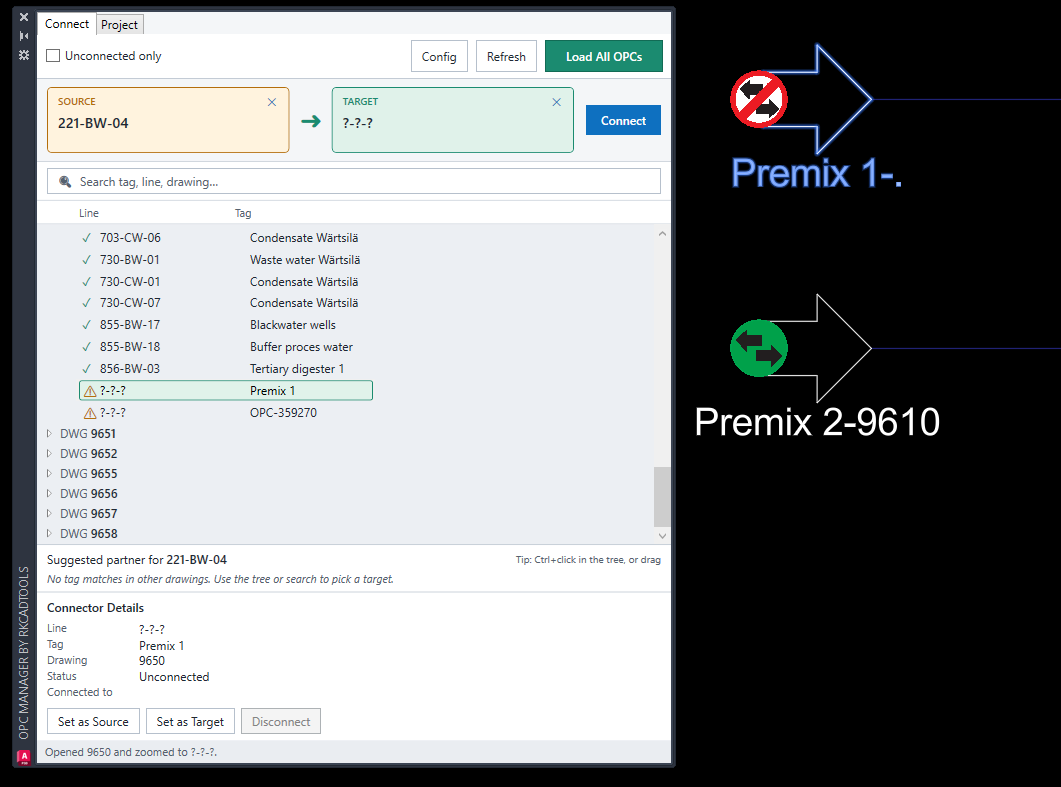
Find the connection that needs attention
Open OPC Manager with PIDMANAGER. Browse a drawing’s connectors or choose Load All OPCs when the search must include every P&ID drawing. Search by tag, line number, drawing or connector number; multiple terms are combined with AND.
Unconnected only hides already paired OPCs. Read Connector Details and confirm the selected drawing symbol rather than relying on a suggested partner alone.
Connect a deliberate source and target
Work through the intended pair with the affected drawings writable. Use the normal collaboration workflow to check them out when required.
- Select the intended source and choose Set as Source.
- Select the partner on another drawing and choose Set as Target. Inspect line numbers and flow directions.
- Choose Connect, read the result and check the refreshed partner details.
- Save the affected drawings and check them in as usual.
Check the conditions before applying a change
Both connectors must be unconnected and belong to different drawings. When both line tags are complete, the line numbers must match. Known flow directions must be counterparts.
An incomplete target line, such as the one in the demo, needs a review of drawing context. The screenshot shows selection and preparation, not evidence that the proposed pair is ready to connect.
Review an existing pair or the wider network
Select a connected OPC and inspect Connected to before choosing Disconnect. Review the result and save the affected drawings.
OPC Overview provides drawing relationships, unconnected counts and a Cluster Map of the network. Open or zoom to a connector when a drawing needs attention. Continue with Linked P&ID Publish when you need clickable off-page links in a PDF deliverable.
Try a familiar task on a project copy
Install RKCadTools, start the 15-day trial in Plant 3D and follow the guide for this workflow. No payment details are required. Review the results before introducing changes into production.
Read the OPC Manager guide · Compare all toolkit features · Pricing and licences