P&ID and 3D data review: a worked demo.
Follow an actual RKCadTools comparison screen from a demonstration project. The task is to find where selected P&ID and 3D Size values differ, then decide what needs investigation.
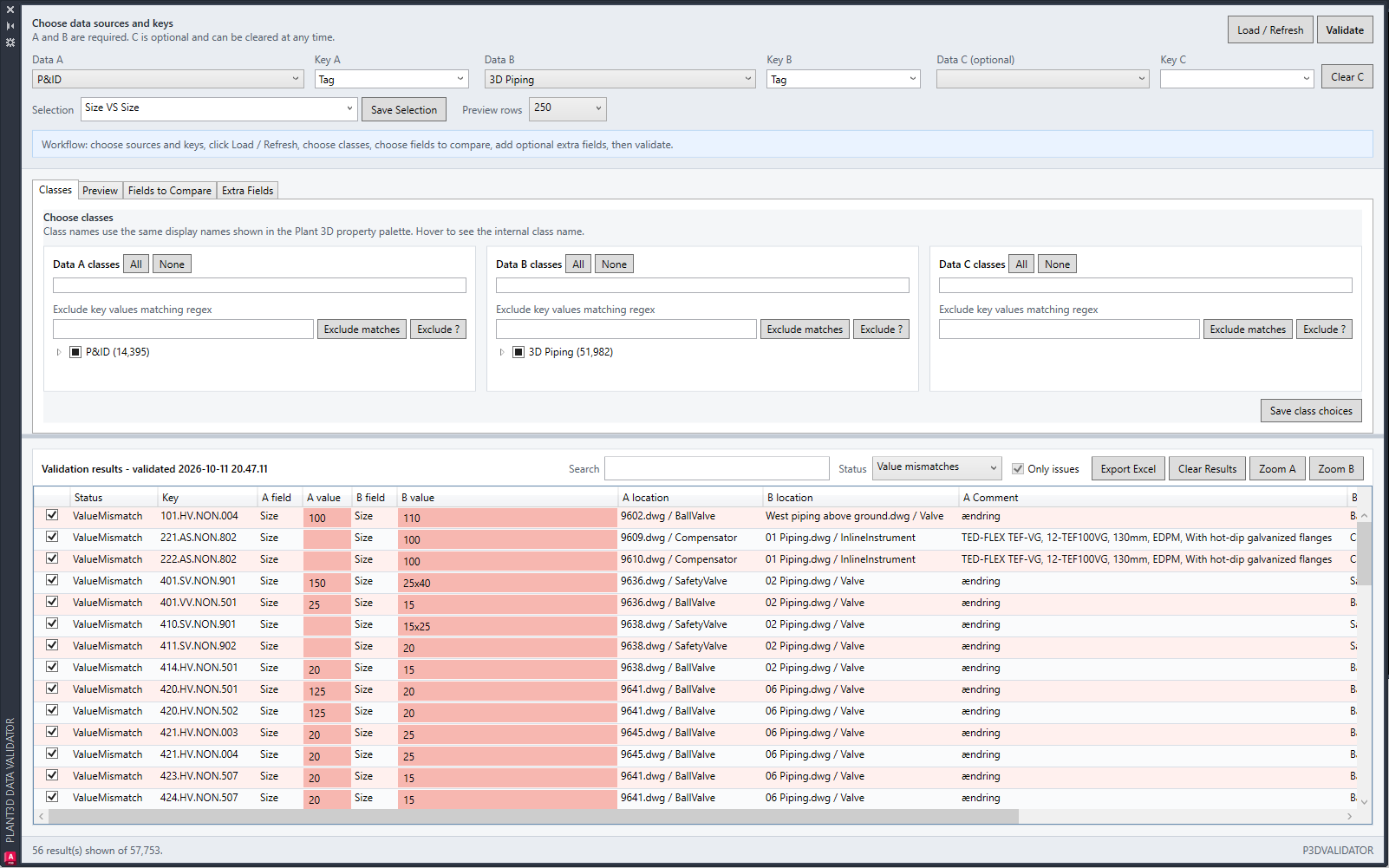
The task: check whether Size agrees
Before drawing issue, a reviewer wants to inspect whether the selected P&ID and 3D records agree on Size. The comparison needs a meaningful matching key, the intended class scope and an explicit property mapping.
This example uses existing demo imagery. It does not describe a customer project, a complete project audit or a measured reduction in engineering time.
Set up a comparison you can interpret
Begin on a project copy with a few known components. The result is useful only if you understand how records were matched.
- Choose the P&ID and 3D sources and the relevant classes.
- Set the matching key and map the Size fields. Review missing and duplicate keys instead of ignoring them.
- Run the comparison and inspect the issue list.
- Select a discrepancy and locate the corresponding Plant objects to check their context.
The observed result: an issue list
The screenshot shows differing Size values in a two-source comparison. Fully matching keys do not appear in the issue list. This narrows the review to records that need a decision.
The screen does not show which value is correct, an approved design change, or an applied correction. Agreement alone would not prove correctness either.
Finish the review through the right workflow
Determine the authoritative value using the project’s design information. Correct the appropriate source through the normal Plant workflow, save the affected drawings and repeat the comparison to check the result.
Use Data Manager for allowed property edits and Excel exchange, or Data Bridge for a configured external mapping when that is the intended source. Neither replaces the decision about the correct engineering value.
Continue with the Data Validator overview for scope and tool selection, or read the setup guide for matching keys and field mappings.
Try a familiar task on a project copy
Install RKCadTools, start the 15-day trial in Plant 3D and follow the guide for this workflow. No payment details are required. Review the results before introducing changes into production.
Read the comparison setup guide · Compare all toolkit features · Pricing and licences