Keep revisions and title blocks coordinated.
Record a drawing revision once, then use Save & Sync to update mapped paper-space title-block attributes. Revision Manager retains the drawing history as entries move beyond the title block’s visible rows.
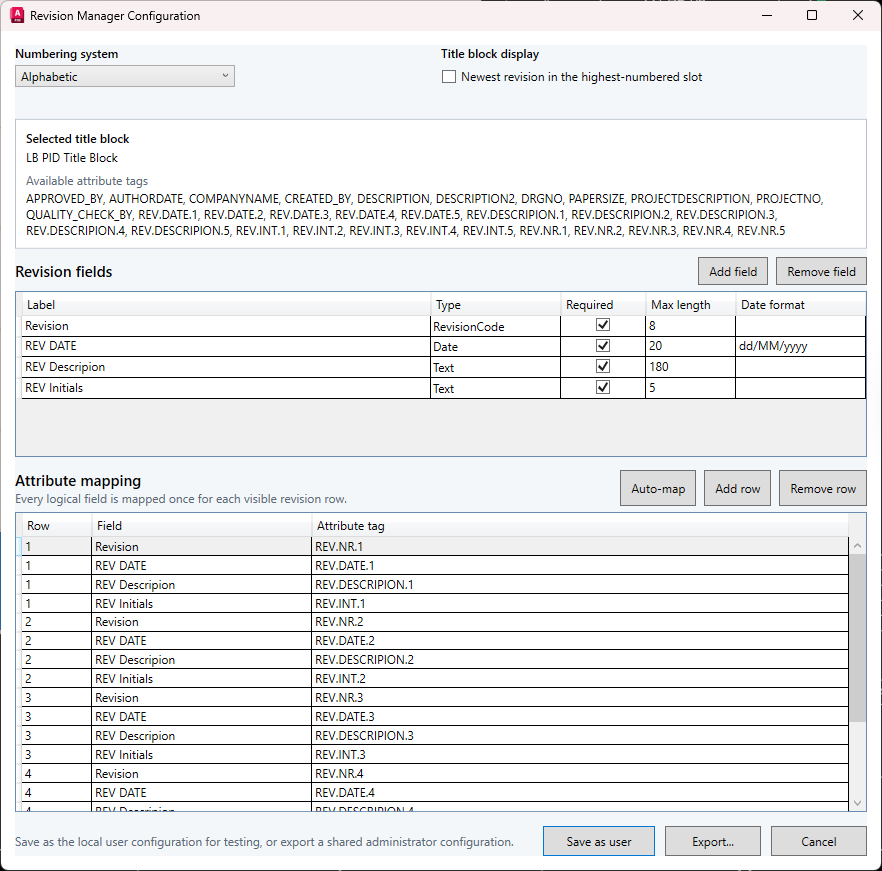
Configure the project title block first
A revision table depends on the attributes and row order in your title block. Open Revision Manager Configuration, select the title block, choose alphabetic or numeric numbering and map each visible revision slot to its attribute tags.
Auto-map can detect numbered tags. Save as user to test a configuration locally, or export a shared administrator configuration for the project. Confirm the resulting drawing before rolling it out.
From revision note to title block
The staged row and synchronized drawing are separate steps. Review the proposed code, date, description and initials before writing them.
- Open Revision Manager or choose Add Revision Note from its ribbon dropdown.
- Review the next revision code and date, then enter the description and initials.
- In Revision Manager, choose Add to stage the row, then Save & Sync to write the DWG history and update configured paper-space title blocks.
- Inspect the title block, save the drawing and complete your normal project check-in.
Retain the history beyond the visible table
A title block has a fixed number of configured revision slots. Older revisions that move beyond those slots remain in the drawing’s history and can still be viewed in Revision Manager.
Use Edit or Delete to maintain the history deliberately. Review manually changed title-block attributes and run Sync again when the title block should follow the stored history.
Use saved revision data in drawing lists
Drawing List Generator can read the latest saved revision from the drawing history using a configured profile. Save edits in the source drawings before scanning, then review the preview warnings and included rows.
The Drawing List Generator command reference explains profiles, mappings and Excel output. Revision Manager coordinates the configured drawing fields; your project’s formal review and issue decisions remain part of the engineering workflow.
Try a familiar task on a project copy
Install RKCadTools, start the 15-day trial in Plant 3D and follow the guide for this workflow. No payment details are required. Review the results before introducing changes into production.
Open the Revision Manager quick start · Compare all toolkit features · Pricing and licences