ACC Bridge.
Your component, connected.

View the properties you need in ACC Model Coordination, ACC Docs and Autodesk Viewer. Jump from a selected component to your interactive P&ID or to its drawing in AutoCAD Plant 3D.

For Chrome and Brave. Browser features are free. Plant 3D navigation requires RKCadTools with a valid licence.

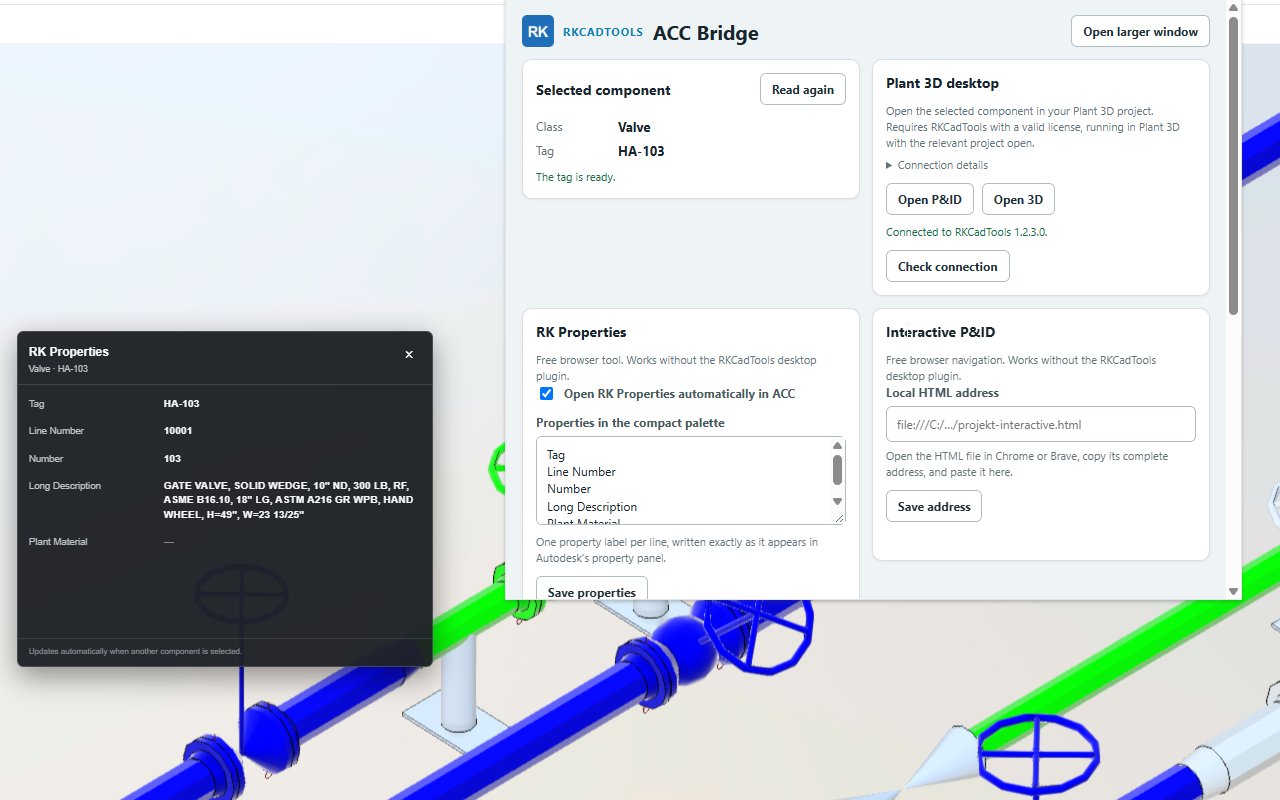
ACC Bridge settings beside the RK Properties palette in the ACC model viewer, with valve HA-103 selected.
Choose your property fields, connect Plant 3D and configure your interactive P&ID from the ACC Bridge popup. Select the image to view it full size.

Keep the component in context

Free browser feature

RK Properties

A compact property palette with the fields you choose, such as Tag, Line Number and Long Description. It follows your selection as you move through the model.

Move or resize the palette, choose the property order, and turn automatic opening on or off.

Free browser feature

Find in Interactive HTML

Open the selected tag in a locally exported RKCadTools interactive P&ID. ACC Bridge reuses your viewer tab so you can continue reviewing without opening duplicates.

Requires a compatible local HTML export and permission to access file URLs.

RKCadTools licence required

Open in AutoCAD Plant 3D

Use Open P&ID in Plant 3D or Open 3D in Plant 3D to open the drawing and zoom to the matching component.

Requires the RKCadTools desktop plugin running on Windows, a valid licence, the relevant project open, and component data that can be matched.

Optional browser feature

External Link

Add a right-click command for your documentation or lookup service. Choose the menu text, a web address and the ACC property to use in the link.

The selected property value is sent to that website when you open the link.

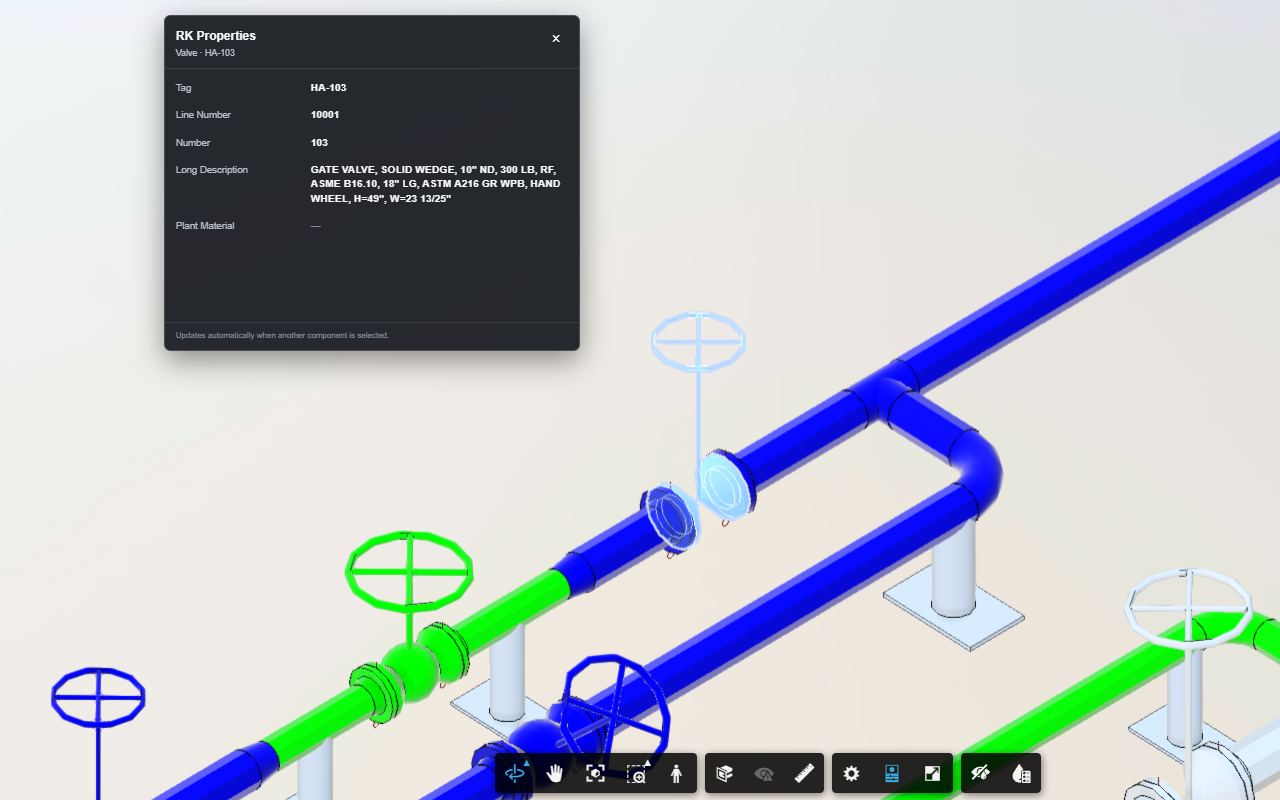
RK Properties shows the selected valve's tag, line number, number and description above the ACC piping model.
Your selected properties stay alongside the model.
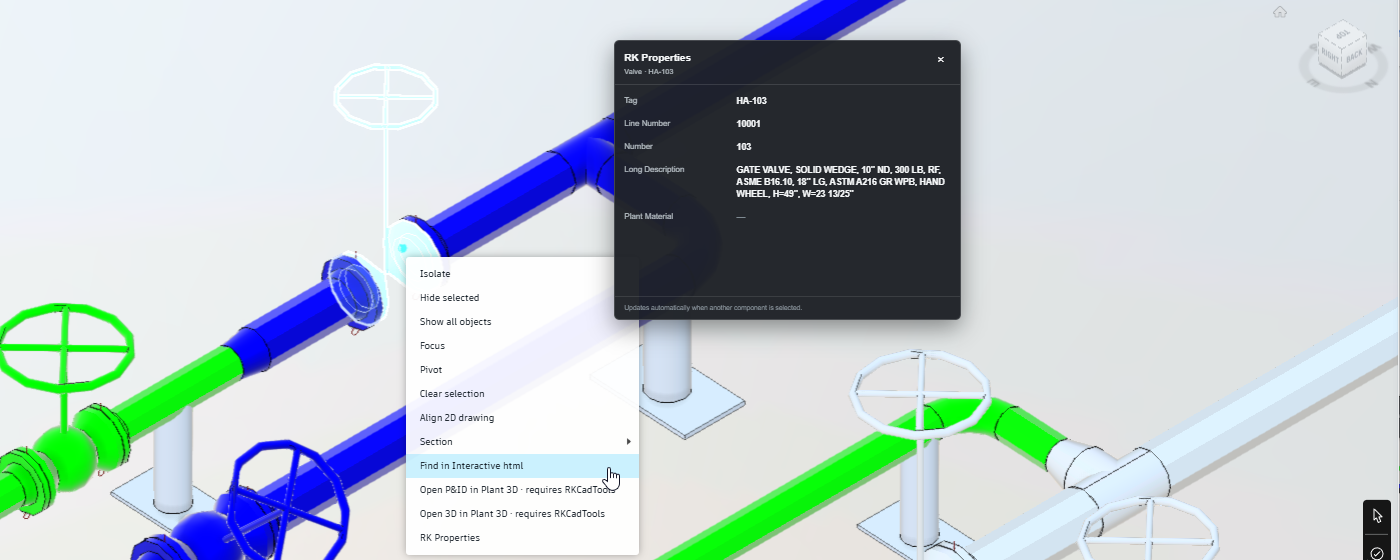
ACC right-click menu with Find in Interactive html, Open P&ID in Plant 3D, Open 3D in Plant 3D and RK Properties.
Open the interactive P&ID or navigate to Plant 3D from the component’s right-click menu.

Start in your Autodesk viewer

Open a model in ACC Model Coordination or ACC Docs on acc.autodesk.com or acc.autodesk.eu, or a shared model at viewer.autodesk.com. ACC requires an Autodesk account with project access. The extension does not provide an Autodesk account, project access or an Autodesk licence.

No desktop plugin is needed for RK Properties or navigation to an existing interactive HTML export. For Plant 3D navigation, run a compatible RKCadTools version with a valid licence and the relevant project open, then pair the extension using the connection key in RKCadTools Settings. Component navigation requires a Tag property.

Navigation on your computer

ACC Bridge reads component properties from the Autodesk viewer’s property panel. The palette can open automatically and updates when you select another component. Your settings and private pairing key are stored locally in the browser.

Plant 3D commands send the component tag and class to the paired RKCadTools plugin through an authenticated local HTTP connection on your own computer. The pairing key is never sent to Autodesk pages or external websites. The extension does not write to Autodesk models or Plant 3D project data, read Autodesk login credentials or authentication cookies, or intercept network traffic.

The extension does not use analytics or tracking and does not upload component or project data to RKCadTools. An External Link opens the website you configure with the selected property value.

Read about extension permissions · Extension privacy policy

Need a hand?

Follow the setup guide or find help with a connection, property or drawing match.

RKCadTools is an independent product and is not affiliated with or endorsed by Autodesk.

RKCadTools

Welcome back

Sign in to manage licenses, activated computers, purchases, and billing.

Your account is created when you confirm the email sent after starting a trial.