We use essential cookies to keep RKCadTools running. With your permission, we also use analytics and marketing cookies to understand what helps Plant 3D teams and improve the site. Cookie Policy
Get connected.
Get back to your project.
Set up the extension, connect your local P&ID or AutoCAD Plant 3D, and resolve common issues.
Start with RK Properties
Free to use in the browser. No RKCadTools desktop plugin is required.
- Install ACC Bridge. Get it from the Chrome Web Store. Open Chrome’s Extensions page (
chrome://extensions) or Brave’s equivalent (brave://extensions) and check that RKCadTools ACC Bridge is enabled. Pin it to the toolbar if you want quick access. - Open a supported model. Use ACC Model Coordination or ACC Docs Files on acc.autodesk.com or acc.autodesk.eu, or a shared model at viewer.autodesk.com. Select a component in the model.
- Choose your fields. Open ACC Bridge and enter one property label per line under RK Properties. Labels must match Autodesk’s property panel exactly. Click Save properties.
- Open the palette. Right-click the component and choose RK Properties. By default, the palette also opens automatically when the viewer properties are available. In Autodesk Viewer, choose Show Properties in the native right-click menu first if the properties control is unavailable. Change Open RK Properties automatically in ACC if you prefer to open it yourself.
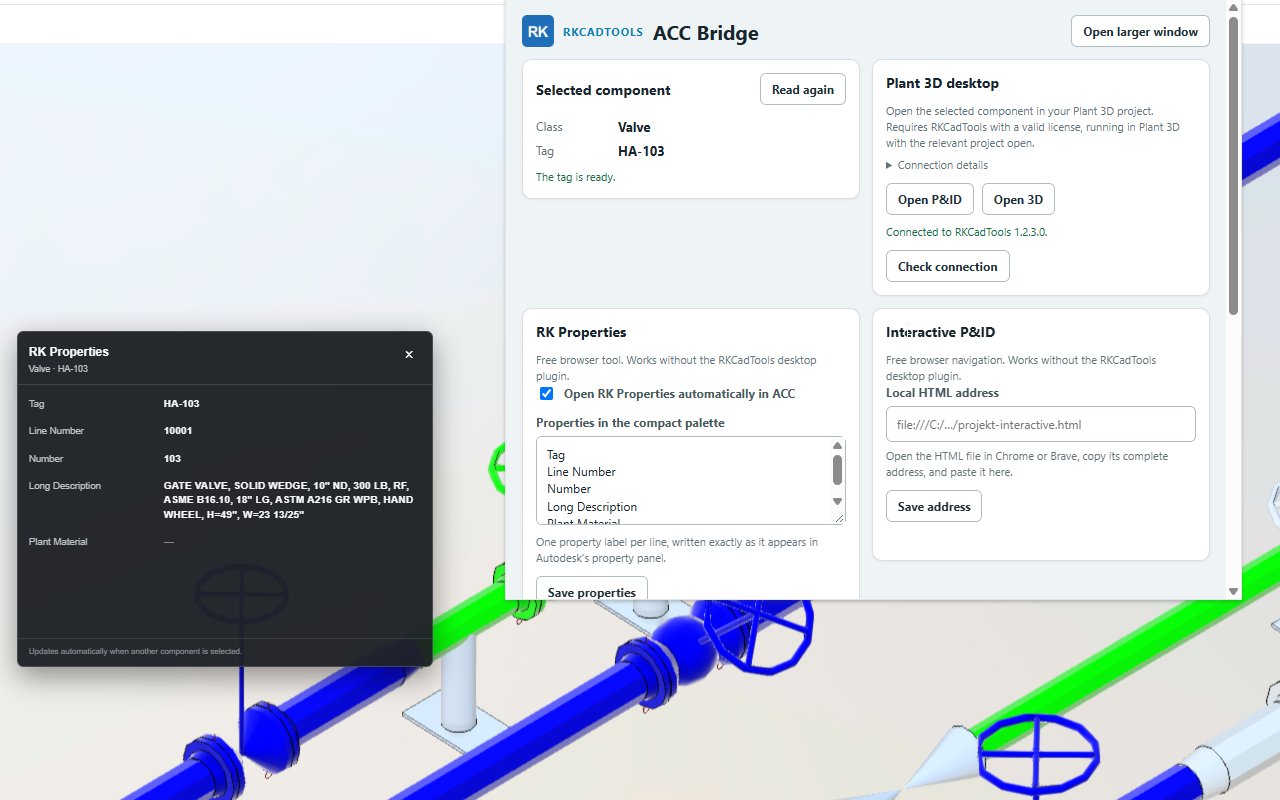
Connect your local HTML file
You need a compatible interactive P&ID export. P&ID Linker can create one from a component list and a searchable P&ID.
- Allow local file access. Open the extension’s Details on the browser’s Extensions page and turn on Allow access to file URLs.
- Open your HTML export. Open the local
.htmlor.htmfile in Chrome or Brave. Copy the complete address from the address bar, starting withfile:///. - Save the address. Paste it into Local HTML address in ACC Bridge and click Save address. If the HTML tab is active, you can use Use active HTML tab.
- Navigate by tag. Select an ACC component with a Tag value. Right-click and choose Find in Interactive html, or use Show in P&ID in the popup. The extension opens or reuses the configured viewer tab.
Connect the desktop plugin
Plant 3D navigation requires Windows, RKCadTools with a valid licence, and the relevant project open.
- Install the current RKCadTools package. Use a version compatible with ACC Bridge 0.9.0.
- Start RKCadTools in AutoCAD Plant 3D. Keep the relevant project open. The extension connects directly to the plugin on your computer; setup does not require a bridge executable or administrator rights.
- Pair the extension. Open RKCadTools Settings → Overview → Browser connection and click Copy key, or run
RKCADTOOLS_BROWSER_PAIR. Paste the key under Plant 3D desktop in ACC Bridge and click Pair. Then click Check connection. Keep the key private. - Open the component. In ACC, select and right-click a component, then choose Open P&ID in Plant 3D or Open 3D in Plant 3D. RKCadTools opens and zooms to the component when it can find a matching drawing and object.
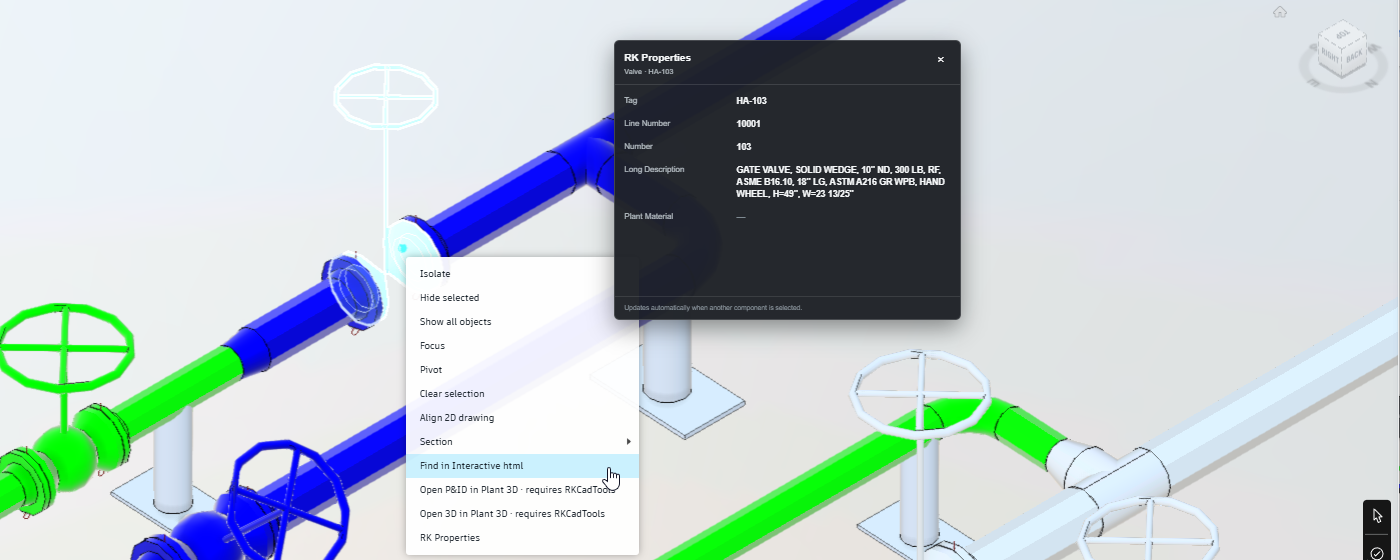
Configure an External Link
In the popup, enable External Link, enter your menu text and an HTTP or HTTPS base URL, and specify an ACC property label exactly as it appears in the property panel. Click Save External Link.
For example, https://example.com/search?q={value} replaces {value} with the URL-encoded property value. If you omit the placeholder, the value is appended to the base URL.
Use a destination you trust: the property value becomes part of the address sent to that website when you open the link.
Find the next step
The RKCadTools right-click commands are missing
Check that the extension is enabled and that you are in an ACC Model Coordination, ACC Docs Files or Autodesk Viewer model, rather than an unrelated Autodesk page. After installing or updating the extension, reload the already-open ACC tab, select a component and right-click again.
A property shows a dash, or the wrong fields appear
Compare each saved property label with Autodesk’s original property panel, including spaces and spelling. Use one label per line and click Save properties. A dash means the selected component has no value for that field or the label cannot be found. Select the component again and use Read again in the popup.
The property palette stopped opening automatically
Check Open RK Properties automatically in ACC in the popup. If you closed the palette with its close button, it stays closed for the rest of that page view. Right-click and choose RK Properties to reopen it.
Local file access is disabled
Open the extension’s Details and enable Allow access to file URLs. Reopen the popup afterwards. If your organisation manages browser permissions, ask your IT administrator whether local file access is permitted.
The HTML file opens, but the component is not found
Confirm that the file is a compatible RKCadTools interactive P&ID export and includes the selected ACC tag. Check the saved local address if you moved or renamed the file. Select a component with a non-empty Tag value; the extension cannot navigate from a missing tag. An ordinary HTML page does not provide the required tag navigation.
Plant 3D is not connected
Start the current RKCadTools version in AutoCAD Plant 3D, keep the relevant project open and pair the extension using the connection key in RKCadTools Settings. Click Check connection. If the key was reset, use Forget pairing and pair again with the new key. If RKCadTools was just updated, restart Plant 3D so the new plugin is loaded. The browser-only features remain available without this connection.
The extension asks for pairing or a compatible version
Pair using the private connection key from RKCadTools Settings. If the extension reports a version mismatch, update RKCadTools and ACC Bridge to compatible versions, restart Plant 3D and reload the model tab. Keep one Plant 3D session with the browser connection active at a time.
Plant 3D reports a licence or activation problem
Activate or check your licence in the RKCadTools desktop plugin. A valid RKCadTools licence is required for both Plant 3D navigation commands. You can manage your account or view licence options. RK Properties and navigation to an existing local HTML export do not require the desktop licence.
The drawing or component cannot be matched
Confirm that the relevant Plant 3D project is open and that the ACC model corresponds to that project. Check the selected component’s tag and available drawing information. Missing components, ambiguous matches and timeouts do not mean you need another licence. Contact support with the exact error message if the match still fails.
External Link uses no value or opens the wrong address
Check that the feature is enabled, the URL starts with http:// or https://, and the property label matches ACC exactly. Select a component with a value for that property, save your settings and inspect the preview in the popup.
What access is used for
- Autodesk website access: adds right-click commands and reads component properties in ACC Model Coordination and Docs Files on acc.autodesk.com and acc.autodesk.eu, and shared models at viewer.autodesk.com.
- Active tab and scripting: let the popup read the selected component from the active supported Autodesk viewer.
- Storage: saves your property labels, local HTML address, external-link settings, reused viewer-tab information and your private local pairing key in your browser. Use Forget pairing to remove the key.
- Local file access: lets the extension open and reuse the specific interactive HTML file you configured.
- Localhost access: sends authenticated connection checks and component navigation requests to the paired RKCadTools plugin at
http://127.0.0.1:17843on your own computer. The private key is never sent to Autodesk pages or external websites.
RK Properties may read the ACC property panel automatically and follows changes to your selection. The extension does not intercept network traffic, access Autodesk login credentials or authentication cookies, or change Autodesk models or Plant 3D project data. It does not use analytics or upload project data to RKCadTools. A configured External Link sends the selected property value to its destination website when opened.
Still need help?
Send a question, bug report or feature request to contact@rkcadtools.com.
Include these details
- The extension version and ID from its Details page.
- Your browser name and version, and Windows version.
- The command you used, steps to reproduce the issue, and the exact error message.
- For desktop navigation: AutoCAD Plant 3D and RKCadTools versions, plus the popup’s connection status.
- A screenshot with confidential project information removed, if it helps explain the issue.
Do not send passwords, tokens, pairing keys or licence keys. Send only the diagnostic information needed to explain the problem.