Component Studio for AutoCAD Plant 3D.
Create custom component geometry in your browser. Build the shape visually, set dimensions, connection ports and size families, then generate the Plant Python script. Preview your geometry as you work.
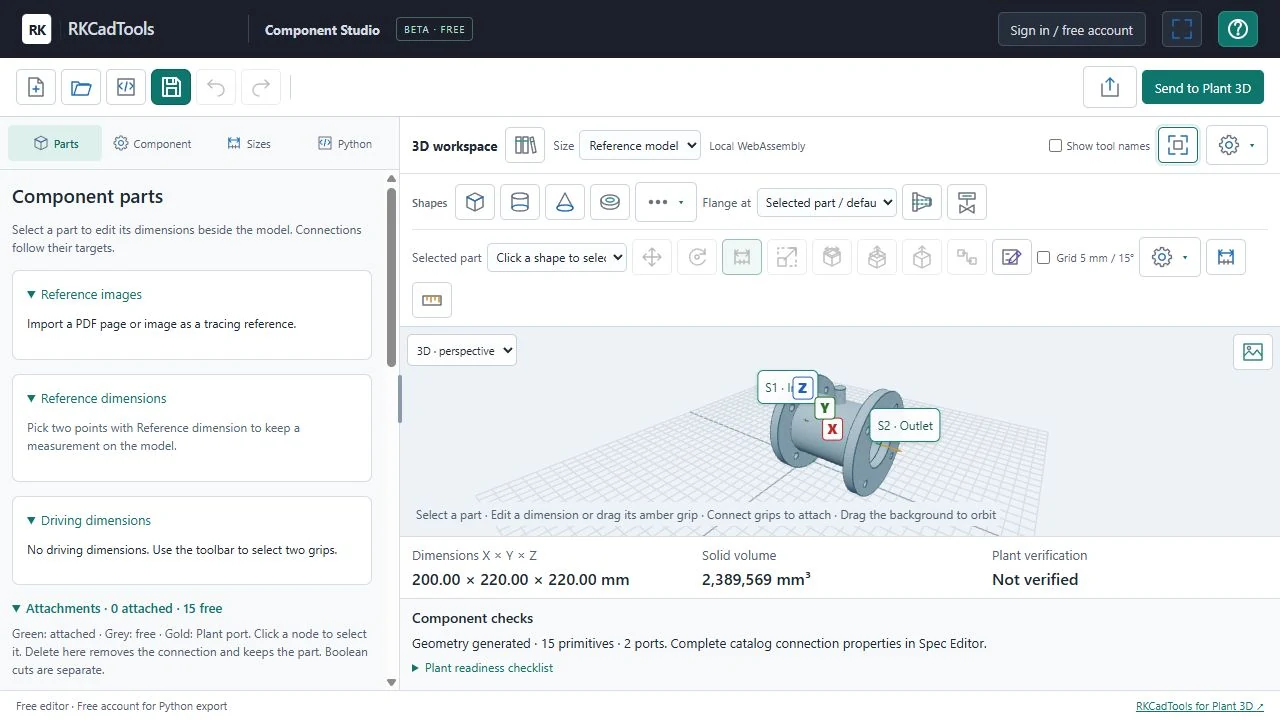
Keep the shape, its dimensions and its connections together.
Start with an editable component from the library or build from supported shapes. Combine solids, cut bores and attach parts so they follow your design as dimensions change. Save the editable model so the next revision starts with your existing work.
Model visually
Choose shapes, enter exact dimensions and use shared parameters or formulas to describe the component.
Define the connections
Place ports on the connection faces and check their outward directions, end types and matching pipe dimensions.
Build a size family
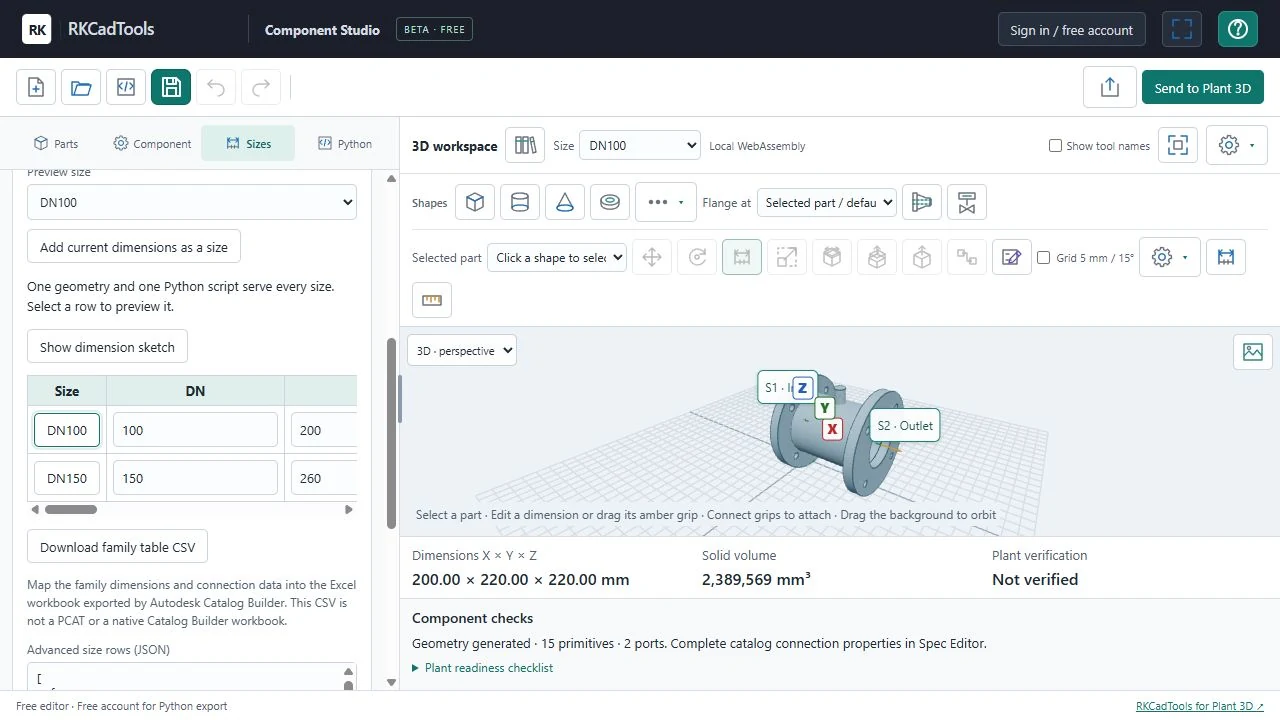
Give each size row its own dimensions, preview the result and check that parts and ports follow the changes.
One model, with the dimensions for each size.
Use the family table to describe the variations. Select each row in the preview and check the body, attached parts and connection positions before export. The pictured DN100 and DN150 rows are illustrative examples.
From a browser model to your Plant 3D workflow.
Component Studio builds the geometry and generates the script. Plant 3D and Autodesk’s catalog tools complete the component, catalog and spec workflow.
1. Enter product dimensions
Choose a starter or build from shapes. Replace example values with the actual body, bore, flange and actuator dimensions for your product.
2. Check ports and sizes
Review the port positions, outward directions and connection values. Preview every size to check that the parametric geometry follows correctly.
3. Save and export
Save an editable component file. Sign in with a free account to generate the Plant Python script, then download the script or family package.
4. Finish in Plant 3D
Install and register the script. Complete the catalog and spec in Spec Editor or Catalog Builder, then test geometry, connections and isometric output in a demo project.
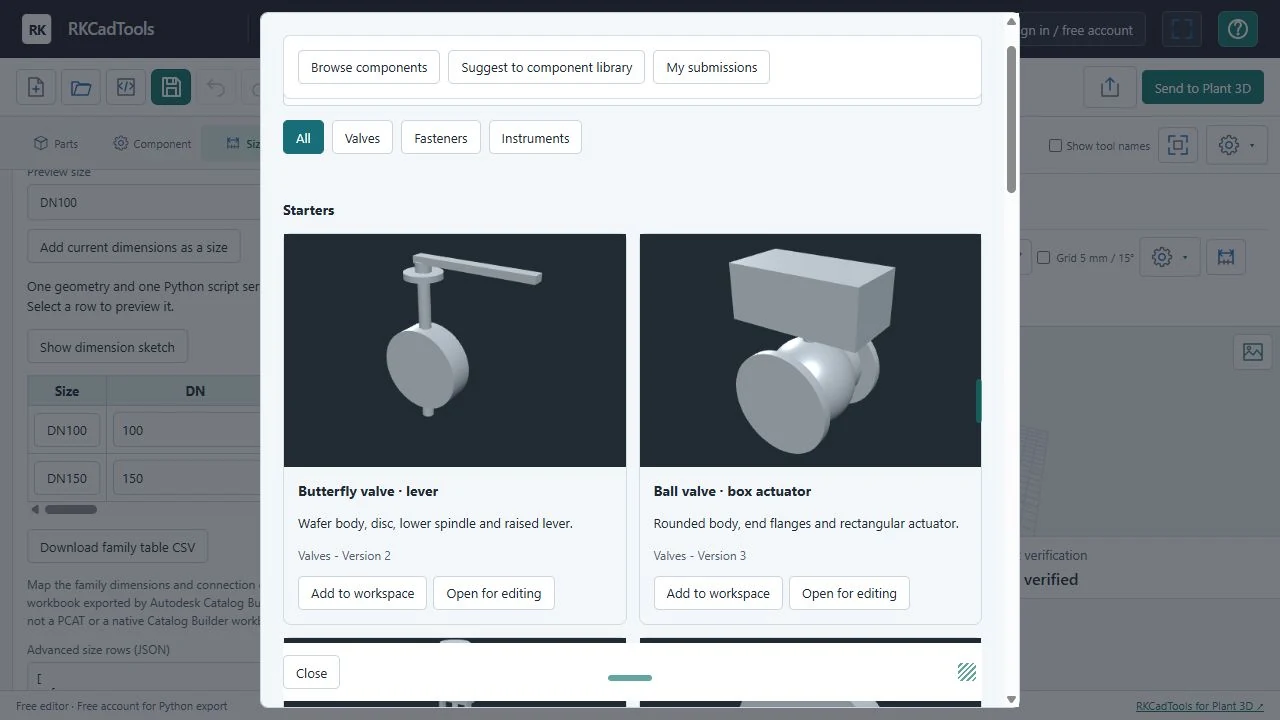
An editable starting point for your next component.
Explore the component library for generic valve, fastener and instrument starters. Add a component to your workspace or open it for editing, then adapt the shape and family to your needs.
Starters provide example geometry and dimensions. They are not a manufacturer’s product specification, pressure rating or finished Plant catalog entry.
Keep the editable source. Take the Plant script.
Keep a saved component file so later size or design changes start with your model. Generated geometry still needs the correct catalog, connection and spec properties in Plant 3D.
- Editable component · .component.json
Reopen the shapes, parameters, attachments and size family in Studio. - Plant Python · .py
Register the generated parametric geometry script in AutoCAD Plant 3D. - Family and catalog data · .csv
Use the dimension rows as input to map into Autodesk’s catalog workflow. A CSV is not a native.pcatfile. - Family + sketch package · .zip
Download the script, family data and supporting reference outputs together.
Free in the browser. Two ways to continue in Plant.
Model and download
Start modeling without an account. Connect a free RKCadTools account when you want to export Python. Copy and register the exported files manually if you prefer the manual installation workflow.
Generating Python sends the model geometry to RKCadTools for export. Reference images stay on your device.
Send directly to Plant 3D
Direct transfer requires RKCadTools loaded with a valid plugin license and the paired RKCadTools browser extension. Review the request in Plant and read the completed result on its command line.
A browser message saying the request was queued does not confirm that the component has passed a Plant test.
Make your next component your own.
Open the browser editor, choose a starting shape and enter the dimensions for one size. Follow the guide when you are ready to take it into Plant 3D.